MOOR INSTRUMENTS moorLDI2 RESEARCH USER MANUAL
43
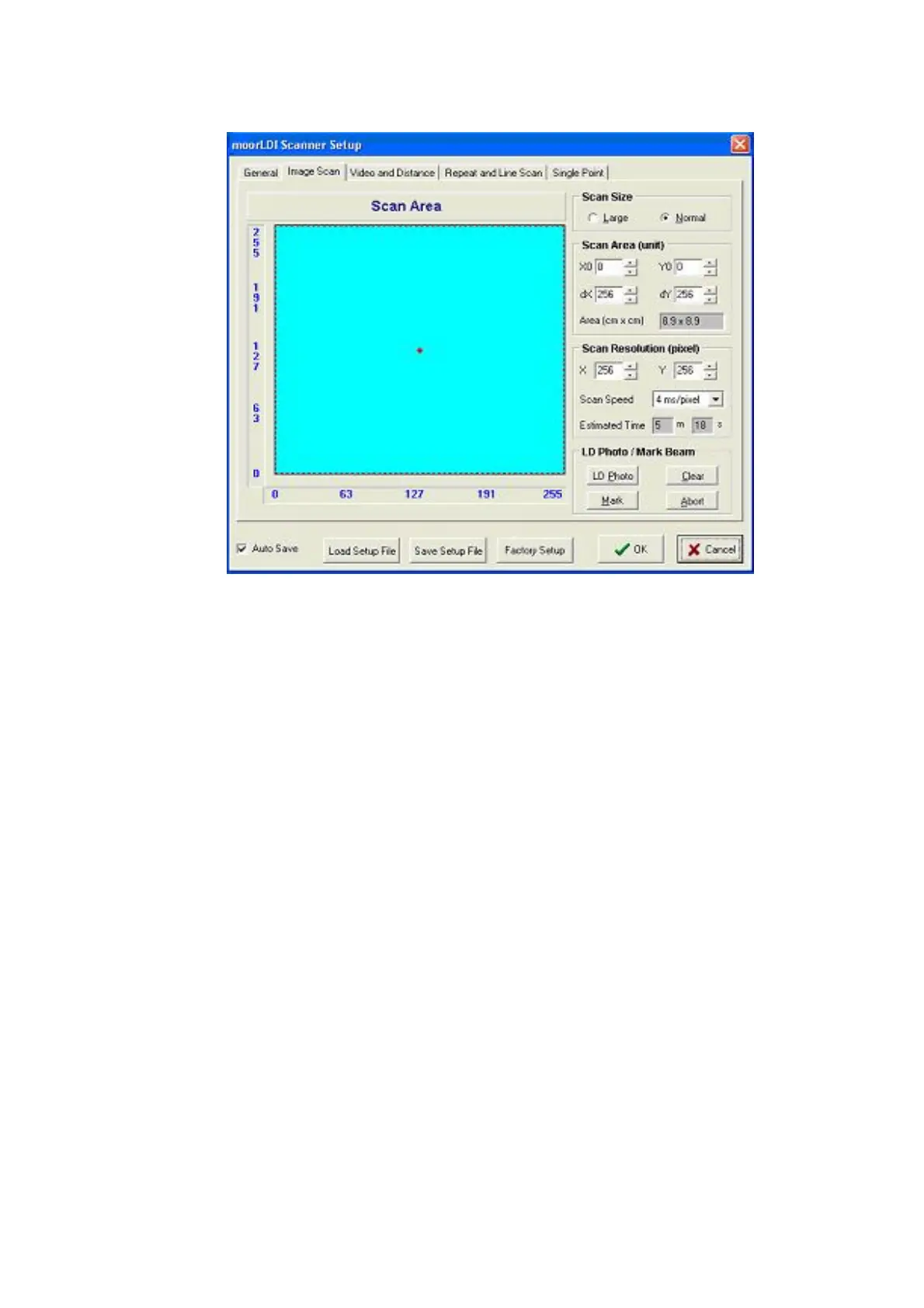
The maximum scan area is also displayed in this window. If the size displayed is not large enough
either:
- increase the
moorLDI
-to-tissue distance,
or - click on
Large
to double the area which can be scanned compared to the
Normal
setting.
6.3.1.1 Scan Size, Area and Resolution
Move the cursor into the blue scan area of the
Image Scan
configuration window, the region to be
scanned is indicated by a rectangle the perimeter of which is marked with a red broken line. The
current beam position is shown by a red spot.
To change the shape (dimensions) of the scan area :
- move cursor to one corner of the scan region box
- drag this (with the left mouse button depressed) to a new position
-
repeat with other corners as required.
-
Alternatively you can type in co-ordinates of your
scan area
in X0/Y0/dX/dY or use
the increase/decrease arrows to the right of each box, pointing and holding down or
clicking the mouse left button.
Moving the scan area:
- move the cursor to the centre of the scan region box
- drag the box to new position required
Alternatively you can type in co-ordinates of your scan area in X0/Y0/dX/dY.


 To Next Page