MOOR INSTRUMENTS moorLDI2 RESEARCH USER MANUAL
80
12.2
REDEFINE LDI FILE
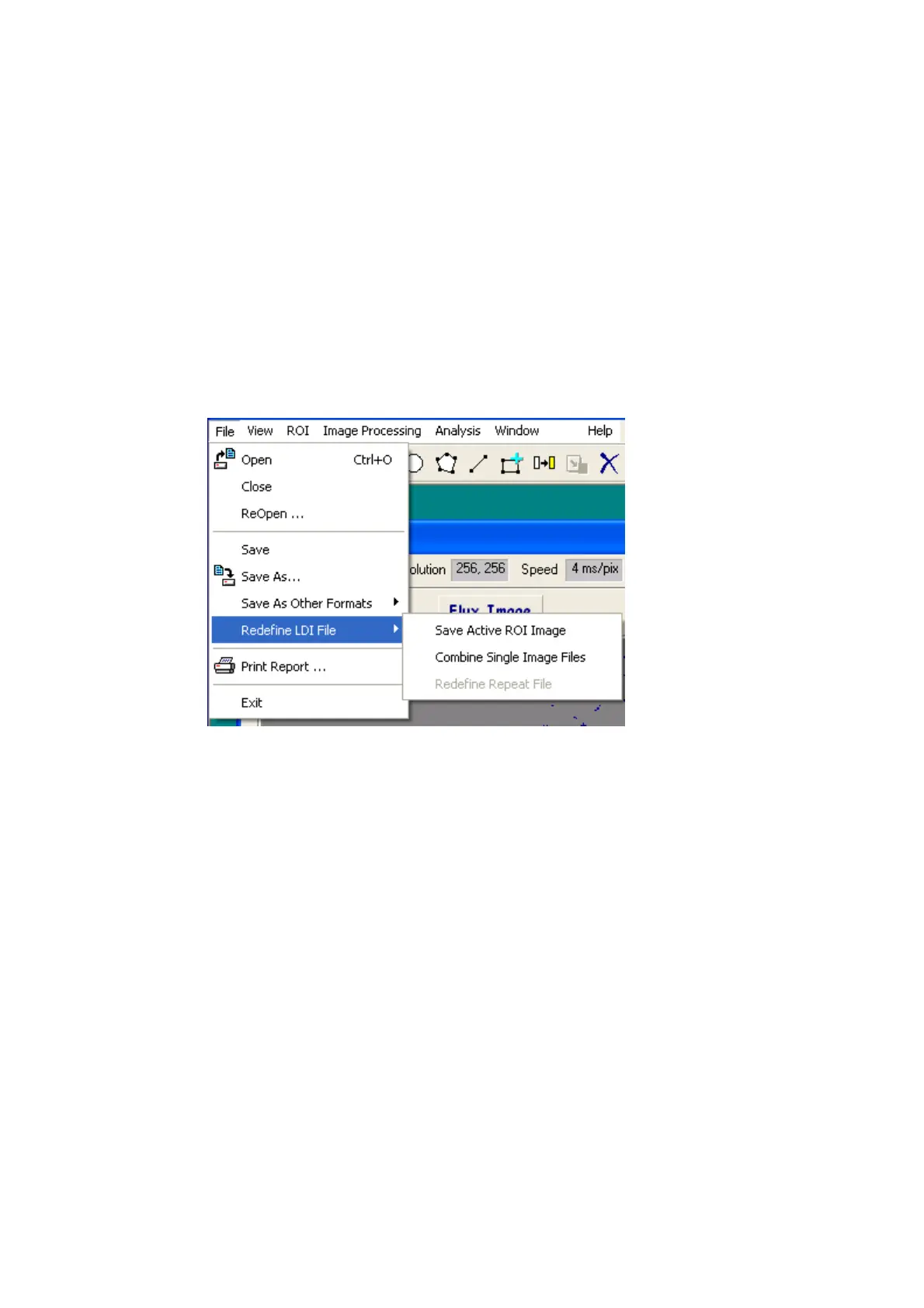
Save Active ROI image: if there are rectangle ROIs defined, images within the active rectangle ROI
will be saved into a new file.
Combine Single Image Files: combine single image files into one repeat image file. The single
images must have the same LDI type, Scan Size, Scan Range and Resolutions. Follow the steps
below to choose files to be combined:
1) Locate the image data directory in the left column.
2) Select files to be combined in the middle coloum, then click on the Add to button to add the
files to the list (third column).
3) Click on the Save Repeat File button to combine and save the repeat file.
Note, it will be assumed that all single images have the same scalers, gains, distance, background,
normalisation, wavelength etc.
All parameters extracted from the first file in the selected list will be used for the new repeat file. A
table will be given to display single image file names that have different parameters (e.g. distance,
wavelength, DC/Flux scalers and distance scalers).
Redefine Repeat File: this function can be used to redefine (e.g. delete one or some of the images,
redefine the sequence.) repeat image. You can input image number or range using the following two
formats:
Separate by commas e.g. 1, 4, 7, or select a range e.g. 3-7. You can use a combination of the
two formats.
If only one image number is selected, the image will be saved as a single image file.


 To Next Page