MOOR INSTRUMENTS moorLDI2 RESEARCH USER MANUAL
28
To install the drivers and the moorLDI2 V5.3 software follow these steps:
1. Make sure that the IEEE Firewire cable is not connected to the PC before installing software
and turn off the moorLDI2.
2. Insert the software installation CD-ROM disc into your CD-ROM drive.
3. If AutoPlay is enabled, the installation screen should appear. If AutoPlay is not enabled, or
the installation does not start automatically, click on Windows® Explorer and select the setup
file (mLDIV53Setup.EXE) from the CD-ROM drive.
4.
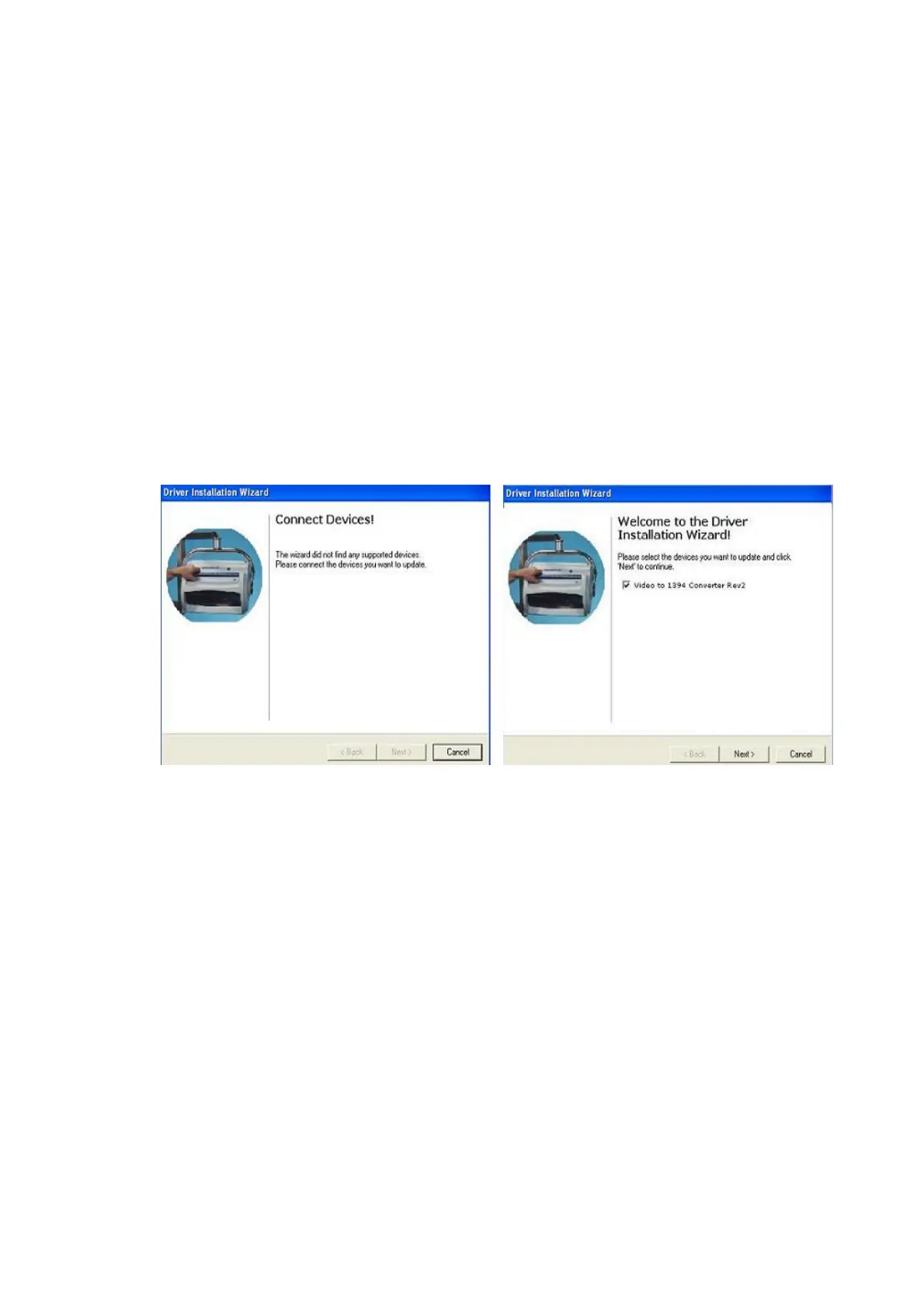
Follow the on-screen instructions. Once the “Driver Installation Wizard” window appears as
shown below, connect the Firewire (IEEE1394) cable to the PC and turn the system on. After
a short delay the IEEE 1394 converter will be detected as “Video to 1394 Converter Rev2”.
Click
Next
to continue with installation. Note: if the F6 card is used (Analogue Camera
model), click
Cancel
to skip this step.
Note that the Windows
Found New HardwareWizard
may appear when the 1394 cable is
connected and the moorLDI2 is turned on (see below), if this happens click
Cancel
to close it.
Windows may display an error message in the task bar when the
Found New Hardware
Wizard
is closed, this is normal and the error message can be safely ignored.


 To Next Page