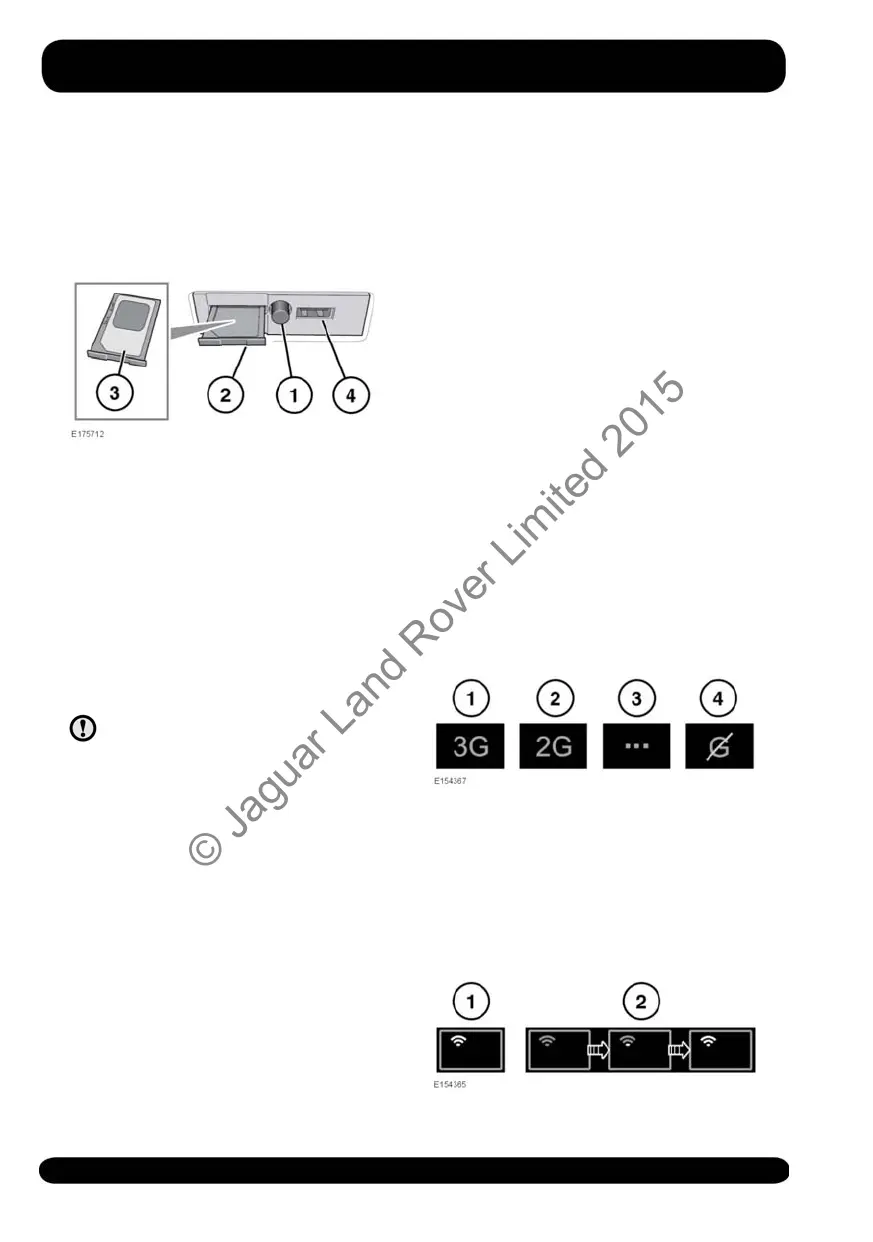
Note: If your SIM card has previously been
used, and a Personal Identification
Number (PIN) has been set, remove the
PIN before using the SIM card in the
vehicle.
The SIM card holder is located on the left
side of the luggage area behind a
removable panel.
1. Press the button to release the SIM
card holder.
2. Remove the holder from the SIM slot.
3. Insert the SIM card into the holder and
reinsert the holder into the SIM slot.
Gently push it back to fully close.
4. The USB port is for service use only.
Make sure the SIM card is located
correctly in the card holder. Failure
to do so may damage the SIM card
or SIM card reader.
Wi-Fi settings
InControl Wi-Fi can be switched on/off
using the Touch screen. From the Home
menu screen, navigate to the Extra
features menu screen/s, then select WiFi
Hotspot. See the Touch screen section of
this handbook for more information.
The WiFi Hotspot screen will display the
Wi-Fi network ID and password. It also
allows you to adjust basic system settings.
More advanced settings, including
changing your security password and
Access Point Name (APN) configuration,
can be carried out by accessing the Wi-Fi
Hotspot Router menu on your mobile
device.
To access the Wi-Fi Hotspot Router
menu:
• From the WiFi Hotspot screen, select
Help.
• The Wi-Fi Hotspot router address will
be displayed on the Touch screen.
Copy this address into your mobile
device’s internet browser.
The Wi-Fi Hotspot Router menu will now
be displayed on your mobile device. Log
in using the details displayed on the Help
screen.
Wi-Fi icons
1. 3G mobile phone network
connectivity.
2. 2G mobile phone network
connectivity.
3. Connecting.
4. No mobile phone network connection.
174
InControl
© Jaguar Land Rover Limited 2015



 To Next Page