MAP SCREEN
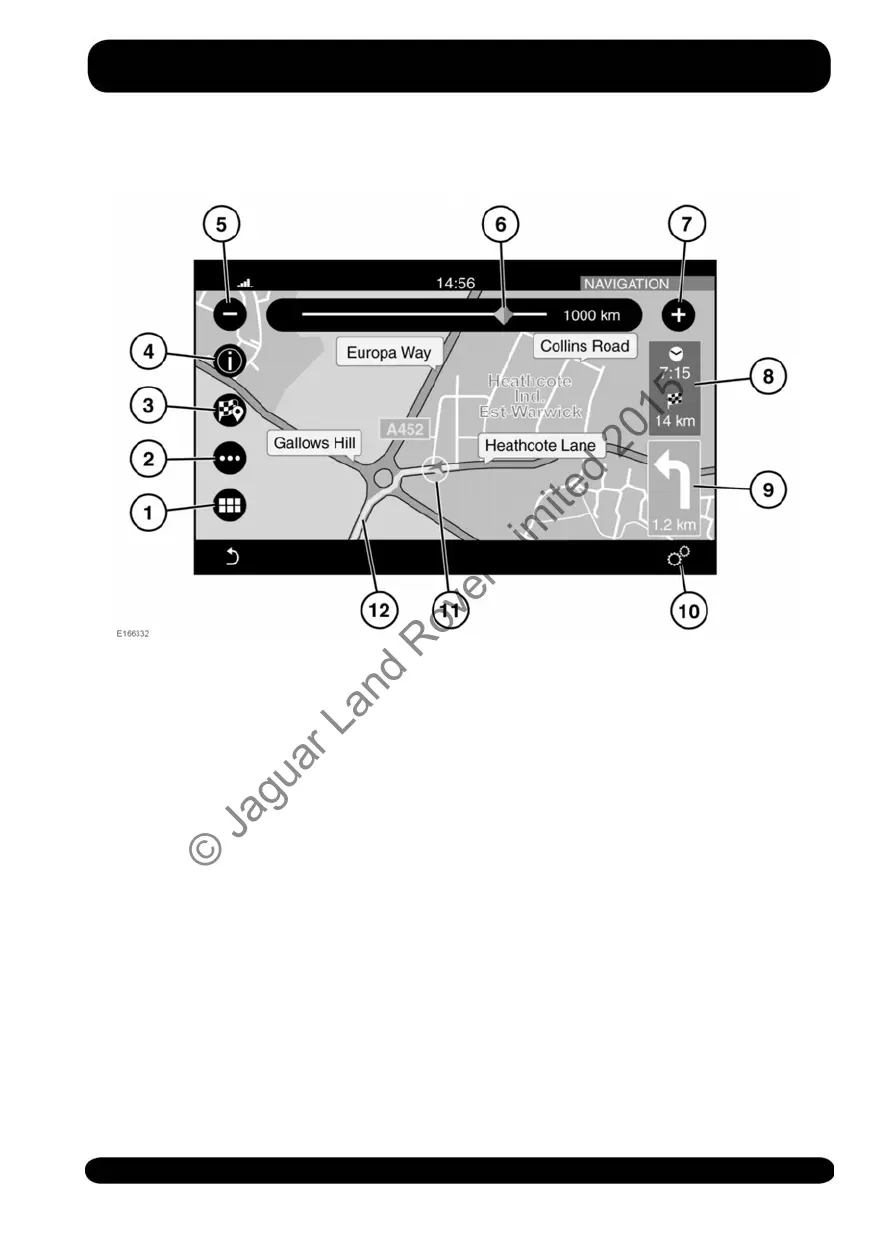
1. Touch to select the NAV MENU.
2. Touch to select the ROUTE menu.
3. Touch to set a selected destination.
4. Touch to show information for a Point
of Interest (POI), or for traffic
information.
5. Touch to reduce the map size.
6. Drag the indicator along the scale to
enlarge or reduce the map size, or
touch the line for the position
required.
7. Touch to enlarge the map size.
8. Touch to change between estimated
time to destination and distance to
destination.
9. Next manoeuvre icon and the distance
to the next manoeuvre. Touch to hear
voice guidance for the next
manoeuvre.
10.Touch to select the SETTINGS pop-up
menu, followed by Navigation, to view
the NAVIGATION SETTINGS screen.
See 179, SETTINGS.
11.Indicates the vehicle's position on the
set route.
12.The route that has been set.
SETTINGS
To view the NAVIGATION SETTINGS
menu, select Navigation from the
GENERAL SETTINGS menu. The
NAVIGATION SETTINGS menu contains
the following options:
179
Navigation system
© Jaguar Land Rover Limited 2015



 To Next Page