142 • Service Mode Programming SAM4S SPS-300 Series Electronic Cash Register AU
2. Use the PC Utility to Convert the Image
1. Install the SPS-300 PC Utility on your PC.
2. At your PC, start the SPS-300 PC Utility. (Select Start, Programs, SHC PC UTILITY,
SPS-300 PC UTILITY.) The Store Setting dialog box displays.
3. If you are starting the SPS-300 PC Utility for the first time, you must define a store name,
or if a store is already defined, you can select the store from the drop down list. After the
store is defined or selected, click Close. The PC Utility program starts.
4. Move the .bmp logos you wish to use into the store directory
(i.e. C:\SPS-300PC\storename.)
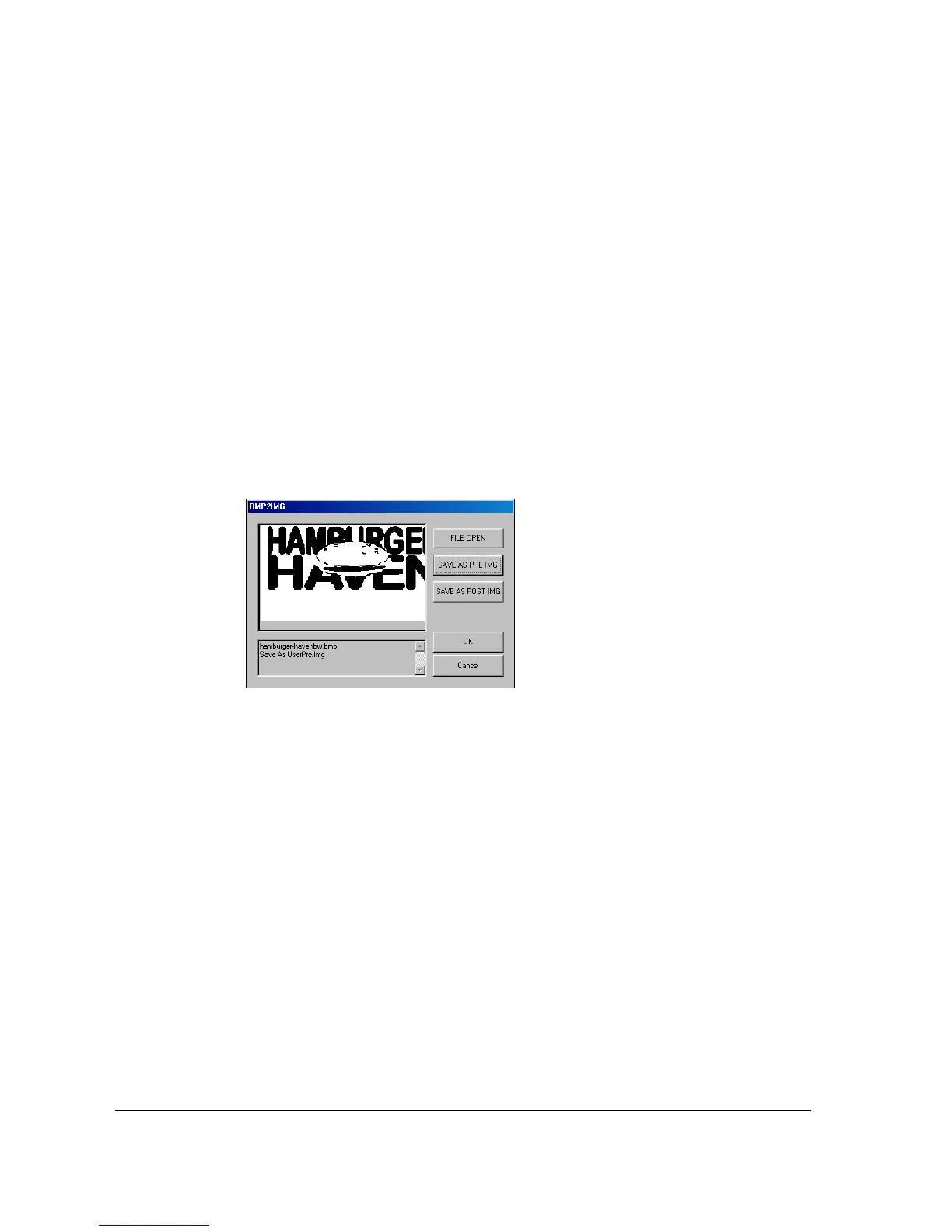
5. At the PC Utility, choose Convert Logo Image from the Utility menu. The Bmp dialog
box displays.
6. Click FILE OPEN. Select the bitmap image you wish to use from the Open dialog and
click the Open command button.
7. Click the SAVE AS PRE IMG or SAVE AS POST IMG button.
8. When the image is selected, click OK. Verify that the message “Save As UserPre.Img” or
“Save As UserPost.Img” displays. If the file is too large, and cannot be loaded, the
message “File Size Error” displays.


 To Next Page