168 • Program Mode Programming SAM4S SPS-300 Series Electronic Cash Register AU
Programming a Tax Table
In some cases, a tax that is entered as a percentage does not follow exactly the tax charts that apply in
your area (even if the tax chart is based on a percentage). In these cases, we recommend that you
enter your tax using tax table programming. This method will match tax collection exactly to the
break points of your tax table.
Before programming, obtain a copy of the tax table you wish to program. You will need the printed
tax table if you wish to determine the break point entries yourself. The " Tax Table Programming
Example - Illinois 6% Tax Table " is used as an example in the steps that follow.
NOTE: On SPS-300, you can enter up to 75 break points.
1. Turn the control lock to the PGM position.
2. From the PROGRAM MODE menu, press 2 to view the TAX PROGRAMMING screen.
3. When the arrow is pointed at the TAX NUMBER field, enter the number of the tax you wish
to program. (There are four taxes available, enter 1, 2, 3, or 4.) Tax 2 is used for example.
4. When reaching the option you want to modify,
• For descriptor programming options, the keyboard will change to Program Overlay,
enter the character you need up to 18 characters. Or enter Descriptor Code to make up the
description you want.
NOTE: System Option is default to Program Overlay. Please check setting on page 17
• For numeric programming options, enter the number through numeric pad,
5. Enter 1 then press ENTER (CASH) at TAX TYPE (0-2) field for an TAX TABLE
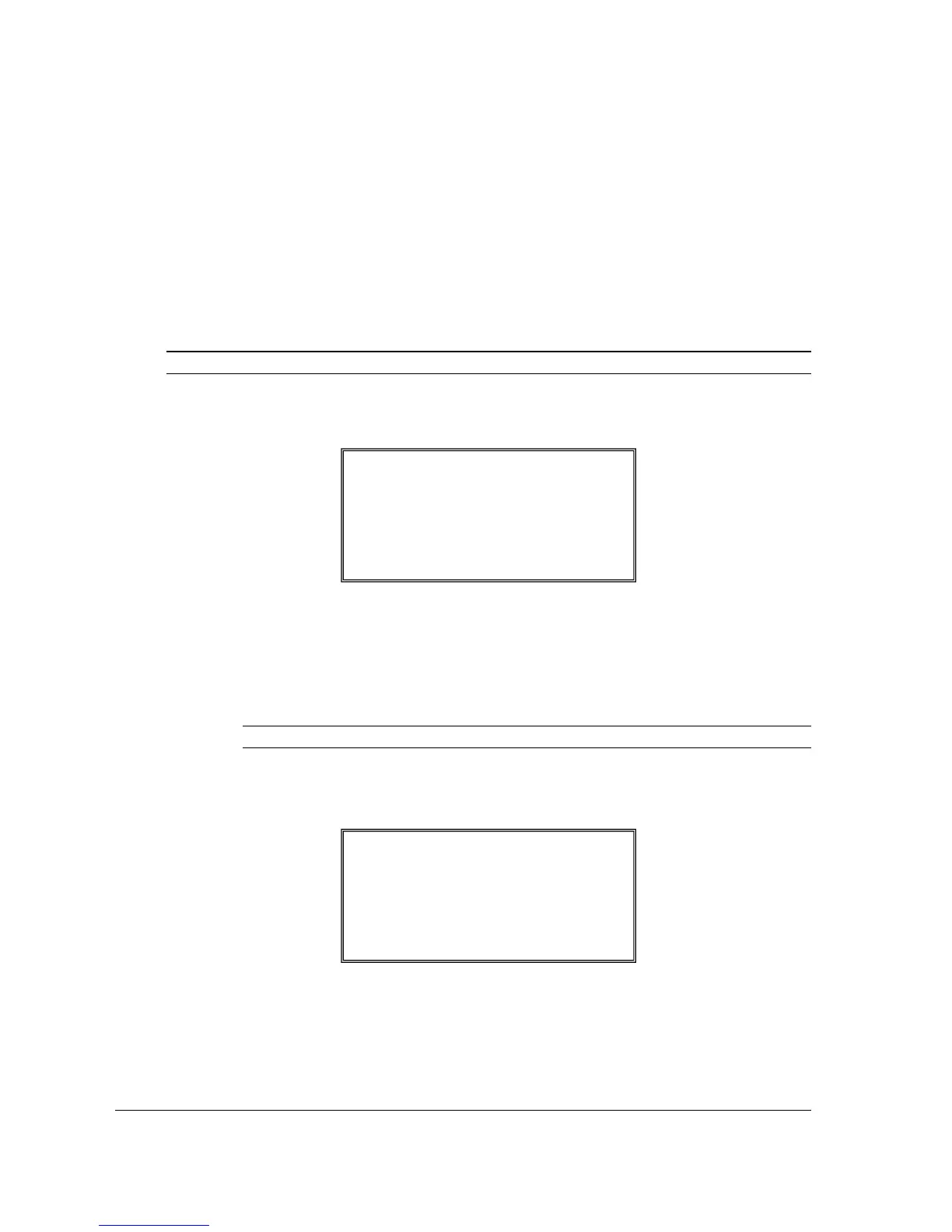
programming. The appropriate TAX # PROGRAMMING screen displays:
6. Use the table on next page as a guide in filling the fields on this screen. After completing
these entries, your screen should look like the screen that follows.
TAX #2 PROGRAMMING
FIRST TAX AMOUNT
0.00
Å
NON-TAXable AMOUNT
0.00
# OF NON-REPEAT BREAK
0


 To Next Page