9 Worklist (Option)
9.2 Receiving a worklist
Page 66
CT8000P-2
Art. no.: 2.511407 Rev.: a
9.2 Receiving a worklist
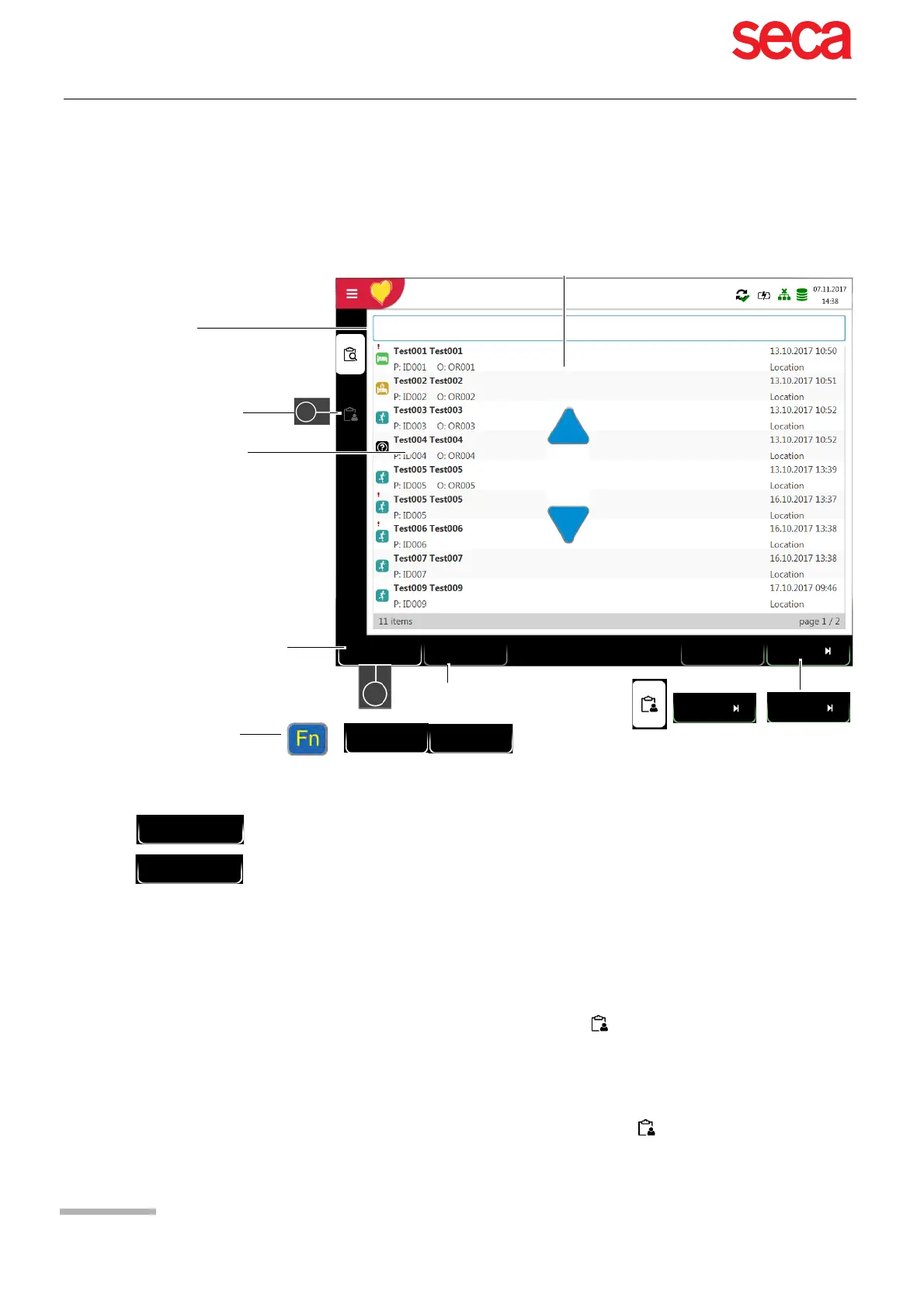
To open the worklist proceed as follows:
1. Press Menu > Worklist.
3. Depending on the setting in the Workflow menu, the following workflows are
possible:
• Recording from worklist
You can start the selected order (2) directly by pressing the key (4), or you can
first check the workitem by pressing (3), return to the worklist and then
perform the recording (4).
• Recording from workitem
You can view the selected order's (2) details by pressing the key (5). The
recording can then be started directly in the Recording details view by
pressing the key “Resting” (4).
2. To receive a worklist from a HIS, press the Sync. worklist (1) key to download
the worklist from the server. Wait (up to a few minutes) for the worklist to be
populated. If "Auto Sync Worklist" is programmed in the Menu > Settings >
General > Workflow, the list is updated every minute and the update time is
displayed on the key.
Search recordings
Sort recordings
Select a recording
Delete selected
workitem from the list.
Search for PID, Visit ID, first name or last name
Workitem Details
2
Worklist
1
3
Auto
Resting
Exercise
Delete Order
Sync. worklist
4
Details
5
Sort by:
Start time
Sort order:
up sort time:
+
Sync. worklist
12:35:11
Sync. worklist


 To Next Page