57
8. You can still view the device information and current MTConnect data by using a web browser as
a client and the system’s IP address even if the printer is not on a network. You can do this by
directly connecting a computer to the printer with a Crossover Cable connected to the Ethernet
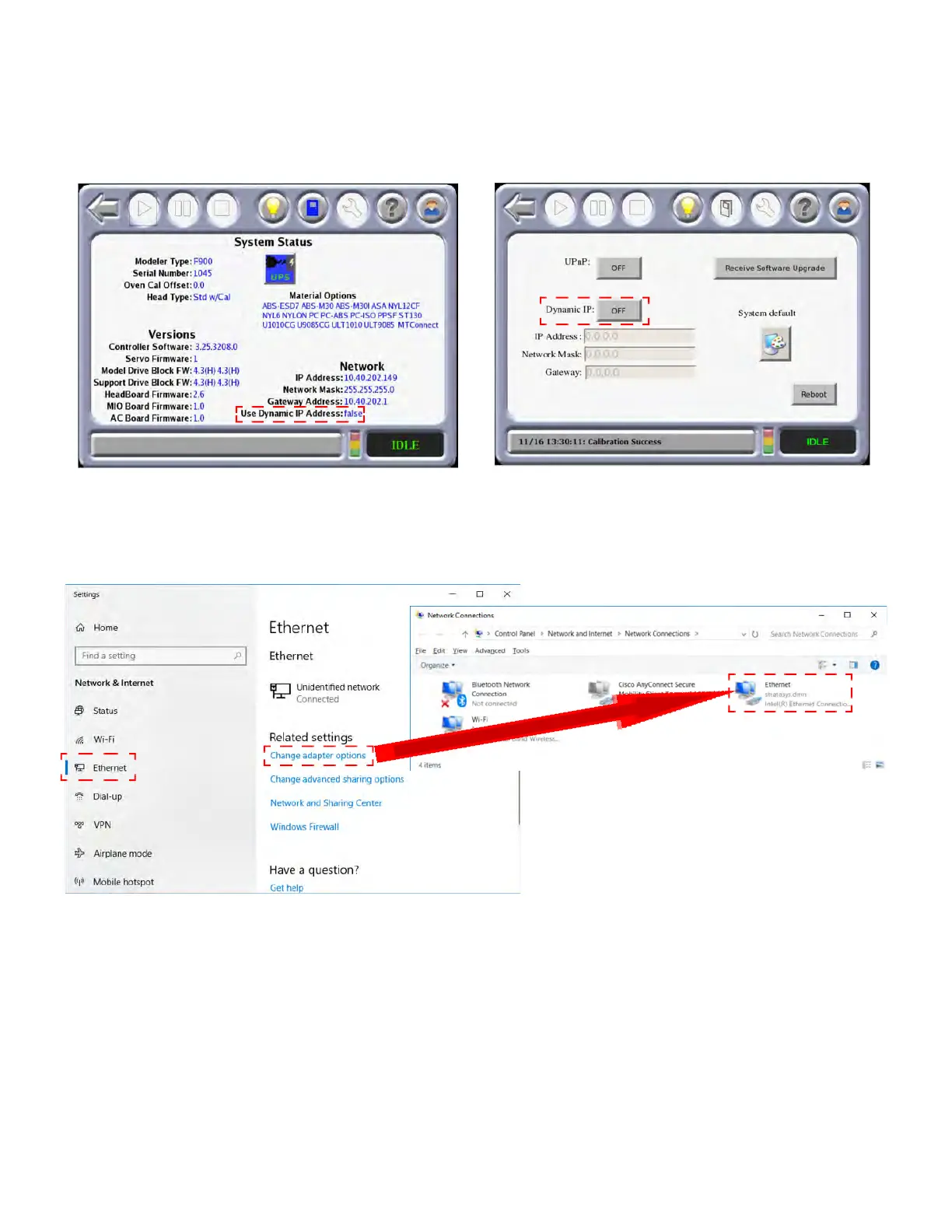
Ports. Ensure the printer “System Status” setting for “Use Dynamic IP Address” is set to “false”.
Figure 4-19: En
sure proper system status
9. Connect a computer to the printer at the ethernet ports using a crossover cable.
1
0. Navigate to the computer’s Ethernet Network Settings and select “Change Adapter Options”.
1
1. Right click on Ethernet and select Properties.
12. In the Ethernet Properties screen, using the images below as a general guide, set the “IP
address” to match the printer’s, EXCEPT change the last triplet to another number between 1
and 255.
13. Set the “Subnet mask” to match the printer and click OK.
1
4. The computer and your printer can now communicate like an “isolated” network. The previously
e
xplained method of using a browser as a client will work.
Figure 4-20: Et
hernet Properties














 To Next Page