148
6
Troubleshooting
6.6
Other Problems
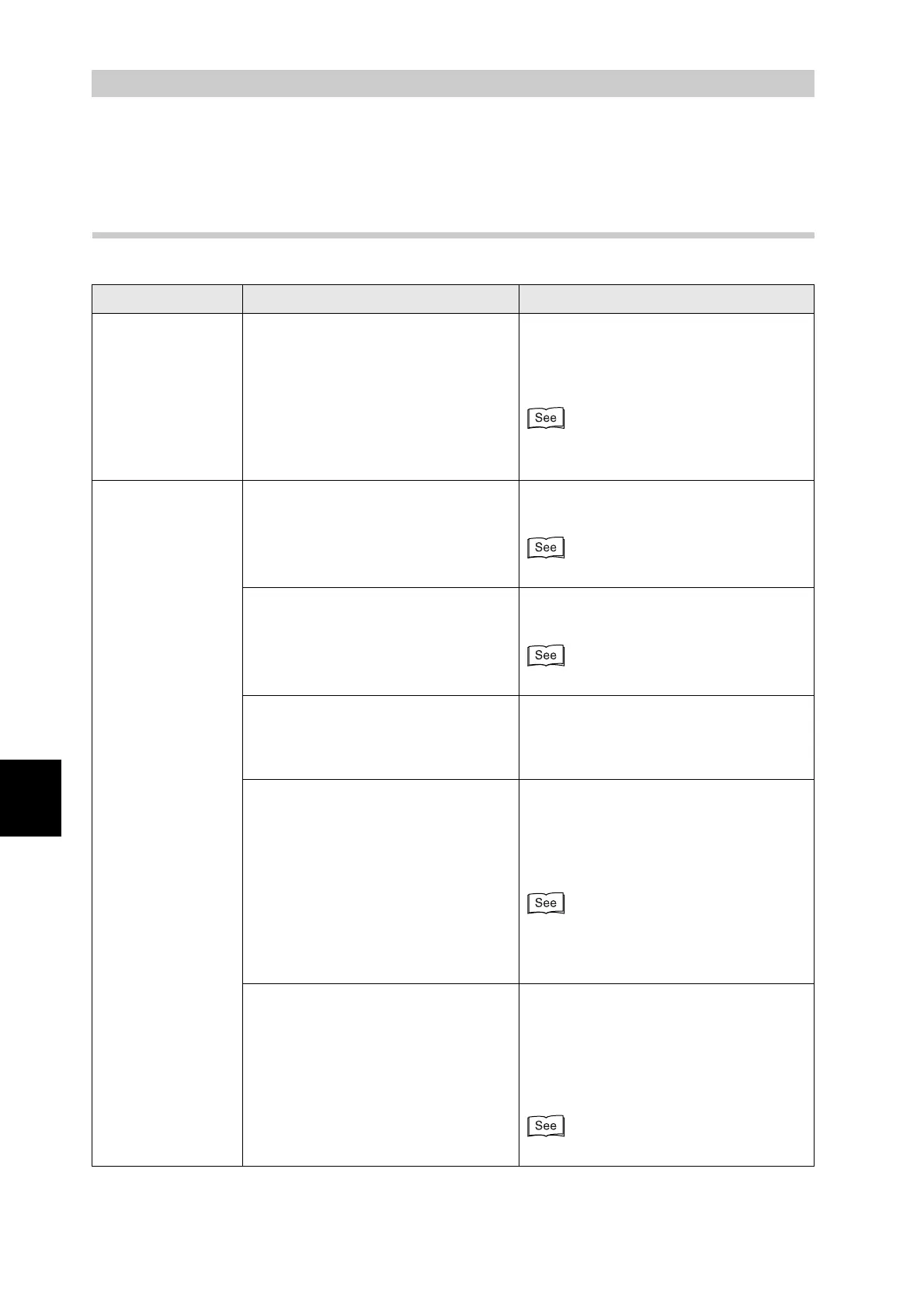
6.6.1 Network Problems
Condition Verification Solution
The IP address
changes when
turning on the
printer
Is the printer set to acquire an IP
address through a DHCP server?
On the control panel, select "5:Network",
then "IP Address Setup" and select
"Panel" to set a permanent IP address
for the printer.
●
"5.3 List of Menu Items"
●
"1.2.3 Setting the IP Address".
Cannot connect to
Internet Services
Is the printer off? Press the "I" on the power switch to
switch on the printer.
"3.1.1 Switching On the Power"
Is the Ethernet cable loose or
disconnected?
Switch off the printer and check the
Ethernet cable. If necessary, reconnect.
Setup Guide
Is the printer’s Internet address
correct?
Confirm that the printer Internet address
is correct. If the problem persists, use an
IP address to connect to the printer
instead.
Is the printer’s IP address correct? The IP address might be different. Ask
your system administrator for the correct
settings.
Use the Printer Settings list to confirm
the current IP address.
●
"8.4.1 Confirming Printer
Configuration and Network Settings".
●
"1.2.3 Setting the IP Address".
Are you using a proxy server? Certain proxy servers block access to
the printer.
Configure your Web browser so that it
does not use the proxy server or set the
address you want to access so that it
does not go through the proxy server.
Network User Guide.



 To Next Page