173
7
Clearing Paper Jams
7.3
Paper Jams in the Paper
Tray
If the Optional 2 tray module is not installed, follow the procedure below to remove paper
jammed in the paper tray.
If the Optional 2 tray module is installed, look for the jammed paper sequentially, starting
with the lowest tray. Follow the procedure described in "7.6 Paper Jams in the Tray Module
(1 or 2 cassettes)".
Procedure
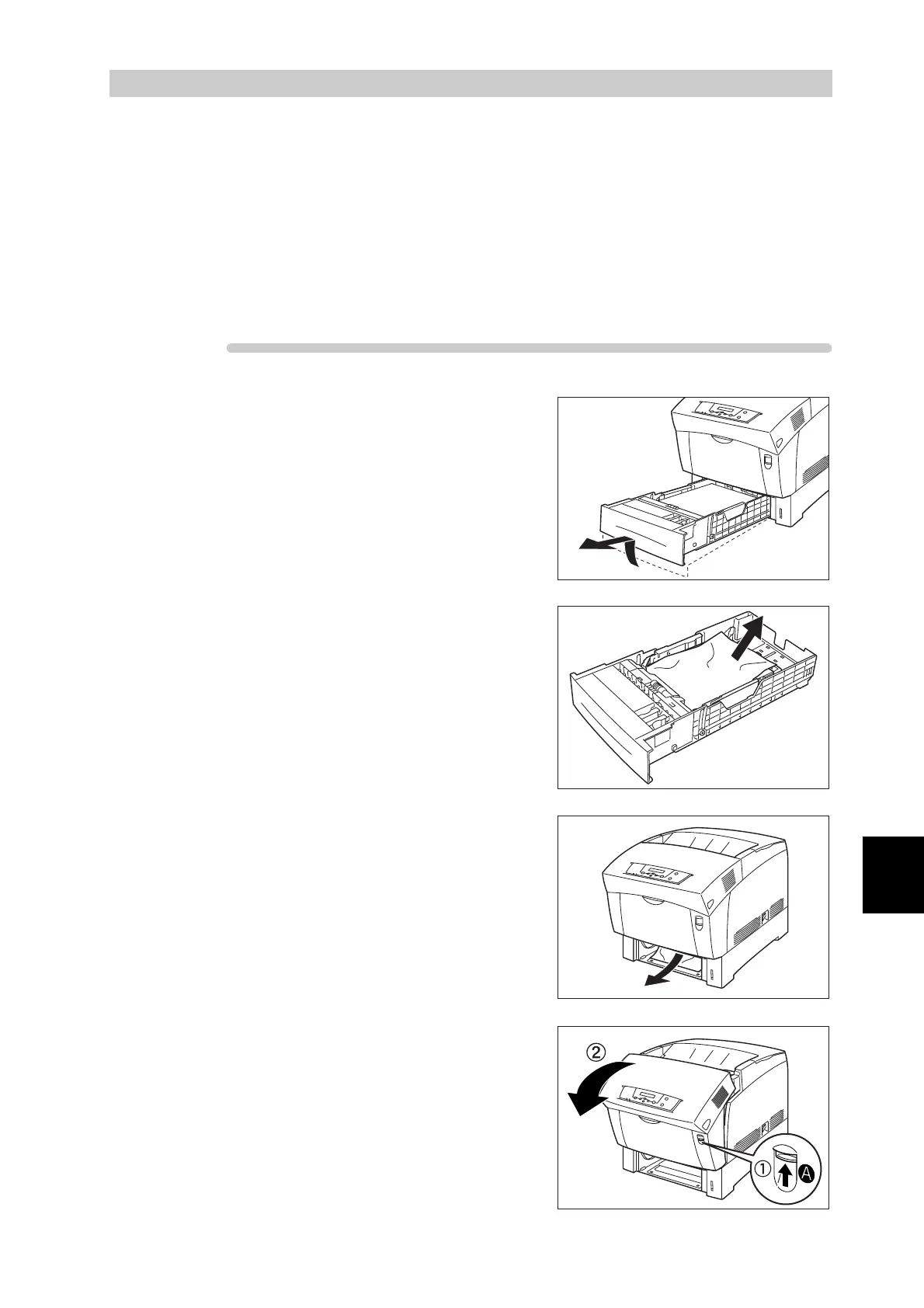
1
Slowly, completely remove the paper
tray from the printer.
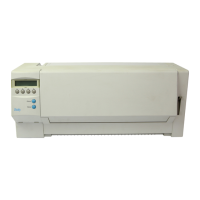
2
Remove all the jammed and/or creased
paper from the tray.
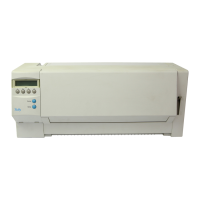
3
If there is jammed paper remaining
inside the printer, pull it out carefully to
avoid tearing it.
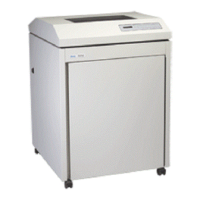
4
Push up button A (1) and fully open the
front door (2). Confirm that there are no
scraps of paper remaining inside the
printer.



 To Next Page