170
7
Clearing Paper Jams
7.1
Paper Jams
If a paper jam occurs, printing stops and an error message appears on the control panel
informing you of the location of the paper jam.
To clear the paper jam, read the error message, refer to the appropriate section below, and
follow the procedure.
Attempting to print while there is paper jammed in the printer may damage the printer. Remove jammed
paper immediately.
●
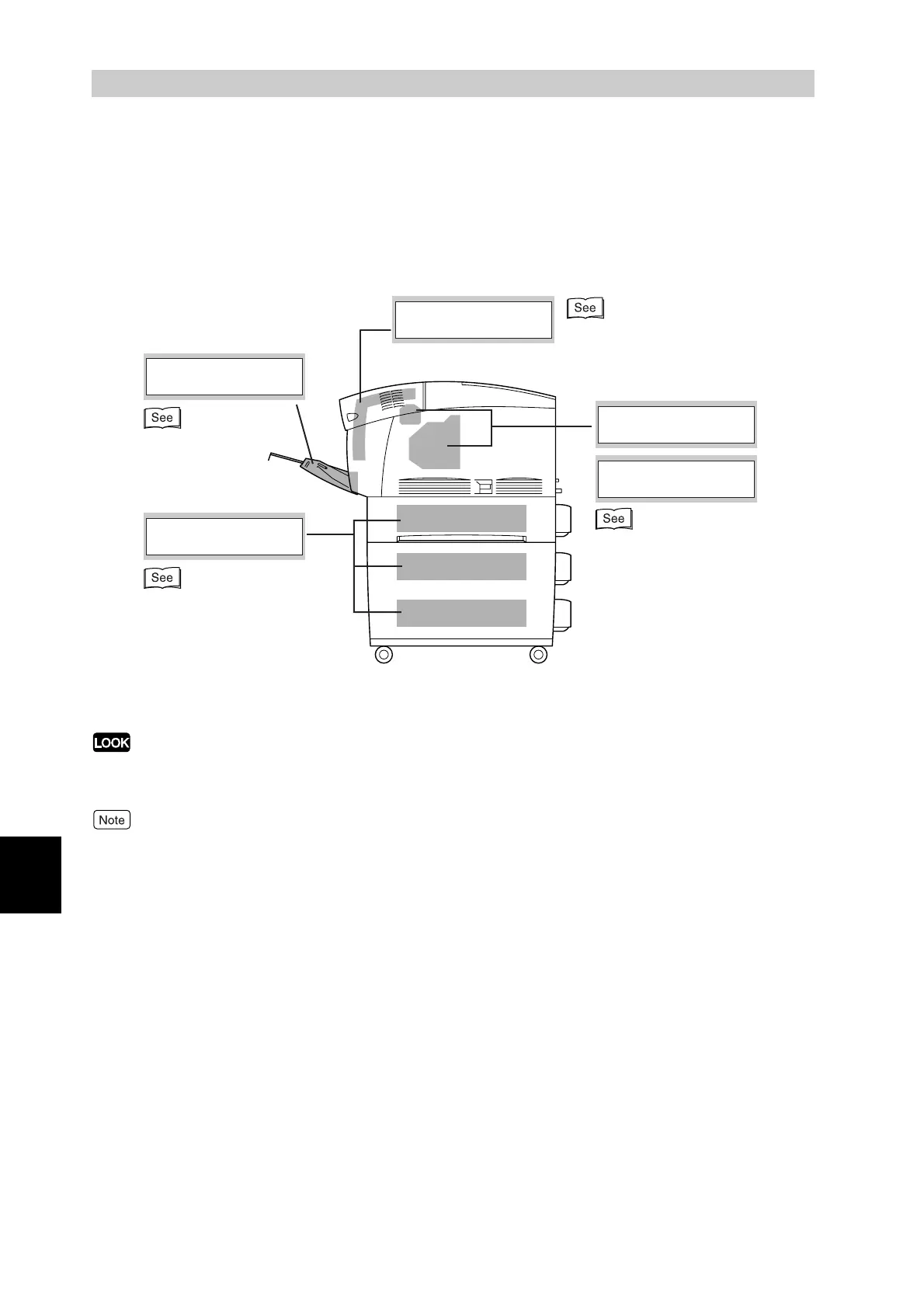
If a paper jam occurs, the open cover indicators on the printer comes on, according to the location of
the jam. Press button A or B, open the front door, and remove the jammed paper.
●
The illustration above shows the printer with the optional 2 tray module installed.
"7.4 Paper Jams Between
the Drum Cartridge and
Fuser Cartridge"
"7.2 Paper Jams
in Bypass Tray"
"7.3 Paper Jams in
the Paper Tray"
"7.6 Paper Jams in the
2Tray Module "
"7.5 Paper Jams in the
Paper Rotator"
Check Tray
Feed
Jam
Check Tray
Feed
Jam
Open Cover B
Duplex Jam
Open Cover A & B
Fuser Jam
Open Cover A
Regi. Jam



 To Next Page