8.4 Printing Reports and Lists
197
Daily Care
8
8.4.2 Checking the Print Log
Use the control panel to print the Job History Report. The print log is a report of
the last 22 print jobs received by the printer. Use it to check whether the jobs
were printed normally or not.
When "Auto Log Print" in the "1:System" menu is set to "Yes", the print log is printed
automatically every 22 print jobs (Default: "No"). For more details, refer to "5.3 List of Menu
Items".
This section describes how to print the Job History Report.
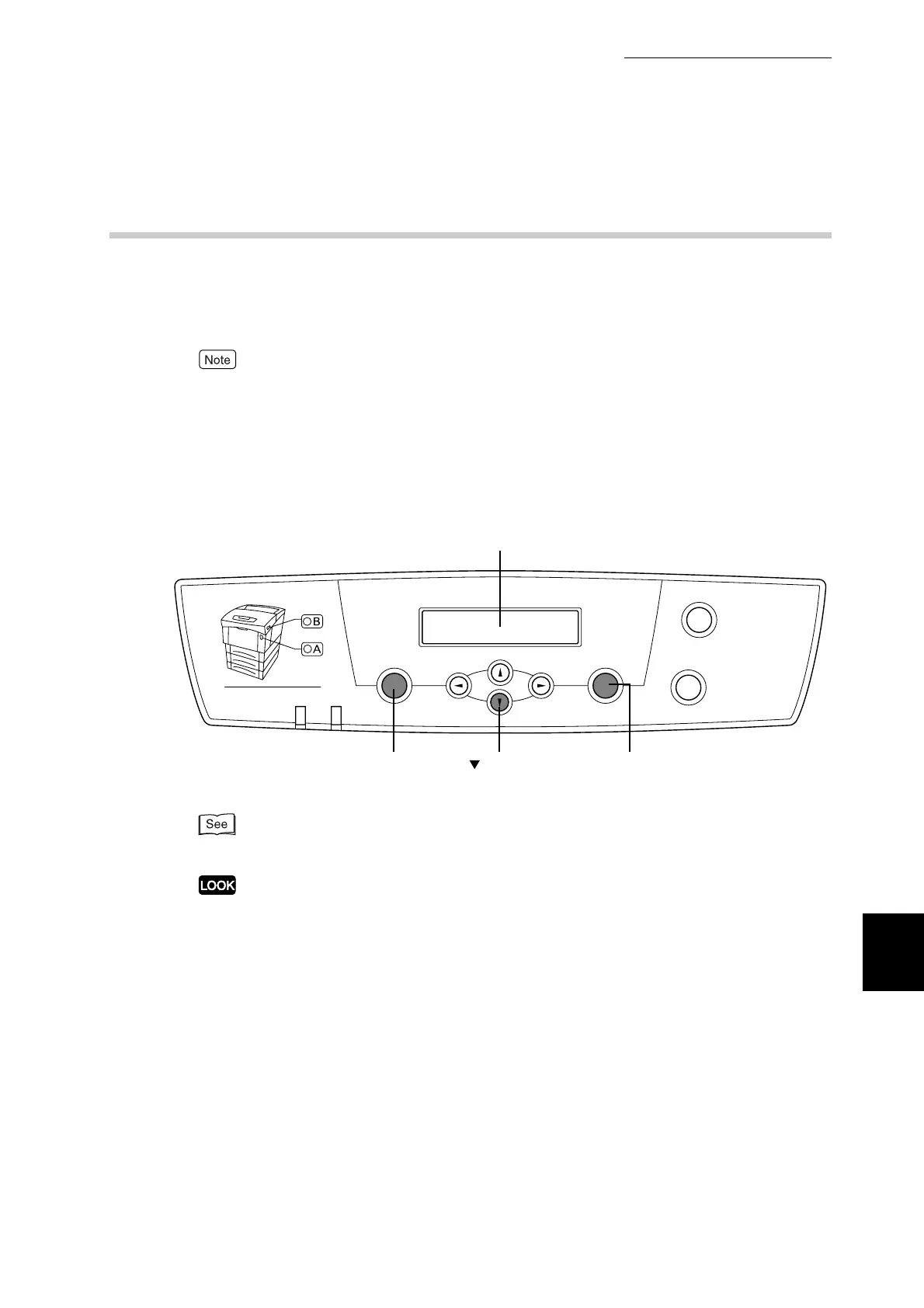
Use the following operation panel buttons:
For details about operation panel operations, refer to "5.2 Basic Menu Operation".
The Job History Report is printed on A4 paper. Set the A4 paper lengthwise into the paper
tray.
Menu
Ready
Eject
Set Back
Cancel
Error
Front Door Release Button
Power saver
button
Display (messages appear here)
Set/Eject button
Menu button



 To Next Page