8.5 Confirming Printer Status from Your Computer
200
Daily Care
8
Procedure
1
Switch the computer on and start your Web browser.
To ensure that Internet Services is working correctly, you need to change the following
settings of the browser.
And if the Internet Services is not connected properly, check the settings below:
●
Set "Check for newer versions of stored pages" to "Every visit to the page or Every time
you start Internet Explorer".
For details about Internet Services, refer to the Network User Guide on the CD-ROM
provided.
2
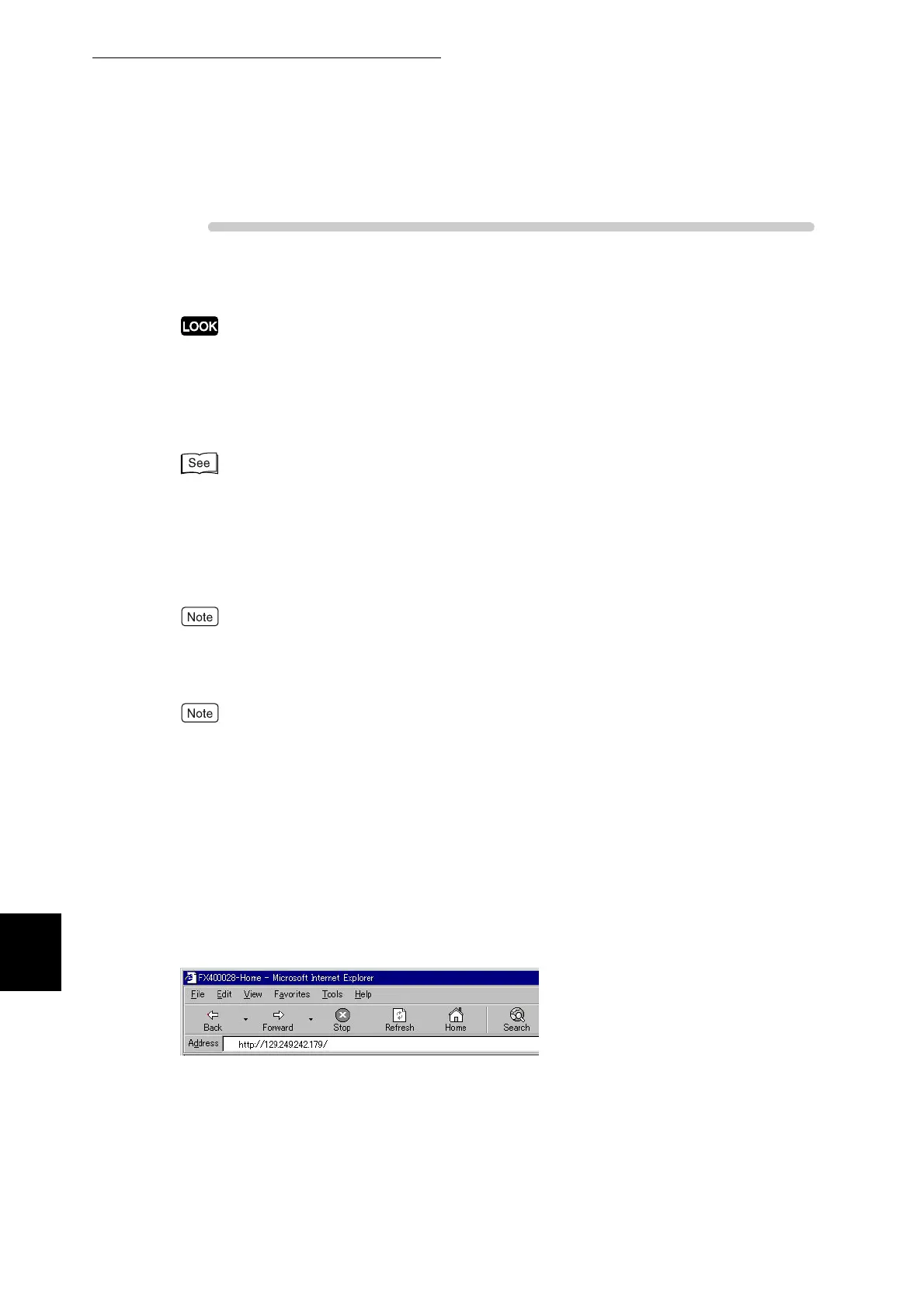
In the Address box of your Web browser, type the IP address or the
Internet address of the printer.
If you are not certain of the printer's IP address, print the Printer Settings list to confirm it. For
details about printing the list, refer to "8.4.1 Confirming Printer Configuration and Network
Settings".
●
If the network uses DNS (Domain Name System) and the printer host name is registered
with the domain name server, you can access the printer using a combination of the host
name and the domain name as the Internet address.
DNS is a service that creates an IP address from a host name on the Internet. Consult
your system administrator to learn if DNS is in use and the Internet address for the printer.
●
With some proxy servers, Internet Services might not appear, even if you input the IP
address.
When this occurs, refer to the Network User Guide on the CD-ROM provided with the
printer, and set your browser to connect directly to Internet Services, without going
through the proxy server.
Example 1: For IP address 129.249.242.179, type http://129.249.242.179/
3
Press the Enter key.
The Internet Services screen appears.



 To Next Page