2.3 Configuring the TCP/IP Direct Print Utility
37
Installing the Printer Driver
2
6
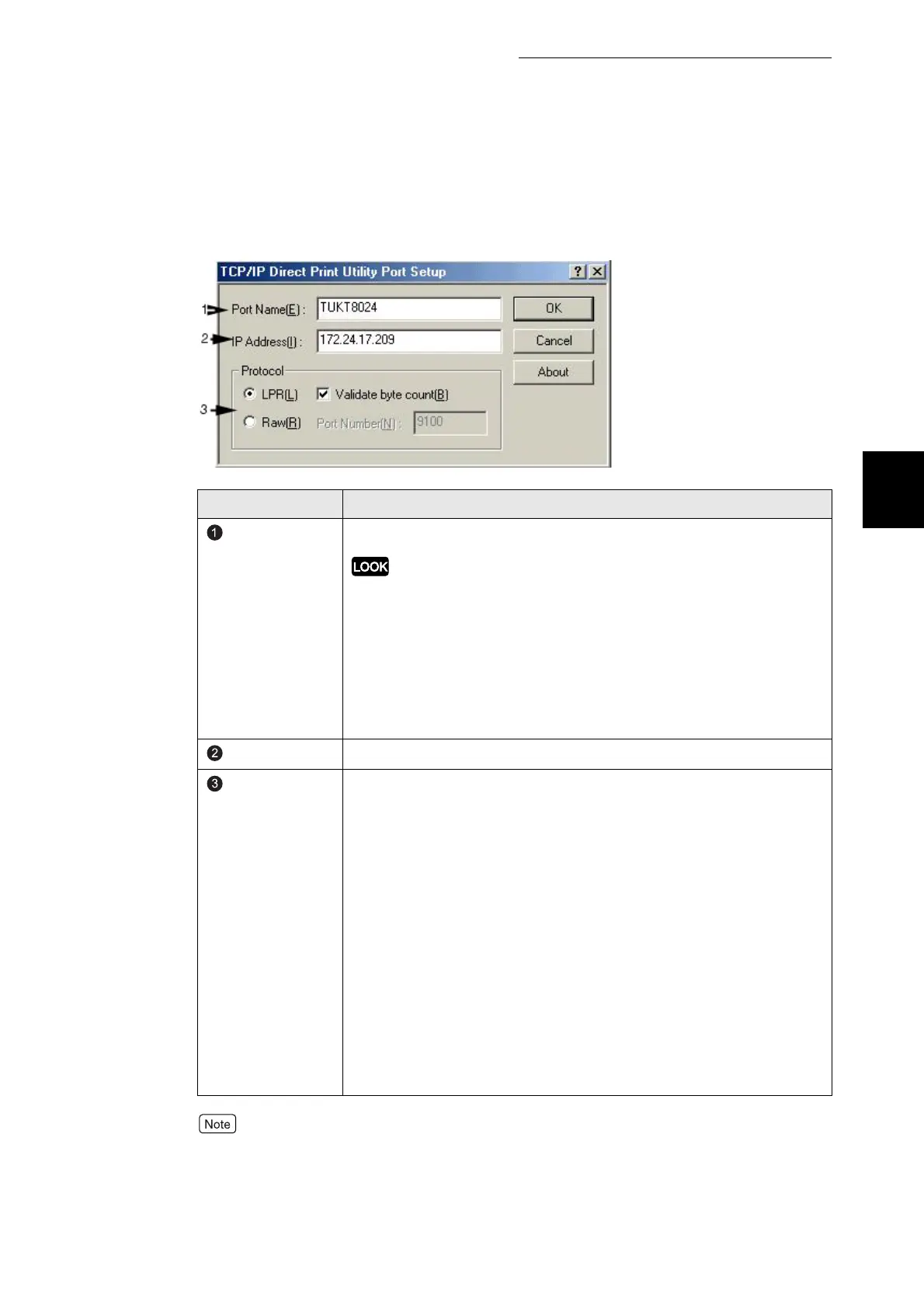
Enter the appropriate value for each item, and click OK.
Example: For port name, "TUKT8024" and IP address, "172.24.17.209".
If you do not know the IP address of the printer, check with your network administrator, or
print out the Printer Settings list. Refer to "8.4.1 Confirming Printer Configuration and
Network Settings".
Item Remarks
Port Name
Enter a name of your choice to identify the printer.
When you are adding multiple TCP/IP Direct Print Utility ports, consider
the following restrictions.
There is no difference between using upper-case and lower-case characters.
Examples of port names that cannot be used (current port name is "printer"):
●
Adding characters at the end of the current port name.
Example: "printer1", "printer-01" and so forth.
●
Deleting some characters from the current port name.
Example: "prin", "print" and so forth.
IP Address
Enter the IP address of the printer.
Protocol
Select the protocol to be used for data transfer.
Select either of the printing protocols (1) or (2) below. The default
selection is (1) LPR.
(1) "LPR": The lpr protocol is used for printing.
Enable or disable the "Validate byte count" option by selecting or
deselecting its check box.
The default selection is enabled (check box selected).
(2) "Raw": Port9100 protocol is used for printing.
You can specify a port number at the destination in "Port
Number". This setting is effective only when Raw protocol is
selected. The default setting is "9100". If the number is deleted,
"9100" appears. You can enter up to 5 digits. If you enter a
number greater than 65536 and click OK, "9100" is registered.
Ensure that the protocol selected and in the case of RAW port the
number used has been enabled on the printer. See the network
user's guide on the additional documentation screen of the T8204
auto run cd.



 To Next Page