TROUBLESHOOTING
Vertical Express Product Manual 4-5 88500 v.1.0
Troubleshooting Section Configure the CAN Nodes
CAN Node Address Assignment
(continued)
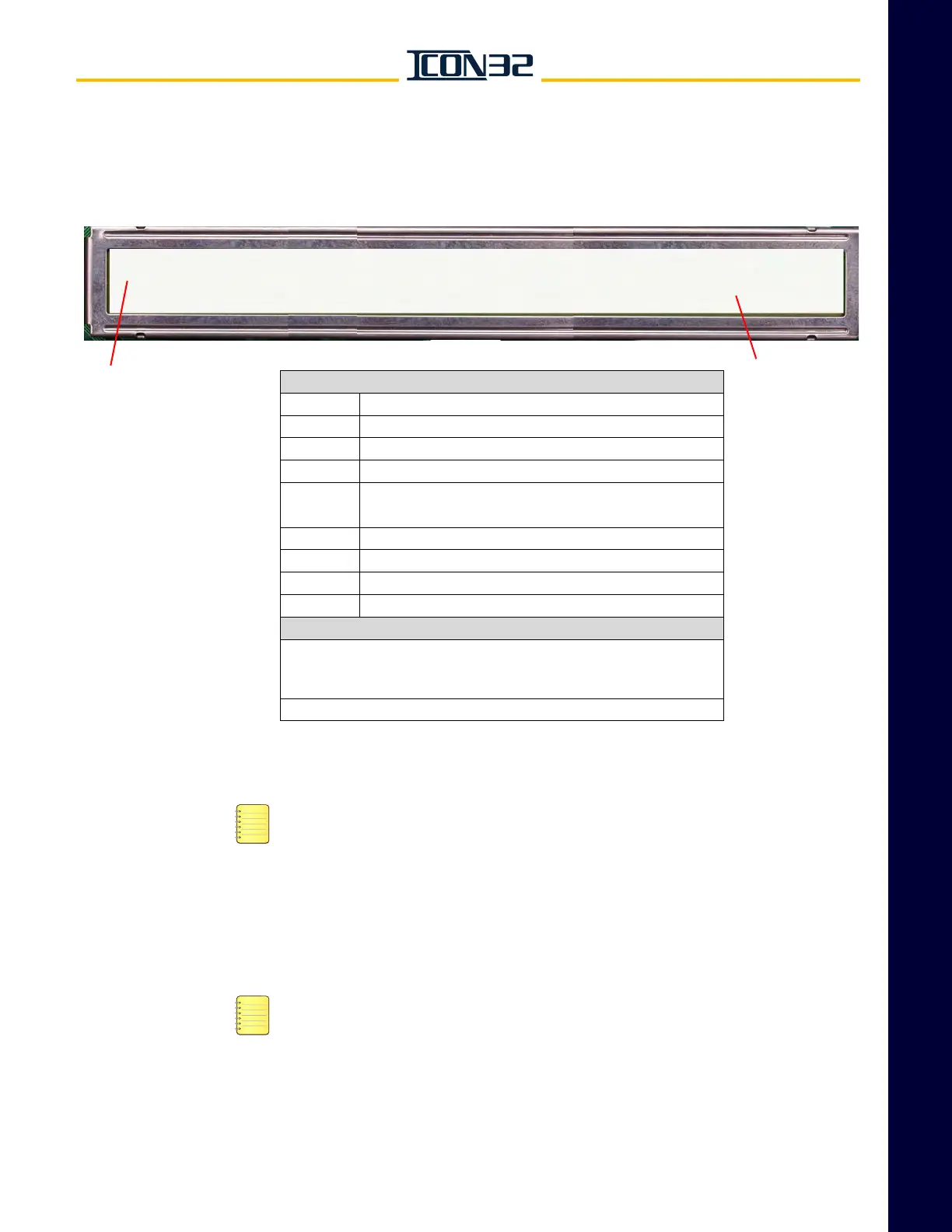
The CN Node ID (selected from step 6) displays, followed by its SmartName. The
DCN information will begin to scroll from left to right on both lines at different rates as
follows. Press UP or DOWN at any point to pause the scrolling.
8. Record the CN, the SmartName, and the CH information.
ICON32 Controllers always have MODCTRL1 on CH:2 as node 0 (zero). Additional
nodes are optional per job requirements.
9. Press ESC.
10. Repeat step 6 through step 9 for each node 0-11.
11. Verify the addressing jumpers for any CAN Node Card used in the system. See
Table 1 on page 4-6.
A CAN Node may be CN, CNA, or any future CAN Node Card.The jumper
assignments are the same.
CN:1 CNAMAIN1--- ONLINE:1 Pcks:86 CH:2 v:32 uP18Fxxxx SP:0 TP:12
Ports: 3, 24, 25, 26, 2, 23, 24, 2, 255, 255, 255
Top Line Display
CN: The node ID
CNAMAIN1 SmartName
Online: Online status: 0 = Offline, 1 = Online
Pcks: # of received data packets
CH:
CAN channel from which the node is assigned to
communicate: 2 = Car, 3 = Hall
V: Software version
uP18Fxxxx microprocessor version for that node
SP: # of shared ports
TP: # of total ports assigned to the node
Bottom Line Display
Port assignments for ports 0 (zero) through 15 = the numbers
represent the port number of the I/O map the port is to use, and all
unused ports for a node receive a port assignment of 255.
CNA Cards always have 12 total ports assigned to them.
Bottom
Line
Display
Top Line Display


 To Next Page