SmartPAC 2 User Manual 1126700
Updating SmartPAC 2 Firmware B-5
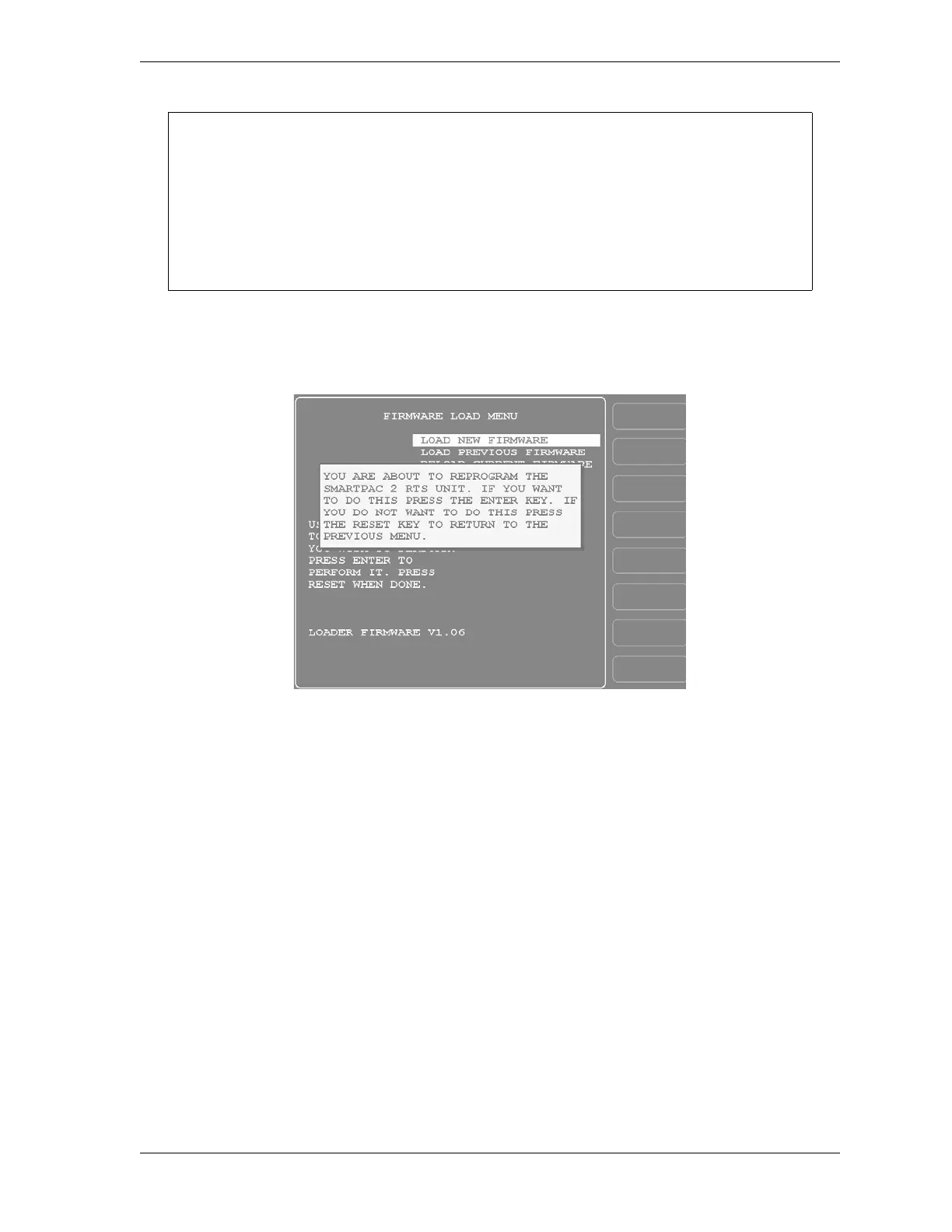
10. With “LOAD NEW FIRMWARE” selected, as shown in Figure B-2, press ENTER. A
yellow status window appears with the message “YOU ARE ABOUT TO REPROGRAM
THE SMARTPAC 2 RTS UNIT. . .” (see Figure B-3).
11. Press ENTER to continue. A display like that shown in Figure B-4, page B-6 appears,
indicating that the firmware is being loaded. It takes about five minutes for the firmware
to load.
If the USB disk does not contain the correct folder for this SmartPAC 2 serial number, you
will first see a message at the bottom of the screen that says “SP2nnnnnnnn DIRECTORY
NOT FOUND” and then a red window with the message “THERE WAS NO RESPONSE
TO THE USB DISK FILE TRANSFER REQUEST.” If these messages display, re-check
the serial numbers of the SmartPAC 2 and the SmartPAC 2 firmware you are trying to
load. If the two serial numbers match, try loading the firmware again. If this still does not
work, contact Wintriss Tech. Support.
Figure B-3. Firmware Load Menu with Yellow Status Window



 To Next Page