CHAPTER 2, CONTROLS AND DISPLAY
EFD1000 PFD Pilot’s Guide
Page 2-16 A-01-184-00 REV B
EFD1000 PFD Pilot’s Guide
EFD1000 PFD Pilot’s Guide
Edit Main Menu Items
1. Access the Main Menu.
2. Navigate to the desired menu page.
3. Push the Menu Key of the desired option. The menu label turns magenta and
the EDIT VALUE label displays above the Right Knob (Figure 2-23).
4. Rotate the Right Knob to the desired value.
5. Push the Right Knob to return to menu navigation mode.
6. Push the MENU key to exit the Main Menu.
2.2.4.2. Changing LCD Display Brightness
When the MENU key is pressed and the menu system is active, the Left Knob can be
used to adjust the EFD1000 display brightness.
By default, the LCD brightness operates in AUTO mode, and is adjusted based on
photocell sensing of ambient lighting conditions. When the MENU is active and the
LCD is in AUTO, the word AUTO and a brightness level of 1-100 will be displayed in
green above the Left Knob.
To override the AUTO brightness setting, press the Left Knob once to switch into
Manual mode, and then rotate the Left Knob to set the brightness to the desired level.
To return to AUTO brightness control, press the Left Knob again.
LCD MODE DESCRIPTION DISPLAY
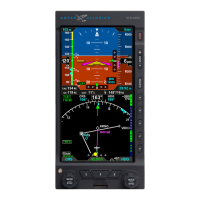
Automatic
BRT AUTO
LCD backlight intensity is automatically adjusted
based on the current light conditions sensed by the
Automatic Dimming Photocell.
See Figure 2-24
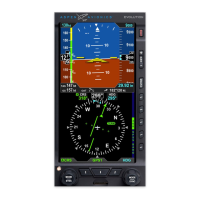
Manual BRT
ADJUST
Allows the pilot to adjust the LCD backlight intensity
manually, from 1 (minimum) to 100 (maximum).
See Figure 2-25
Table 2-5 Brightness Control
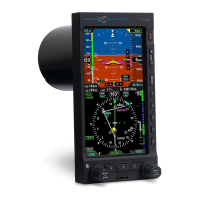
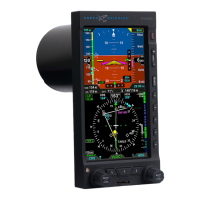
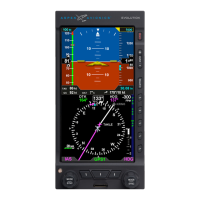
Figure 2-23
EDIT VALUE Displays Above Right Knob
NOTE
Upon reaching the end of a list of
editable menu options, continued
rotation of the knob shall result in
the continuous “wrapping” through
the available editable menu options.


 To Next Page