CHAPTER 5, CUSTOMIZING THE EFD1000 PFD
EFD1000 PFD Pilot’s Guide
Page 5-6 A-01-184-00 REV B
EFD1000 PFD Pilot’s Guide
EFD1000 PFD Pilot’s Guide
5.2. Customizing the Map
The pilot can customize the display setting for the map symbol levels HIGH, MEDIUM,
and LOW; choosing from:
ON Display symbol is always on.
AUTO The selected display level and range, as described in Table 5-8, determine
which map symbols are displayed. Symbol labels may also display adjacent
to their associated symbol.
OFF Display symbol is always o.
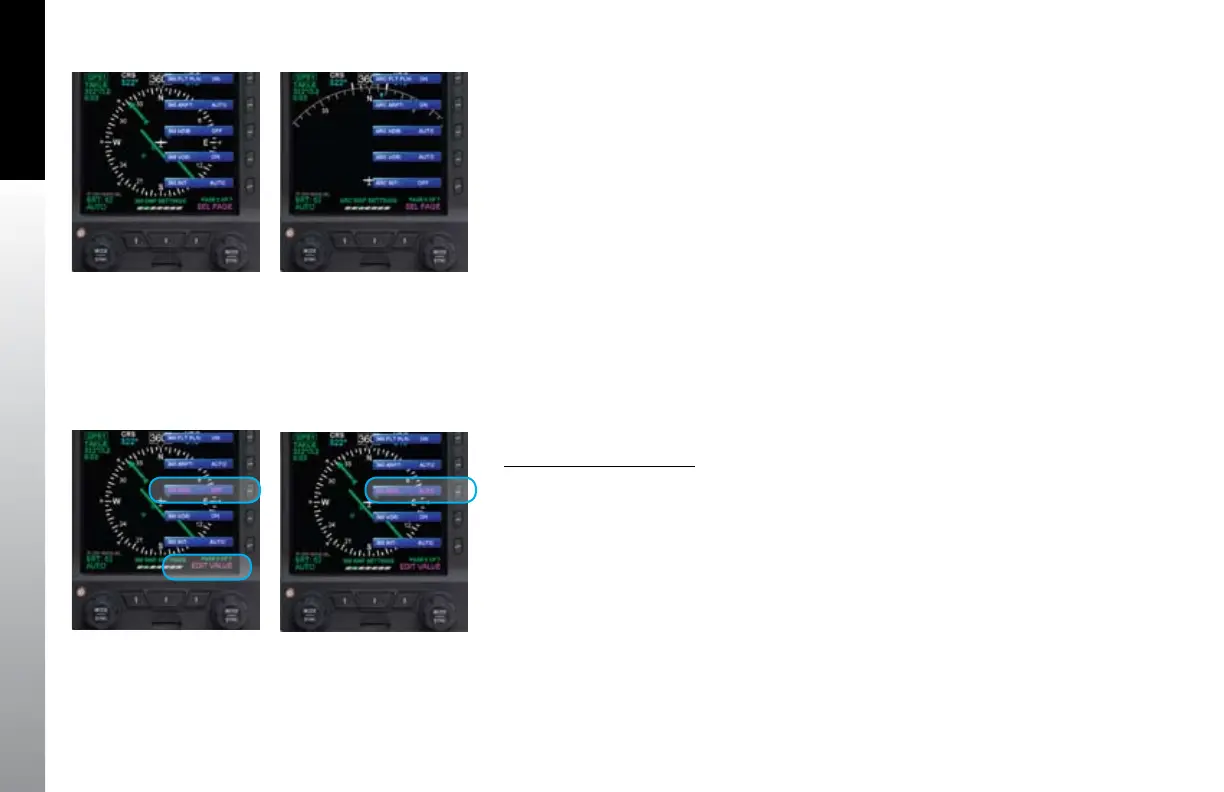
Each compass mode has its own Menu page for Map Setting symbol display. Menu
Page 2 oers Map Setting options for the 360° Compass mode (Figure 5-8). Menu
Page 3 oers Map Setting options for the ARC Compass mode (Figure 5-9). The default
setting is AUTO. Complete information about the EFD1000 PFD Compass Mode options
are provided in Section 4.3.1.
Set Map Symbol Display
1. Push the MENU key. The Menu displays on the Navigation Display.
2. Rotate the Right Knob to navigate to the appropriate Map Settings menu
page (either page 2 or 3).
3. Push the desired Map Symbol Menu Key. The menu label turns magenta and
the EDIT VALUE label displays above the Right Knob (Figure 5-10).
4. Rotate the Right Knob to the desired value (Figure 5-11).
5. Either select another Map Symbol Menu Key and edit another display option
or push the MENU key to exit the Menu.
Figure 5-8
360° Compass Mode
Display Options
Figure 5-9
ARC Compass Mode
Display Options
Figure 5-10
Editing 360° NDB
Display Option
Figure 5-11
360° NDB Display Option
Set To OFF


 To Next Page