CHAPTER 3, FLYING THE EFD1000 PRO PFD
EFD1000 PFD Pilot’s Guide
Page 3-4 A-01-184-00 REV B
EFD1000 PFD Pilot’s Guide
EFD1000 PFD Pilot’s Guide
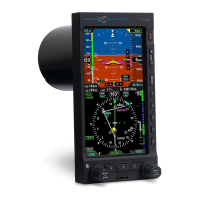
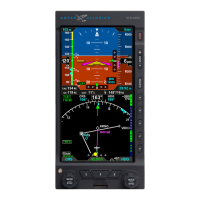
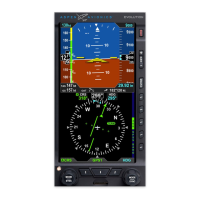
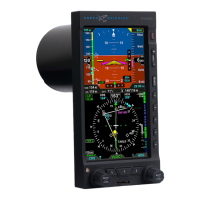
Navigation Source Buttons (see 2.2.2 for detail)
Three buttons at the bottom of the display couple the available navigation •
sources to the CDI and/or the bearing pointers.
The center button (• Figure 2-2, Ref. 11) selects the nav source to couple to
the CDI and to drive the autopilot (if installed).
The outer two buttons (• Figure 2-2, Refs. 10 and 12) select which nav source
couples to each of the two bearing pointers (or none to hide the bearing
pointers).
Hot Keys (see 2.2.3 for details)
The ve buttons on the lower right-hand side of the display are Hot Keys, •
the function of which is shown by the legend on the screen immediately
adjacent to each button.
The current status of each Hot Key is shown by the legend, in GREEN if active •
and in GRAY if inactive.
Each press of a Hot Key will either toggle its function on or o, or will cycle •
among available settings.
3.2. Example Flight Scenario
This section will walk you through using the EFD1000 Pro PFD on an IFR ight from
Albuquerque International Sunport (KABQ) to Reno/Tahoe International Airport (KRNO),
ying Victor airways to the ILS16R approach into KRNO. This scenario uses one pilot’s
technique for setting up the navigation instruments, but there are many other valid
possibilities. Use whatever techniques work best for you.
Our aircraft for this ight is a Beech Bonanza A36TC, equipped with dual Garmin GNS-
430W WAAS GPS/nav/comms and the Bendix/King KFC-200 autopilot. The EFD1000 Pro
PFD is congured with Auto Course Select enabled, baro setting in inches, V-speed text
markers displayed, ARC compass mode in CDI, and the base map congured with its
NOTE
The tasks and procedures you will use
in your airplane will vary depending
on your aircraft and equipment, and
on how they are congured and
integrated with the EFD1000 in your
specic installation.


 To Next Page