Labels
Rev A 105 BBP
®
35/37 User’s Manual
Framing a Label
A printable, or XY cut out frame (border) can be added to an entire label, surrounding all
object elements on the label.
Note: When printing with frames around the labels, be sure the media guides fit
snug against the media so the tape does not shift while printing. For making fine
adjustments to the frame, see “Adjusting Print Offset” on page 94.
For fixed-size labels, when using continuous or die-cut media, the frame is applied to the outer
perimeter of the printable area. If changed, the frame size changes with the label size.
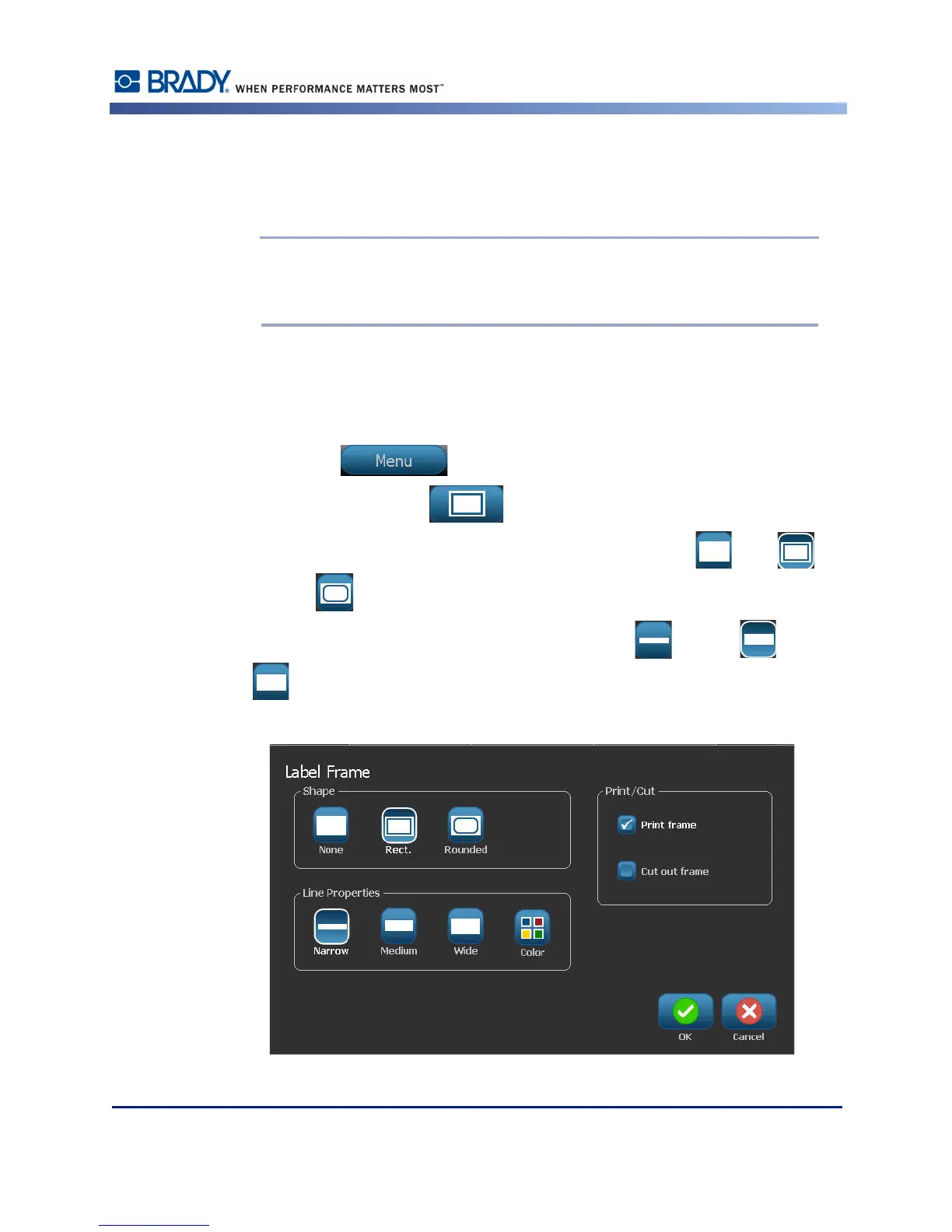
To place a frame (border) around the entire label:
1. Touch Menu .
2. Under Label, touch Frame .
3. In the Label Frame dialog box, touch the desired frame shape, None , Rect. , or
Rounded .
4. Under Line properties, touch the frame line width, Narrow , Medium , or Wide
.



 To Next Page