System Defaults
BBP
®
35/37 User’s Manual 24 Rev A
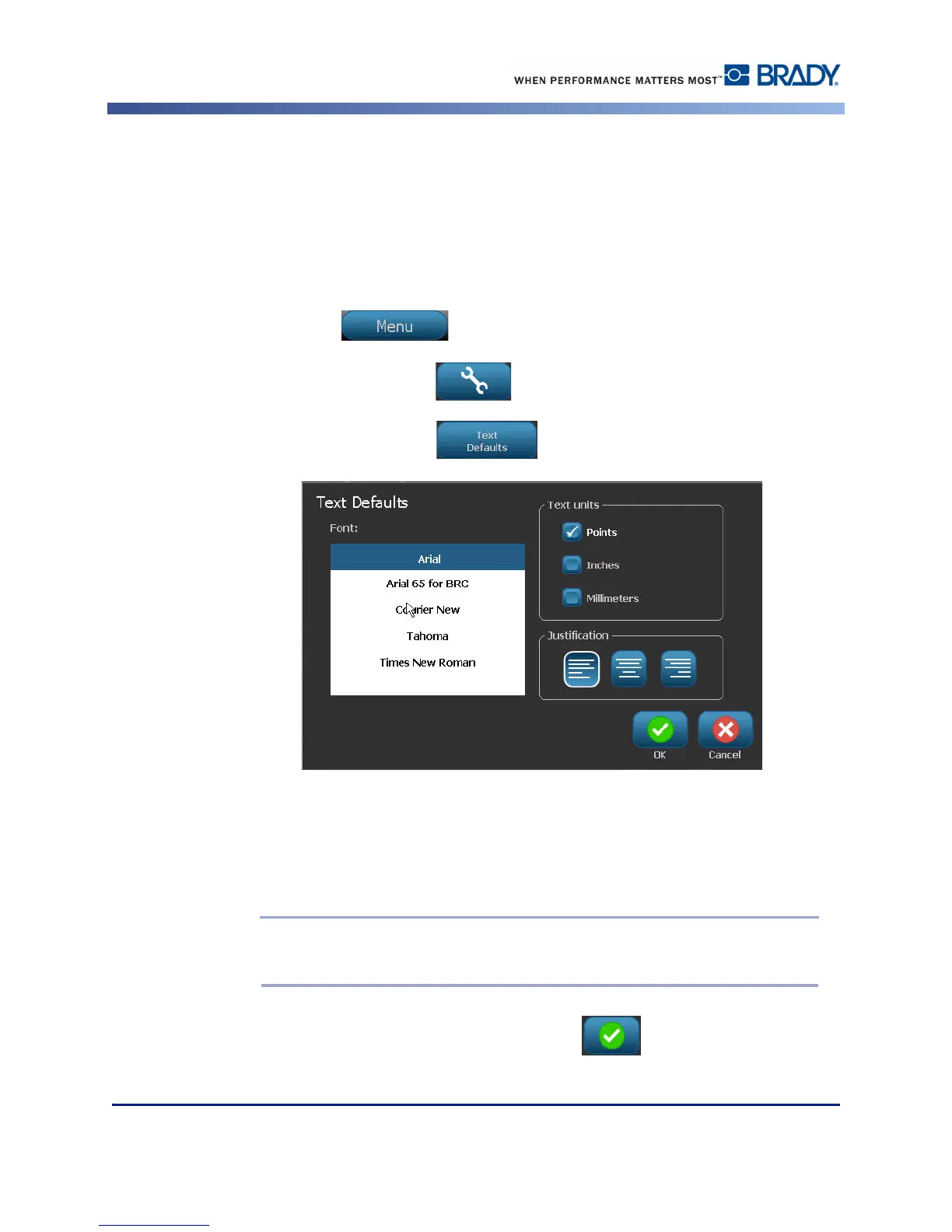
Text Defaults
If you know most of your labels will use a specific font or justification (e.g., left aligned or
centered), set these options as defaults. Default settings are determined by the printer for the
installed media. While you can always change the attributes for a specific label or label type,
when the label supply and/or application label type is reloaded, it will return to these settings.
To set text defaults:
1. Touch Menu .
2. Under System, touch Setup .
3. Touch Text Defaults button .
4. Under Font:, touch the desired font to use as the default font.
5. Under Text units, touch the desired measurement to use for text sizing (points, inches, or
millimeters).
6. Under Justification, touch the desired alignment of text on a label (left, centered, right).
Note: Justification refers to the alignment of text between the left and right margin
of the label.
7. When finished setting the text defaults, touch OK to accept the changes.



 To Next Page