Formatting a Label
Rev A 59 BBP
®
35/37 User’s Manual
Vertical Text
In Vertical text, each character drops down a line below the preceding character.
Example: The word “WIRE” as vertical text displays as such:
W
I
R
E
Vertical text can only be applied to an entire text element. It cannot be applied line-by-line.
To format text vertically:
1. Touch the text element you want to display vertically.
2. In the Text Control Panel, above More Options, touch the right arrow .
3. Touch Vertical .
The word(s) display vertically on the label.
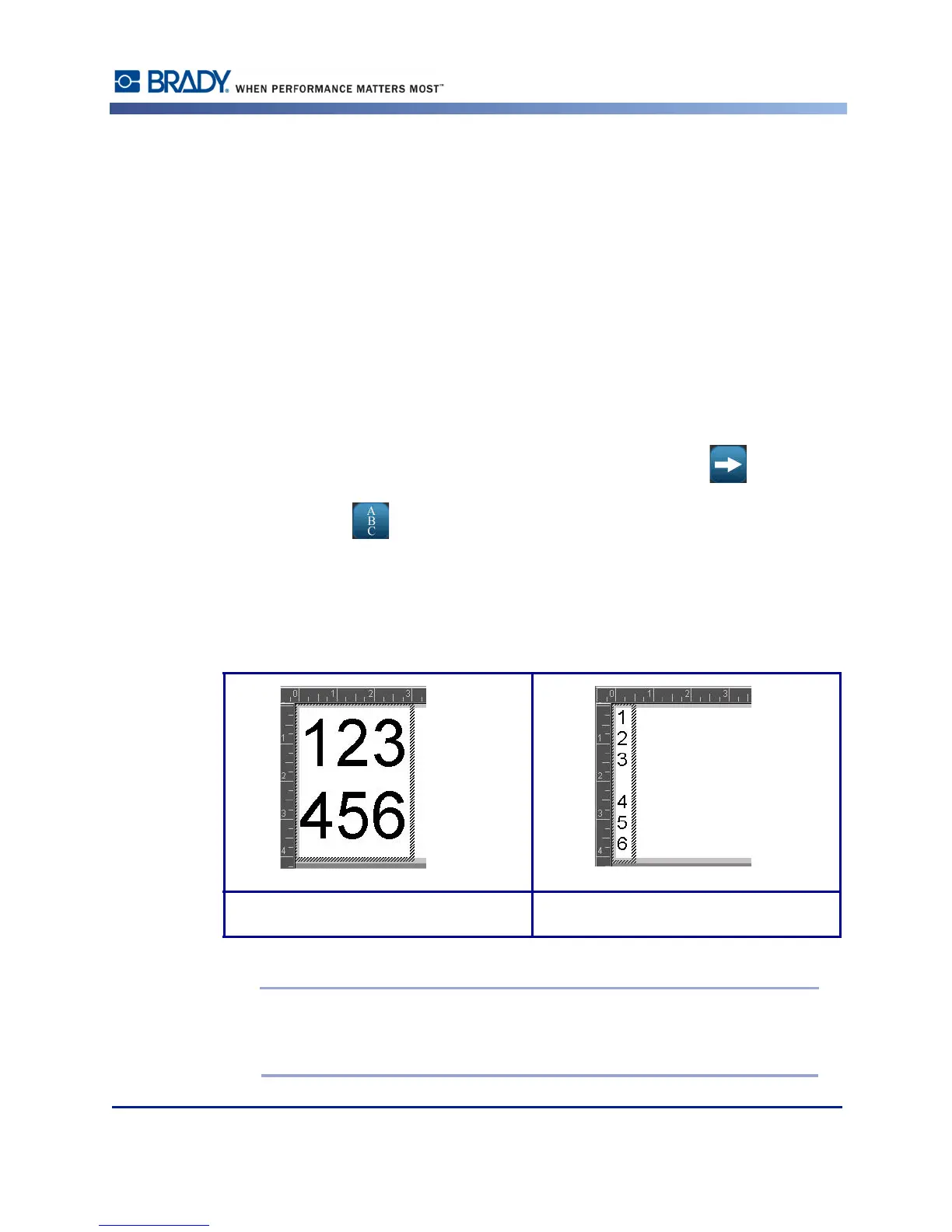
If more than one line of text is present, the second and subsequent lines of text display
vertically beneath each other. In order for the text to fit on the label, the font size automatically
decreases.
Figure 7 • Multi-line vertical alignment
Note: Once text has been sized to fit vertically, selecting Vertical again does not
change the text back to the original size. While the text is again displayed
horizontally, you have to manually change the text size back to its original setting.
Text before vertical applied Text after vertical applied



 To Next Page