Getting Started
BBP
®
35/37 User’s Manual 32 Rev A
Deleting Text
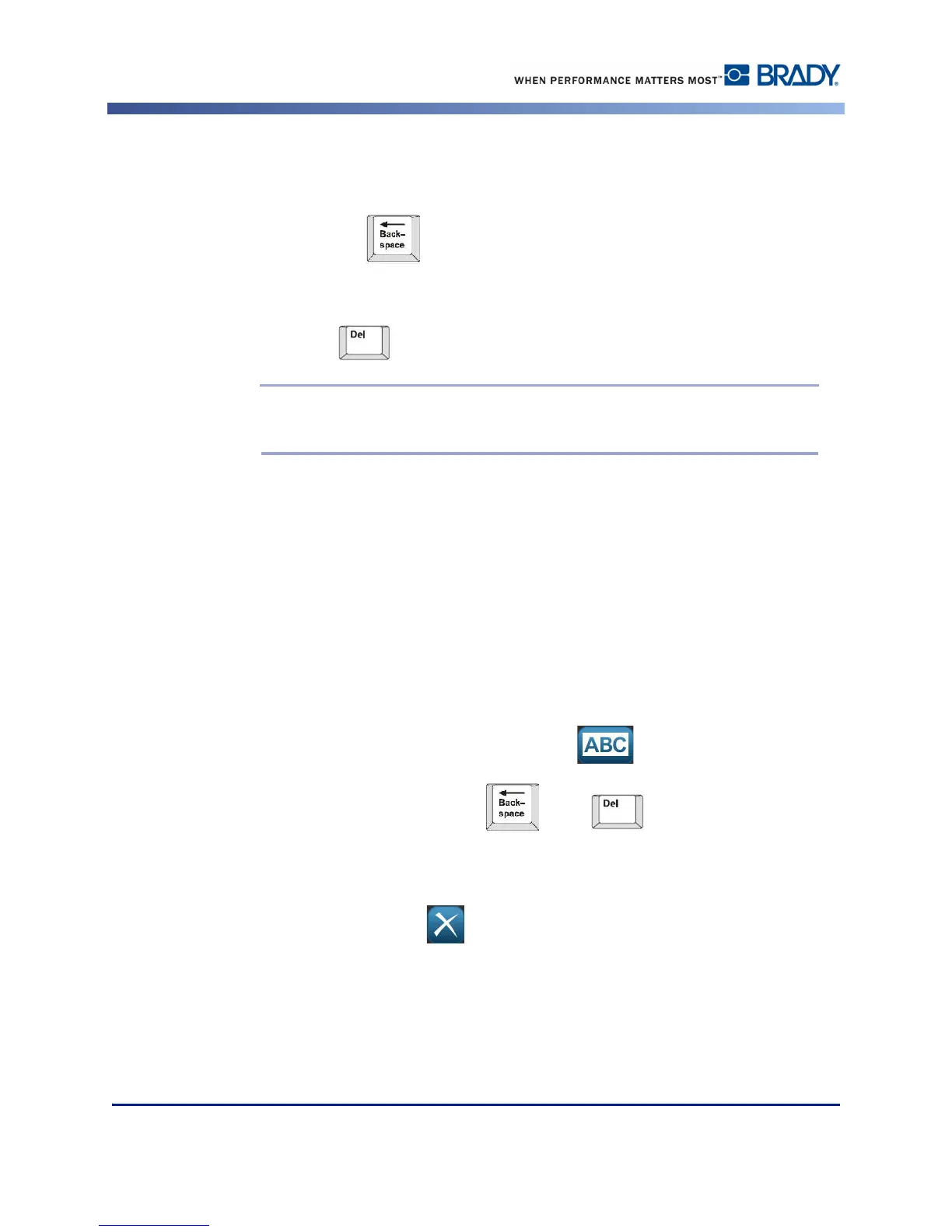
To remove characters, one at a time, from the position of the cursor TO THE LEFT
(backwards):
1. Press Backspace on the keyboard.
To remove characters, one at a time, from the position of the cursor TO THE RIGHT
(forward):
2. Press Delete on the keyboard.
Note: If multiple words are highlighted, pressing Backspace or Del deletes all the
highlighted text. (See page 34 for options on selecting text.)
Replacing Text
You can change text without having to delete it first. To replace text:
1. Select the text that should be changed. The text highlights.
2. Enter the new text directly over the highlighted text.
Clear
To clear all text from the text box, with the text box selected (i.e., the frame is visible):
1. In the Text Control Panel, touch Select All Chars .
2. On the Keyboard, press Backspace or Del . This clears the highlighted
text.
To delete all text and remove the text box,
3. In the Tools, touch Delete .
All text in the selected text box is deleted and the text box is removed.



 To Next Page