Formatting a Label
Rev A 45 BBP
®
35/37 User’s Manual
To align an element to the label:
1. Touch the element to align.
2. Touch the Right Arrow button under More Options, until the Align to Label Edge
buttons are displayed.
3. Touch the desired available Align to Label Edge buttons.
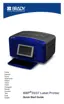
Exact Size & Position
The alignment buttons place an element at an approximate location on the label. For precise
placement of an element on a label, use the Exact Size & Position button to specify the exact
location. The measurements are recorded in inches or millimeters, depending on what you
have set as the default unit of measure. For precise placement of the element:
1. Touch the element to be aligned.
2. Touch the Right Arrow button under More Options, until the Exact Size & Position
button displays.
3. Touch Exact Size & Position .
4. Touch the appropriate data fields for the desired size or position, then enter the increment.
(You do not have to specify “inches” or “mm.”)
5. When finished, touch OK .
Note: If the values entered result in the object being positioned outside the
printable area, the system resizes and repositions the object to fit on the label.



 To Next Page