Formatting a Label
BBP
®
35/37 User’s Manual 46 Rev A
Color
You can change the color of the data in each element (text, barcode, graphic, etc.). To change
the data color:
1. Touch the element containing the data on which you want to change color.
2. In the element’s main control panel screen, touch Color .
Note: If a full color ribbon is installed, a wider palette of colors displays.
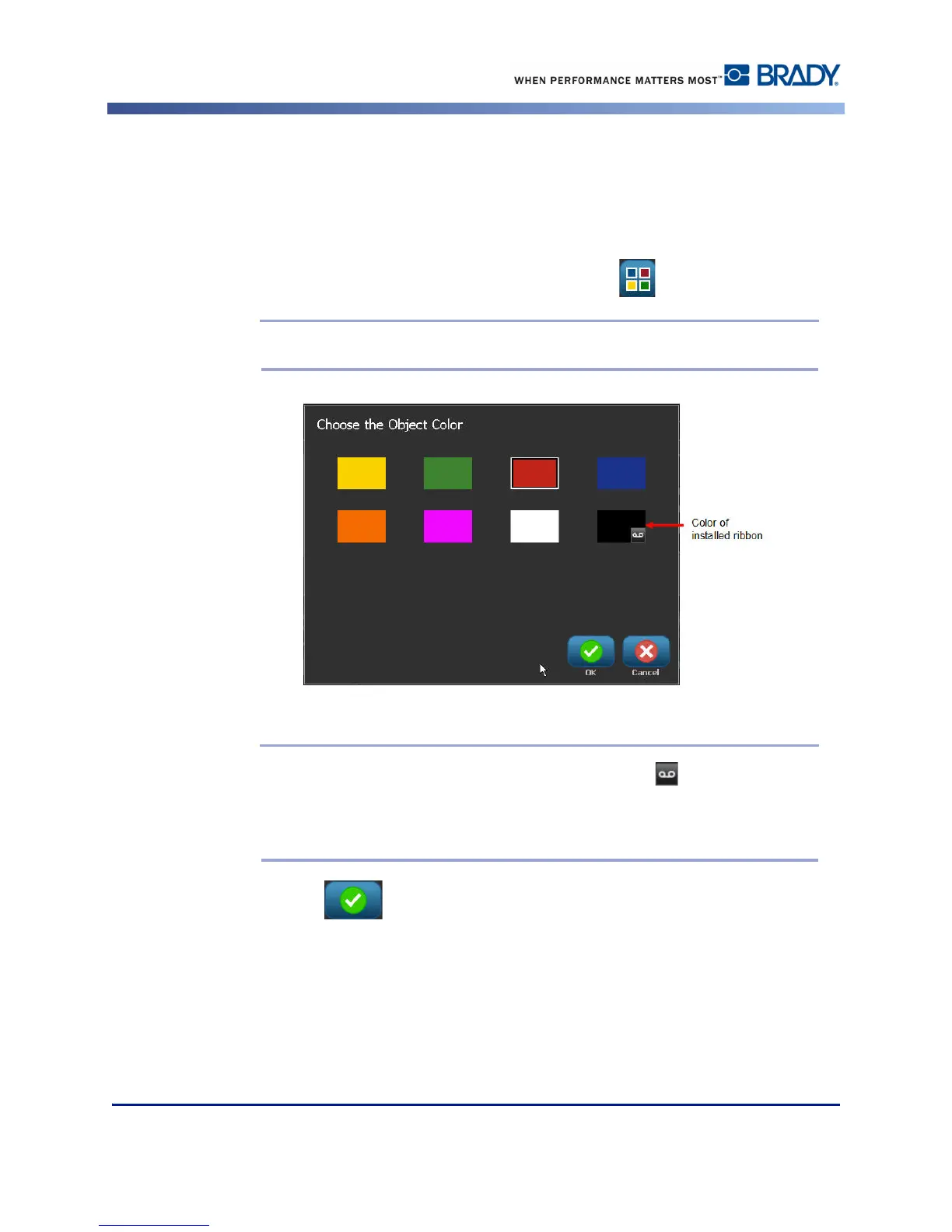
3. On the Choose the Object Color screen, touch the desired color.
Note: The colored square with the embedded ribbon icon indicates the
colored ribbon you currently have installed in the printer. If you do not have the
selected color ribbon installed, a message prompts you to install the specific color
ribbon before printing.
4. Touch OK .



 To Next Page