Formatting a Label
BBP
®
35/37 User’s Manual 40 Rev A
Moving an Element
There are two ways to move an element to a different location on a label. You can drag the
element or use the keyboard arrows.
To drag an element:
1. In the Editor, touch the element you want to move.
2. With your finger on the element, drag the element to the new location.
If you drag an object off the edge of the displayed part of the label (but still within the label
boundary), the display automatically scrolls so the object stays visible.
If you move an object so that some or all of the object is outside the printable area, the object
repositions within the label boundary.
To move an element using the keyboard:
1. In the Editor, touch the element you want to move.
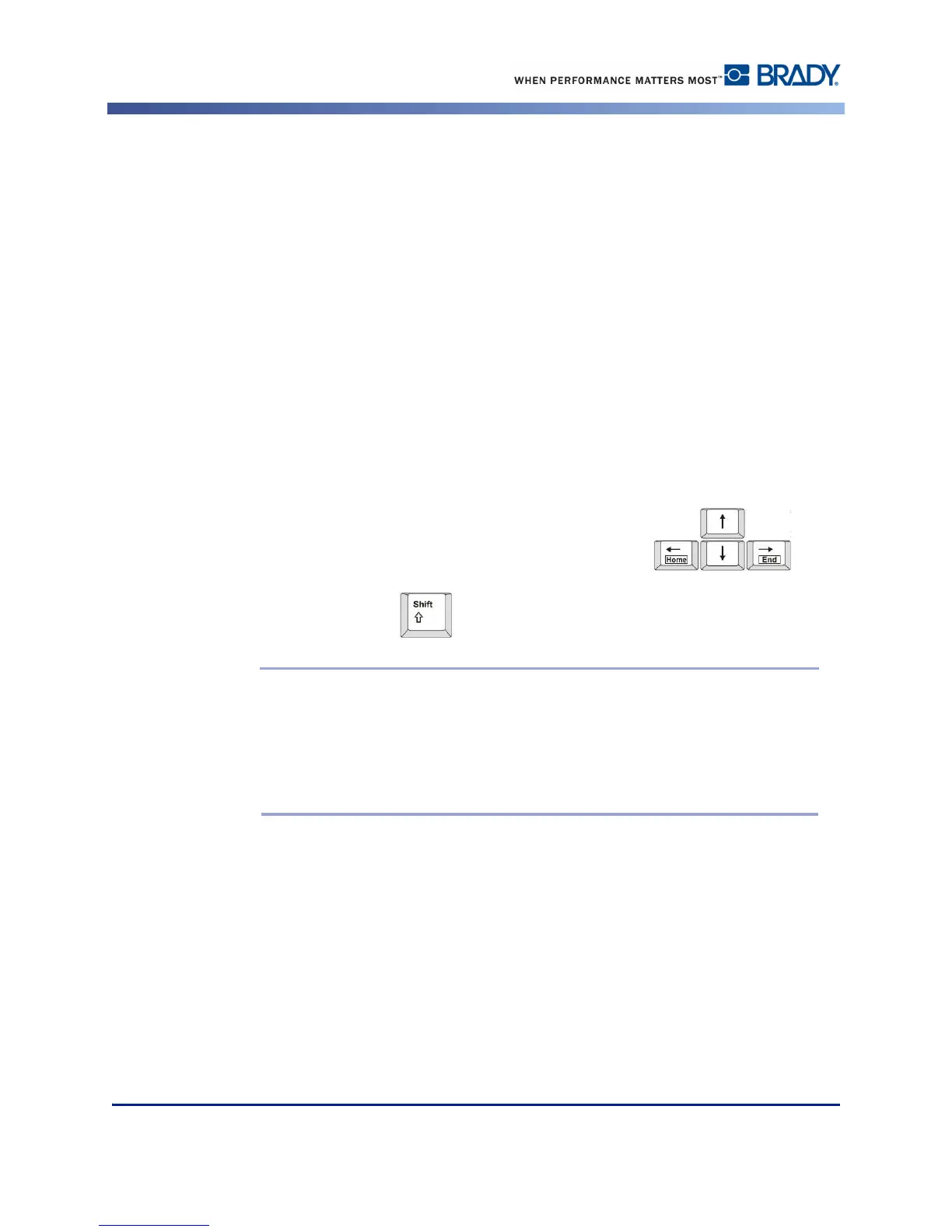
2. On the keyboard, press the up, down, left, or right arrow key to
move the object in the corresponding direction.
If you hold down the Shift key while pressing the arrows, the elements move in larger
increments.
Note: For text elements, the main text editing control panel cannot be displayed if
you want to move the text element using the keyboard. If the main text editing
control panel is displayed, using the keyboard moves the cursor within the text line.
To use the keyboard to move a text element to another position on the label, touch
More Options one time. This moves the text element off of the main text editing
control panel. You can now use the keyboard to move the text element.



 To Next Page