System Defaults
BBP
®
35/37 User’s Manual 30 Rev A
Over Print Setting
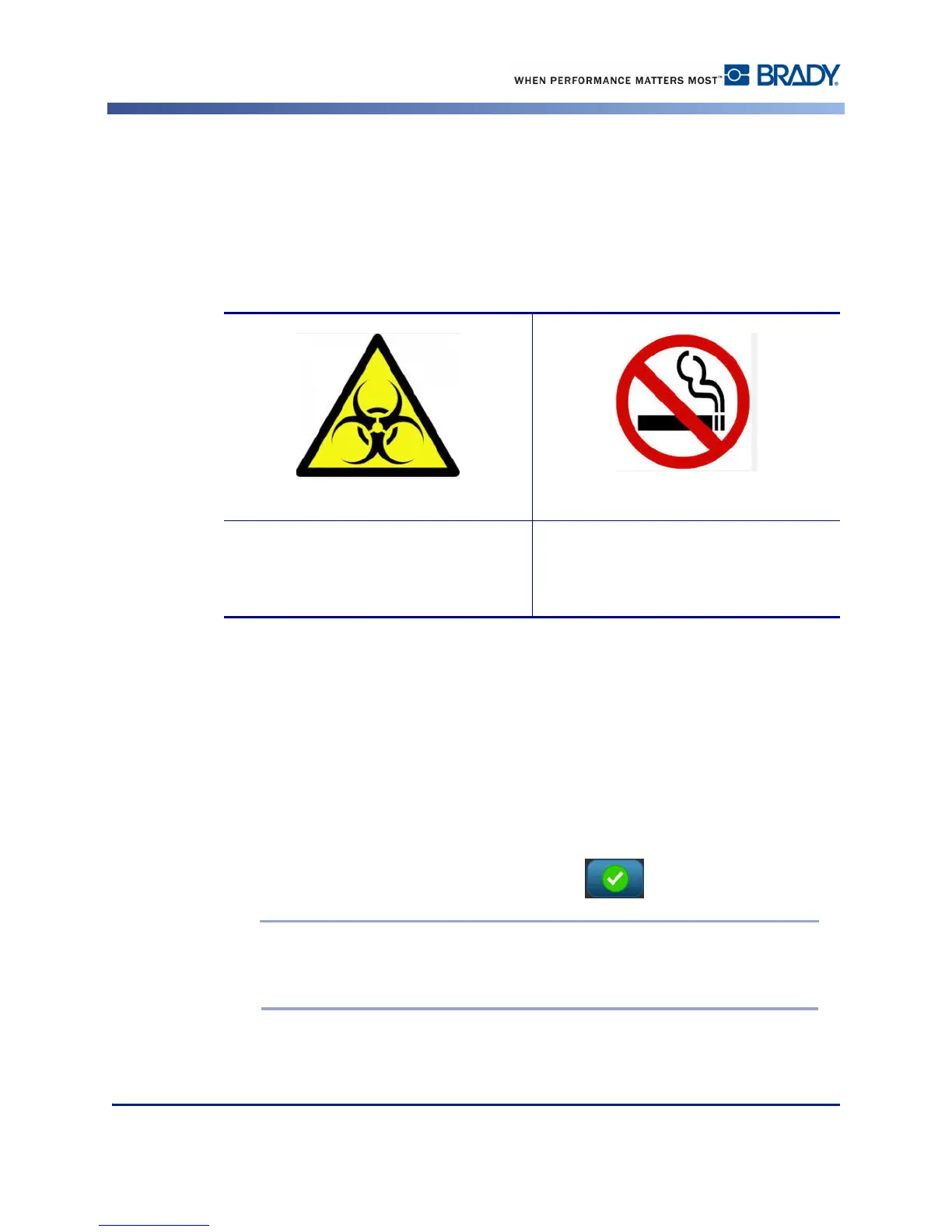
Over Print is related to multicolor printing with colors that overlap each other. If ON, Over
Print prints a base color, then prints the second color on top of the first. An example of when
you want the over print setting turned on is a yellow triangle symbol. The black pictogram
prints on top of a yellow background color. Because black covers yellow so well, the yellow
color does not distort the black image.
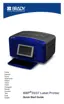
If OFF, the printer prints the base color on everything except the items where the second color
overlaps. This is preferred in situations where the second color is lighter than the first and you
do not want the base color showing through and distorting the color where they overlap. A
good example of where you want the over print setting turned off is printing a prohibition
symbol. Black will not print where the red slash overlaps it, thereby not distorting the red
color.
The Over Print option is selected by default. If you want to turn this option off:
1. Touch Over Print to remove the checkmark.
2. When finished setting printing defaults, touch OK to accept the changes.
Note: Touching OK on the individual Setup screens (e.g., Clock Settings, Text
Defaults, etc.) saves those particular settings. However, to exit out of the main
Setup screen, it does not matter if you press OK or Cancel.
Example of when Over Print should be
turned ON. (Black is over printing a yellow
background.)
Example of when Over Print should be
turned OFF. (Black does not print where
the red slash intersects the black image.)



 To Next Page