Formatting a Label
Rev A 75 BBP
®
35/37 User’s Manual
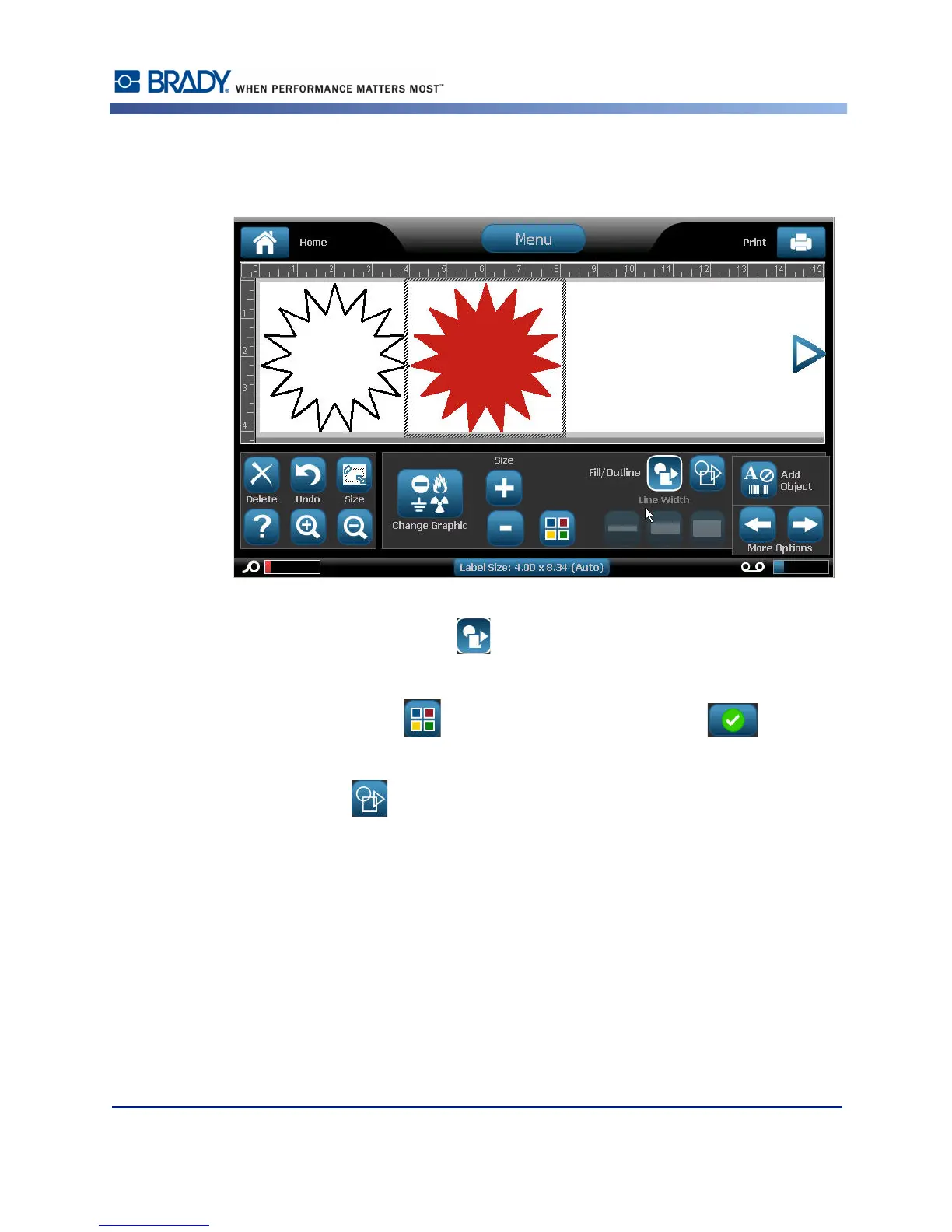
The selected shape is displayed in the Editor. You can have the shape display as an outline or
have it filled in with color.
To fill in the shape:
1. In the control panel, touch Fill .
To change the color of the fill pattern:
2. Touch the color button , touch the desired color, then touch OK .
If you want to change from fill back to outline:
3. Touch Outline .
Be aware that changing back to outline format from a fill pattern leaves the outline in the color
that was previously selected for the fill. For instance, if you elected to fill the shape with the
color red, when reverting back to outline format, the outline displays in red.
Refer to XY Cutting (page 97) for information on cutting out the shape with the BBP
®
37
printer.



 To Next Page