Formatting a Label
Rev A 77 BBP
®
35/37 User’s Manual
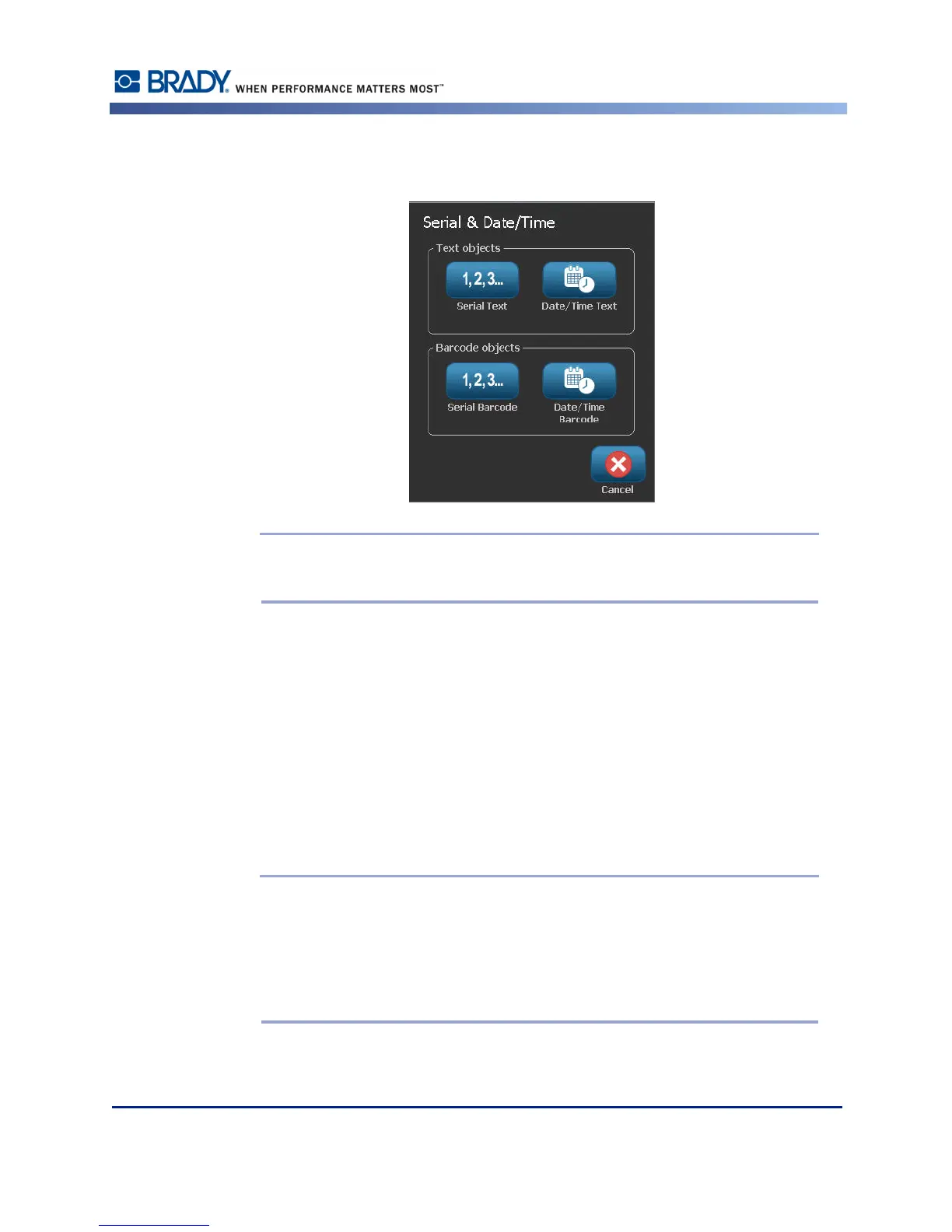
3. In the Serial & Date/Time dialog box, touch either Serial Text or Serial Barcode,
depending on what you want to serialize.
Note: A serialized barcode places the serialized data in barcode format on the
label.
4. In the Serial dialog box, touch the Starting value: data field and enter the starting value of
the data to be serialized.
5. Touch the Change by: data field, and enter the increment by which you want the serialized
data to advance. You can use positive or negative values.
6. Touch the Ending value: option box, then enter the ending value of the serialized data in
the Ending value: data field.
OR
Touch the Total number: option box, then enter the total number of labels you desire.
Note: You can either enter the ending value or the total number of labels desired.
You can not use both. If you choose ending value, the system automatically
calculates how many labels to print to accommodate the entire serialization. The
total number of labels to be printed is reflected in the grayed out Total number
field. If Total number is used, the serialization progresses until the total number of
labels is reached.



 To Next Page