45
Chapter 2
Learning Windows CE Basics
2.3.3 EXPLORE DEVICE
Add a Program to Start Menu
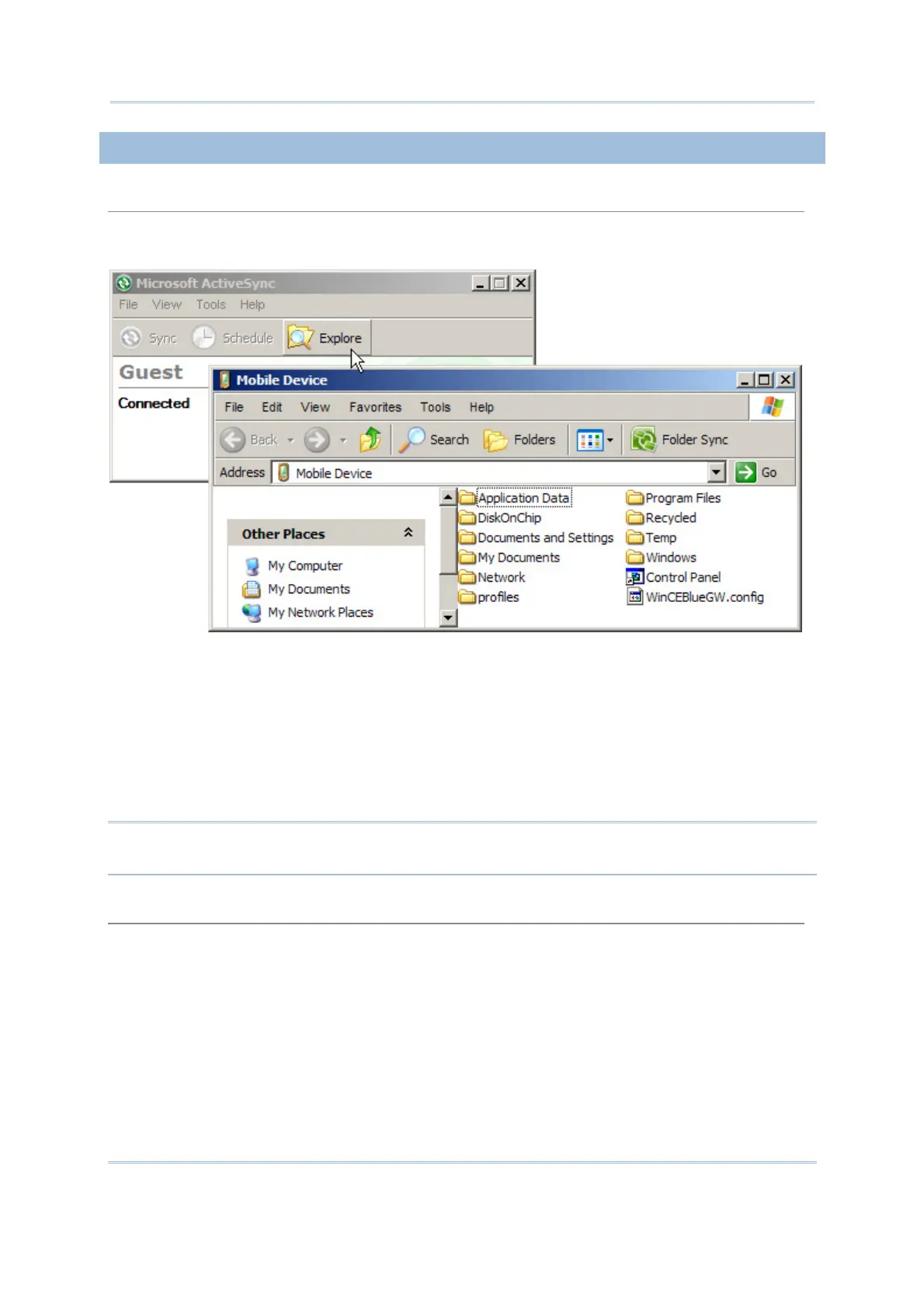
1. When connected, open the Microsoft ActiveSync window on your desktop computer.
2. Click the Explorer button from the toolbar.
3. Navigate through file folders to find the program you desire.
4. Right-click the program and select [Create Shortcut] from the pop-up menu.
5. Right-click the shortcut and select [Cut] from the pop-up menu.
6. Navigate to the Programs folder – My Device\Windows\Programs.
7. Right-click anywhere blank on the window and select [Paste] from the pop-up menu.
The new program will be added to the Programs folder.
8. On the mobile computer, go to Start | Programs and the new program will appear now.
Note: [Create Shortcut], [Cut], and [Paste]: The same result can be performed by
[Copy] and [Paste Shortcut].
Create a New Folder
1. When connected, open the Microsoft ActiveSync window on your desktop computer.
2. Click the Explorer button from the toolbar.
3. Navigate to the target folder where you wish to create a new folder.
4. Right-click anywhere blank on the window and select [New Folder] from the pop-up menu. A
subfolder will be created.



 To Next Page