61
Chapter 3
Configurin
9600 Mobile Computer
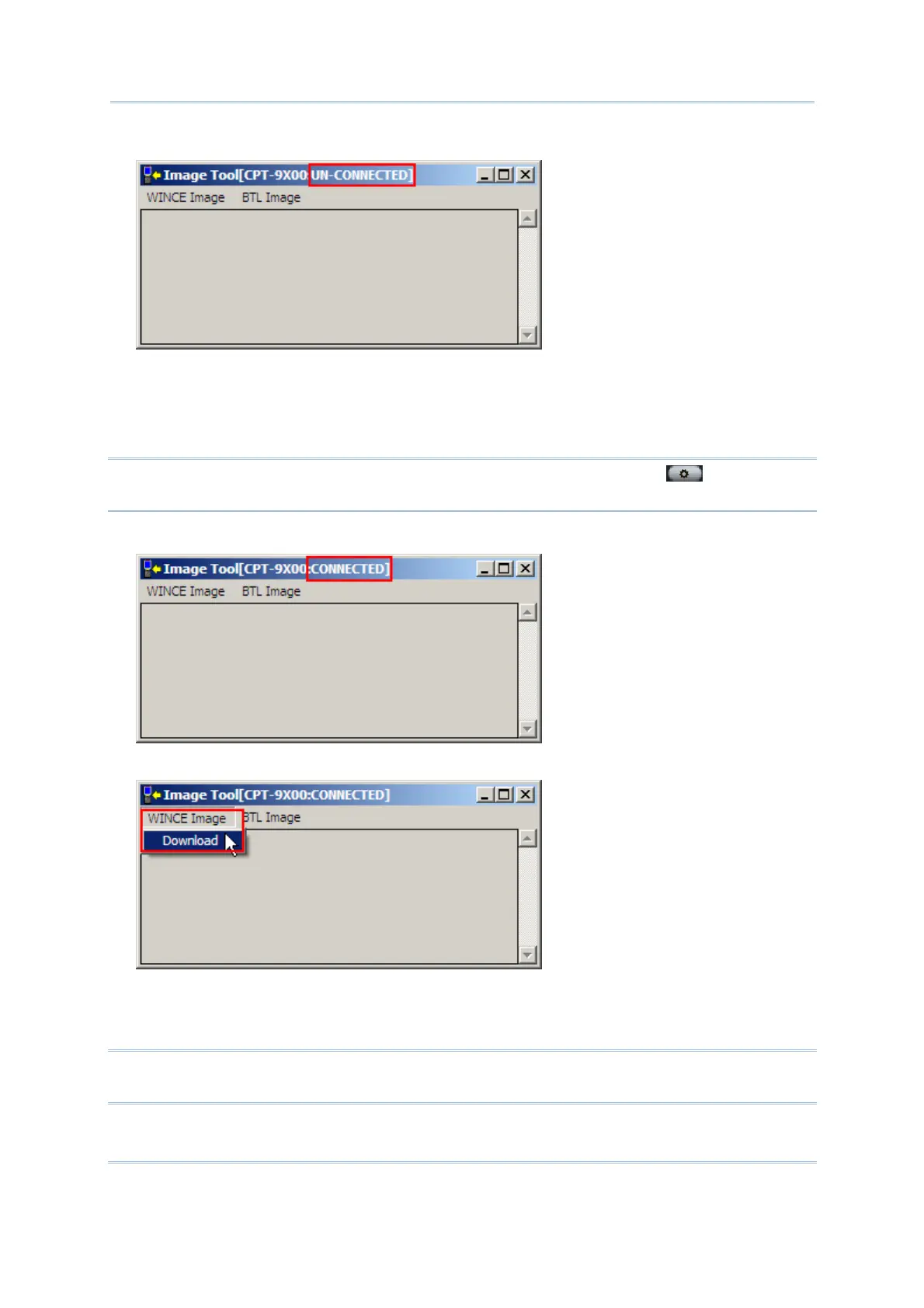
2) Run the Image Tool “DLDR.exe” on your computer.
3) Connect 9600 to your computer.
4) Press [Reset] + [Power] to perform hardware reset on 9600, and then immediately
press [Alpha] + [ESC] on 9600 to start the download process. It will try to connect to
your computer.
Note: On 29-key keypad, you may alternatively press [Alpha] +
to enter the
download process.
5) In the Image Tool, it will show 9600 has been connected successfully.
Go to WINCE Image | Download, and select the desired image file (*.nb0).
It will take approximately 5 minutes before a message is displayed on the mobile
computer to indicate the OS upgrade is completed successfully. It will then perform
hardware reset on 9600 automatically.
Warning: Do not press any key on the mobile computer while upgrading OS image
and make sure the power cord is connected.



 To Next Page