Chapter 2 Operating Principles
2-3. Operation Panel
CL-E700 series 2-56
(2) How to print the Factory Mode Settings menus
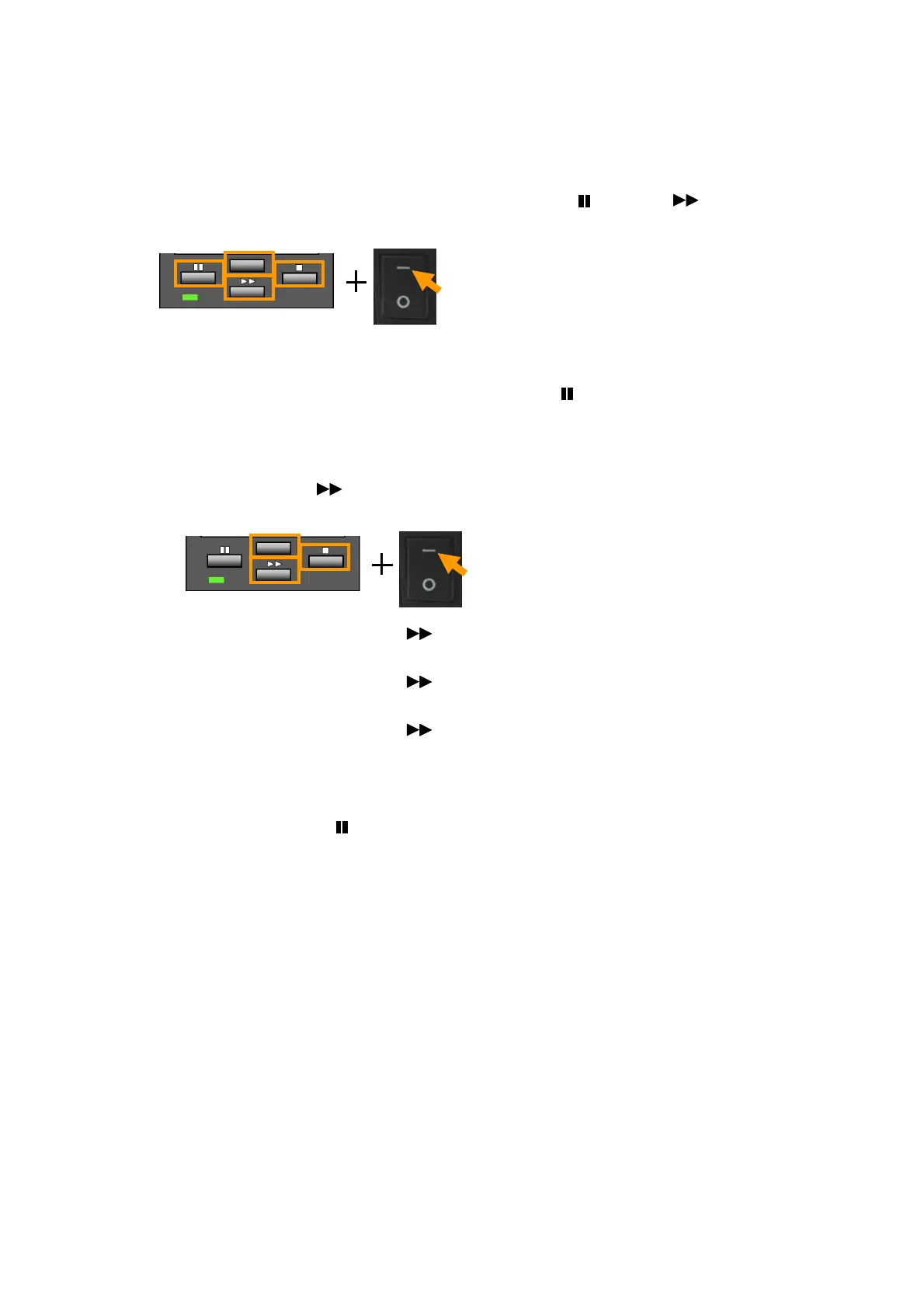
You can print the current factory mode setting values in the following two ways.
Method 1:
While pressing and holding all keys ([MENU], [PAUSE] ( ), [FEED] (
) and [STOP]
(
■)), turn on the power.
The current factory mode setting values are printed, and then the printer enters the Factory
mode.
To exit from the Factory mode: Press the [PAUSE] () key.
Method 2
1) Enter the Factory/Service mode by turning on the power while pressing and holding the
[MENU], [FEED] (
) and [STOP] (■) keys.
(Refer to “2-3-3(1) How to enter Factory/Service Mode” mentioned earlier.)
2) Press the [MENU] or [FEED] (
) key until “Test Mode” main menu appears.
3) Press the [STOP] (
■) key to enter the “Test Mode”.
4) Press the [MENU] or [FEED] (
) key until “Print Pattern” submenu appears.
5) Press the [STOP] (
■) key to enter the “Print Pattern” submenu.
6) Press the [MENU] or [FEED] (
) key and select “Current Config”.
7) Press the [STOP] (
■) key to print the configuration settings.
The current factory mode setting values are printed.
To exit from menu mode:
Press the [PAUSE] ( ) key several times until the printer exits from the “Test Mode”
main menu.


 To Next Page
 Loading...