Control Station Duetto Appendix – Examples
2.0/0518 145
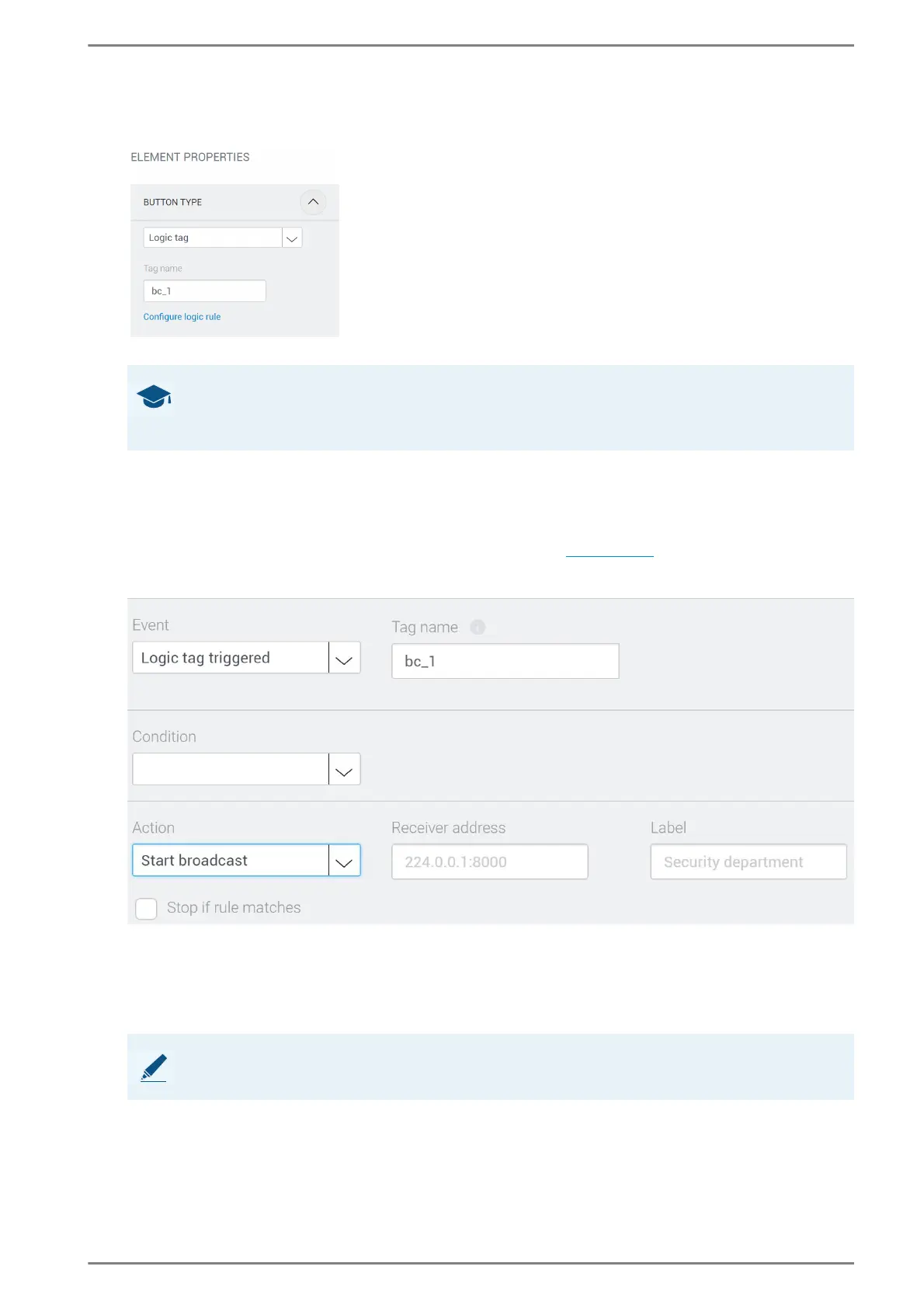
In the appearing drop-down list, select the entry „Logic tag“ and in the field Tag name, enter the
logic tag that you want to assign to this button. See the following screenshot:
Configure the button in the dialogue “Element Properties”
➥ Click on Save.
b Define the logic rule: Trigger Broadcasts
With this rule, a broadcast will be triggered.
Go to: Customization > Logic rules in the web interface (see page 66).
Add a new logic rule. See the following screenshot:
This logic rule toggles the DND mode when the logic tag “DND_toggle” is triggered
Select the event “Logic tag triggered” and in the field Tag name, enter the same logic tag that has
been entered for the button in the custom screen (in this case “bc_1”).
Select the action “Start broadcast”.
In the field Receiver address, enter the multicast or unicast IP address and the port of the receiver.
In the field Label, enter the desired label.
In the drop-down list Audio-codec, select the desired audio codec.
➥ Click on Save.
GOOD TO KNOW: Button „Configure logic rule“
A click on Configure logic rule will directly forward to Customization > Logic Rules
in the web interface. The correct tag name will be adopted automatically.
NOTE: Parameter must be same on sender and receivers
These parameters must have the same value on both the sender and receivers.


 To Next Page