Control Station Duetto Appendix – Examples
2.0/0518 147
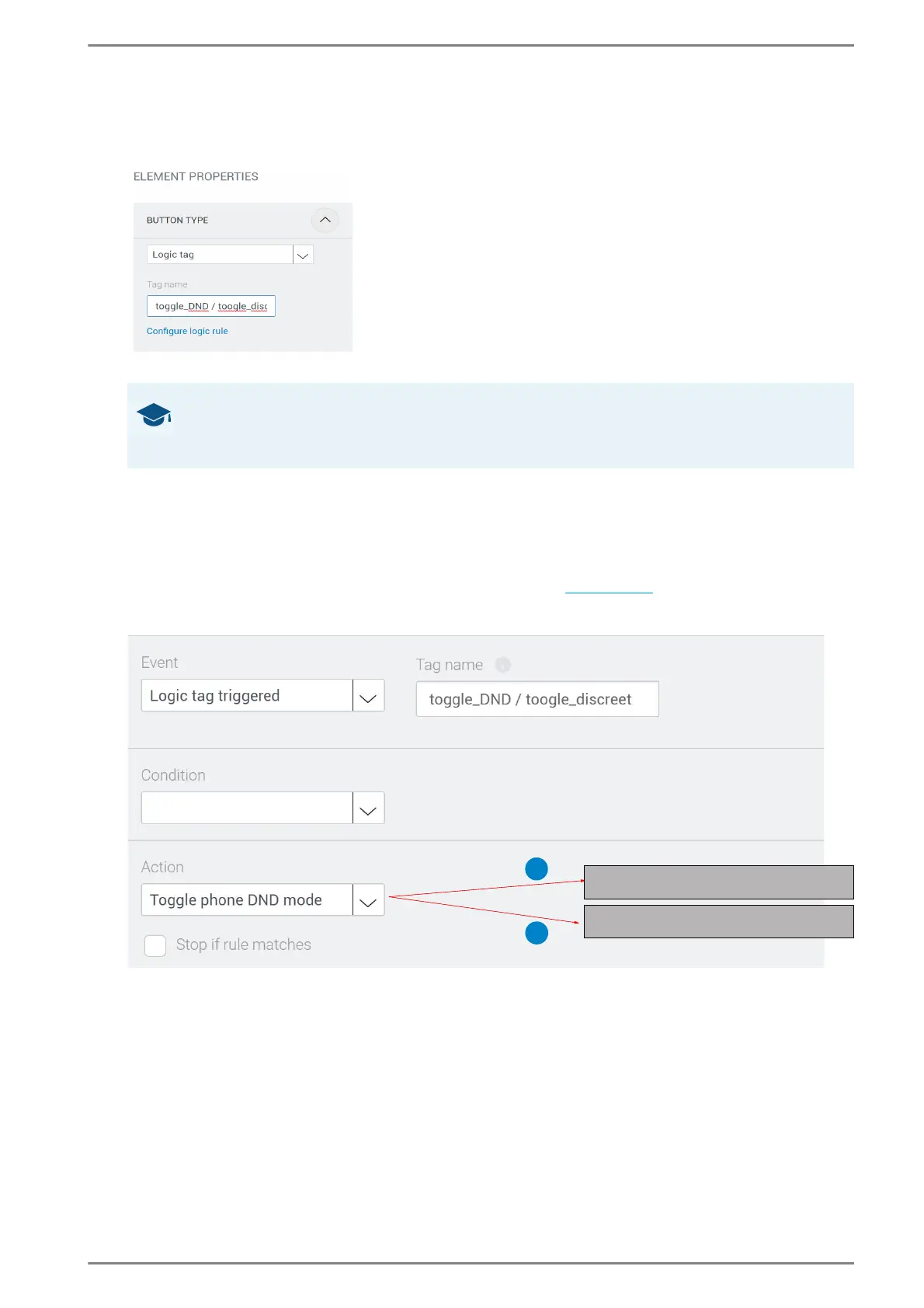
In the appearing drop-down list, select „Logic tag“ and in the field Tag name, enter the logic tag
that you want to assign to this button (e.g. “toggle_DND” or “toggle_privacy”). See the following
screenshot:
Configure the button in the dialogue “Element Properties”
➥ Click on Save.
b Define the logic rule: Activate and Deactivate the DND mode
This logic rule toggles the DND mode when the logic tag 1 “toggle_DND” or 2 “toggle_privacy” is
triggered.
Go to: Customization> Logic Rules in the web interface (see page 66).
Add a new logic rule. See the following screenshot:
This logic rule toggles the DND mode when the logic tag “toggle_DND” or “toggle_privacy” is triggered
Select the event “Logic tag triggered” and in the field Tag name, enter the same logic tag that has
been entered for the button in the custom screen (in this case “toggle_DND or toggle_privacy”).
Select the action “Toggle phone DND” or “Toggle intercom privacy mode”.
➥ Click on Save.
GOOD TO KNOW: Button „Configure logic rule“
A click on Configure logic rule will directly forward to Customization > Logic Rules
in the web interface. The correct tag name will be adopted automatically.
1
2
Toggle intercom privacy mode
Toggle phone DND mode


 To Next Page