Connecting to an Emergency Alert System (EAS)
Connecting an LTC generator to a MediaDirector 2252B or 2251B or a
MediaCenter 2200B
You have the option of connecting the MediaDirector 2252B or the 2251B, or a MediaCenter 2200B to an
LTC generator (timecode generator).
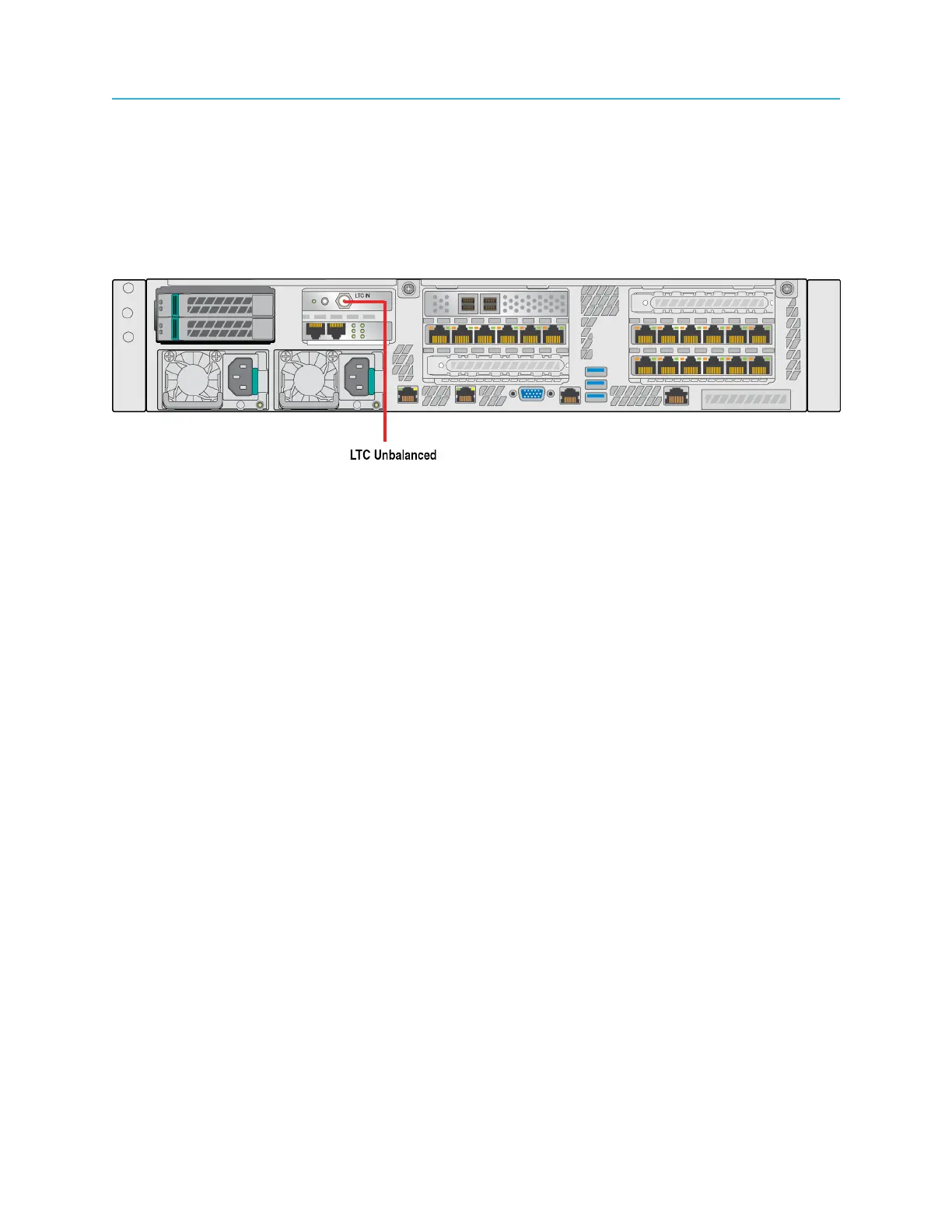
The following diagram shows the optional connection between a timecode generator and the Spectrum
video server.
Figure 2-36: Connecting a LTC generator
Connecting to an Emergency Alert System (EAS)
You can use the ChannelPort or the Spectrum X to provide required support, like graphics and audio
functions, for an Emergency Alert System (EAS).
The ChannelPort and the Spectrum X currently support the TFT* EAS 911T, the Sage* Digital ENDEC,
and the Monroe DASDEC.
To connect an EAS encoder/decoder to the ChannelPort, first connect the GPIO/RS-422 and EAS
connectors on the ChannelPort module as shown in the following sections. For the Spectrum X, use the
breakout cable to connect the GPIO and RS-422 pins to the EAS. Once the ChannelPort or the Spectrum
X is connected, use SystemManager to assign GPIO/RS-422 pins and configure event management.
Refer to the Harmonic SystemManager User Guide for more information.
Connecting to the Sage Digital ENDEC
Use the diagrams of a sample EAS installation to connect the ChannelPort or the Spectrum X to the Sage
Digital ENDEC.
1. Connect to the Sage EAS as shown in the following example.
69 Spectrum System 8.4 Installation Guide


 To Next Page