3.
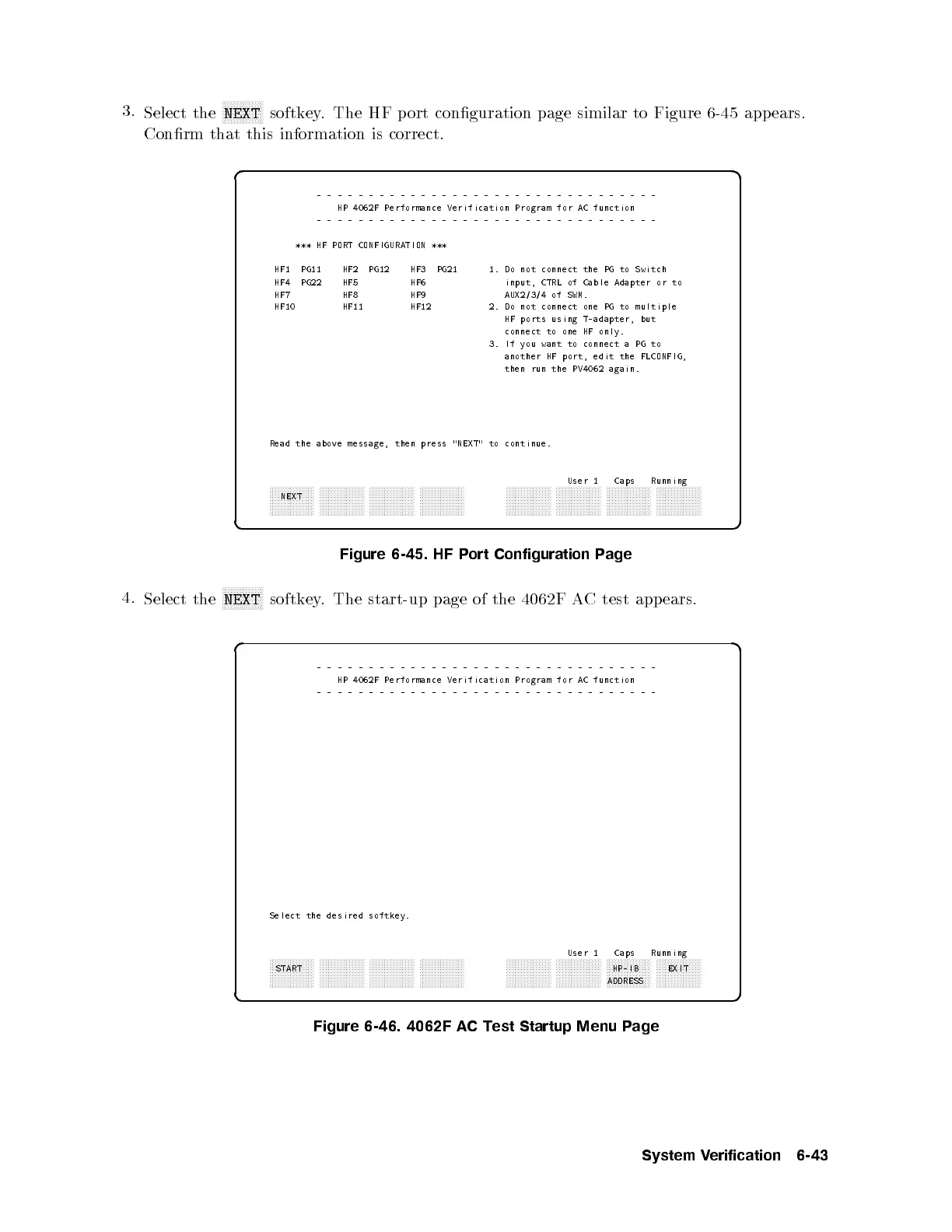
Select the
NNNNNNNNNNNNNN
NEXT
softkey. The HF port conguration page similar to Figure 6-45 app ears.
Conrm that this information is correct.
d a
c b
---------------------------------
HP 4062F Performance Verification Program for AC function
---------------------------------
*** HF PORT CONFIGURATION ***
HF1 PG11 HF2 PG12 HF3 PG21 1. Do not connect the PG to Switch
HF4 PG22 HF5 HF6 input, CTRL of Cable Adapter or to
HF7 HF8 HF9 AUX2/3/4 of SWM.
HF10 HF11 HF12 2. Do not connect one PG to multiple
HF ports using T-adapter, but
connect to one HF only.
3. If you want to connect a PG to
another HF port, edit the FLCONFIG,
then run the PV4062 again.
Read the above message, then press "NEXT" to continue.
User 1 Caps Running
aaaaaaaaaaaaaaa
NEXT
aaaaaaaaaaaaaaa aaaaaaaaaaaaaaa aaaaaaaaaaaaaaa
aaaaaaaaaaaaaaa aaaaaaaaaaaaaaa aaaaaaaaaaaaaaa aaaaaaaaaaaaaaa
Figure 6-45. HF Port Configuration Page
4.
Select the
NNNNNNNNNNNNNN
NEXT
softkey. The start-up page of the 4062F AC test appears.
d a
c b
---------------------------------
HP 4062F Performance Verification Program for AC function
---------------------------------
Select the desired softkey.
User 1 Caps Running
aaaaaaaaaaaaaaa
START
aaaaaaaaaaaaaaa aaaaaaaaaaaaaaa aaaaaaaaaaaaaaa
aaaaaaaaaaaaaaa aaaaaaaaaaaaaaa aaaaaaaaaaaaaaa
HP-IB
ADDRESS
aaaaaaaaaaaaaaa
EXIT
Figure 6-46. 4062F ACTest Startup Menu Page
System Verification 6-43



 To Next Page