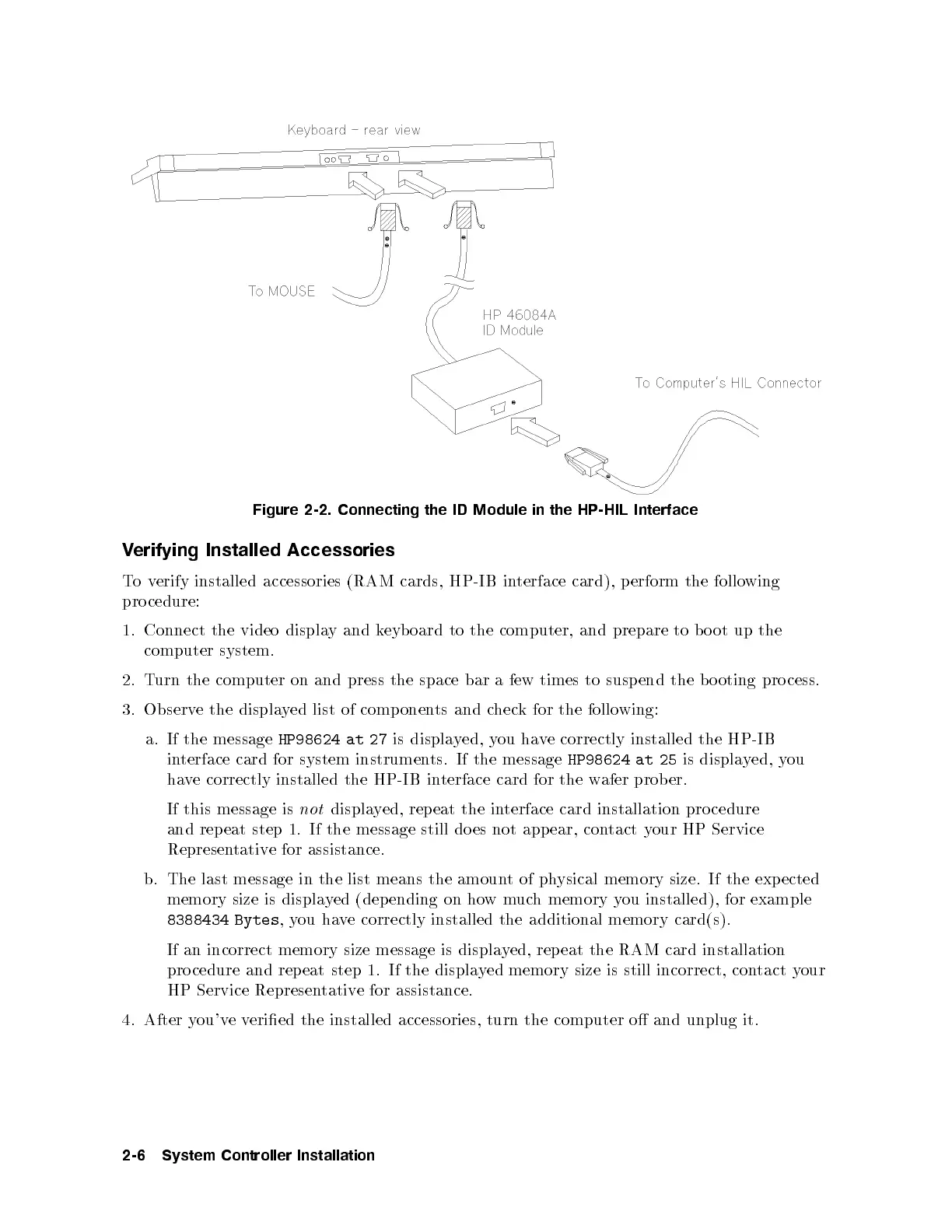
Figure 2-2. Connecting the ID Module in the HP-HIL Interface
Verifying Installed Accessories
Toverify installed accessories (RAM cards, HP-IB interface card), p erform the following
pro cedure:
1. Connect the video display and keyboard to the computer, and prepare to bo ot up the
computer system.
2. Turn the computer on and press the space bar a few times to suspend the bo oting pro cess.
3. Observe the displayed list of comp onents and check for the follo wing:
a. If the message
HP98624 at 27
is displayed, you have correctly installed the HP-IB
interface card for system instruments. If the message
HP98624 at 25
is displayed, you
have correctly installed the HP-IB interface card for the wafer prob er.
If this message is
not
displayed, repeat the interface card installation pro cedure
and rep eat step 1. If the message still does not app ear, contact your HP Service
Representative for assistance.
b. The last message in the list means the amoun
tof physical memory size. If the expected
memory size is displayed (depending on howmuch memory you installed), for example
8388434 Bytes
,you have correctly installed the additional memory card(s).
If an incorrect memory size message is displayed, repeat the RAM card installation
pro cedure and rep eat step 1. If the displayed memory size is still incorrect, contact your
HP Service Representative for assistance.
4. After you'veveried the installed accessories, turn the computer o and unplug it.
2-6 System Controller Installation



 To Next Page