Displaying and Printing Test Results
If the PV test results were saved during the tests, you can use the View Result function of the
PV4062.F to see the test results. You can display the test results on the controller monitor
or print them on the system printer. The following describes pro cedures for displaying and
printing test results:
Displaying PV Test Results:
1.
From the PV4062.F main menu page (Figure 6-4), select the
NNNNNNNNNNNNNNNNNNNNNNNNNNNNNNNNNNN
VIEW RESULT
softkey. The
View Result Start page is displayed.
2.
Select the
NNNNNNNNNNNNNNNNNNNNNNNNNNNNN
READ FILE
softkey to obtain PV test results.
3. Enter the name of the le that contains the PV test results. For example, using the le
name in step 5 of the 4062F DC W/O DVM test, type:
data/PVWO0294
4
Return
5
.
4.
Select the
NNNNNNNNNNN
CRT
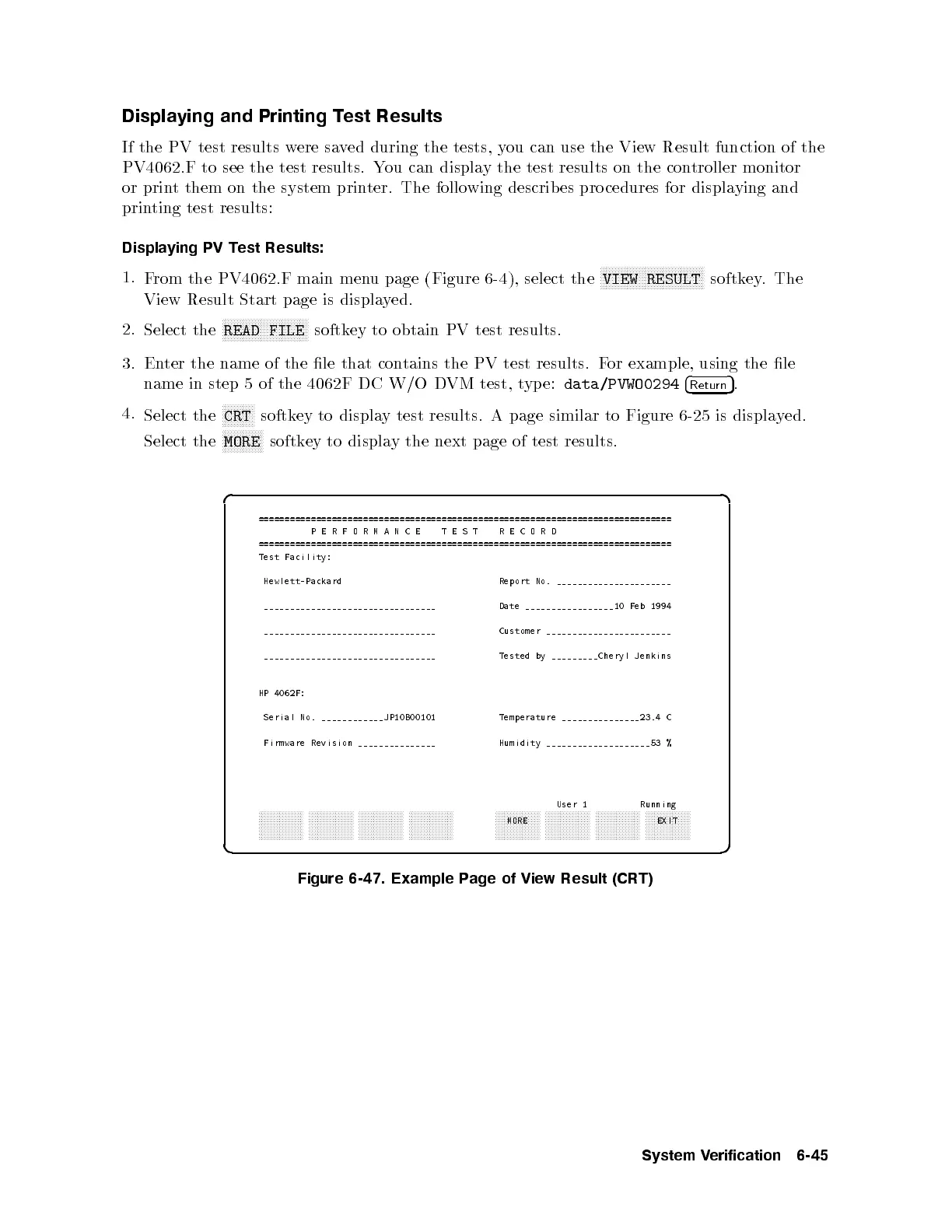
softkey to display test results. A page similar to Figure 6-25 is displayed.
Select the
NNNNNNNNNNNNNN
MORE
softkey to display the next page of test results.
d a
c b
===============================================================================
PERFORMANCE
TEST RECORD
===============================================================================
Test Facility:
Hewlett-Packard Report No. ______________________
_________________________________ Date _________________10 Feb 1994
_________________________________ Customer ________________________
_________________________________ Tested by _________Cheryl Jenkins
HP 4062F:
Serial No. ____________JP10B00101 Temperature _______________23.4 C
Firmware Revision _______________ Humidity ____________________53 %
User 1 Running
aaaaaaaaaaaaaaa aaaaaaaaaaaaaaa aaaaaaaaaaaaaaa aaaaaaaaaaaaaaa aaaaaaaaaaaaaaa
MORE
aaaaaaaaaaaaaaa aaaaaaaaaaaaaaa aaaaaaaaaaaaaaa
EXIT
Figure 6-47. Example Page of View Result (CRT)
System Verification 6-45



 To Next Page