44 Micromate Operator Manual – 721U0201 Revision 6
Confirm Printing Selection Printing Completed
d. Delete Event Files
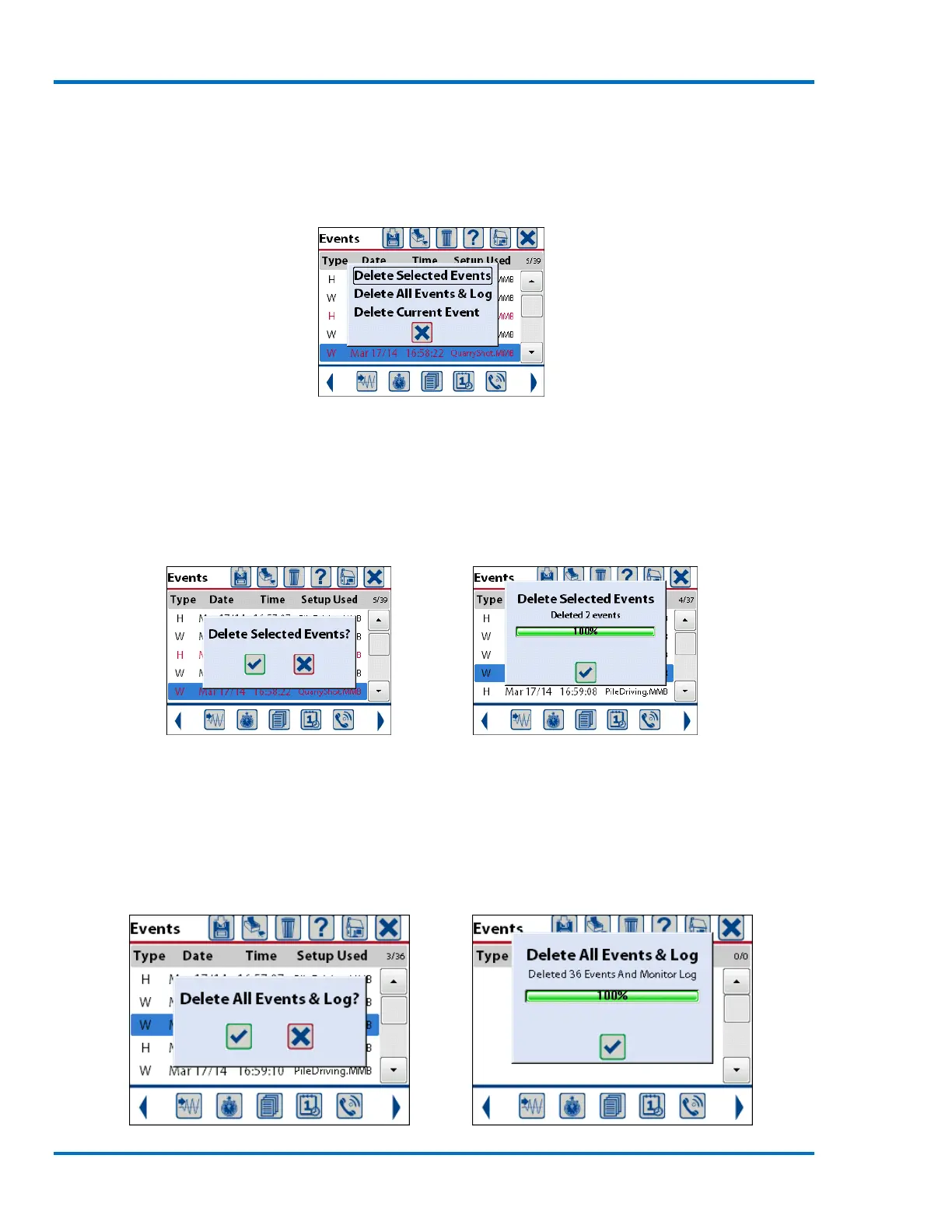
The Delete icon appears at the top of the events list display allowing for the deletion of the
Selected Events, All Events & Log or just the Current Event. Select the event(s) to be deleted and
press the delete icon. Once and event has been deleted it will be permanently removed and not
recoverable.
Delete Option
Selecting Delete Selected Events will delete only the events that have been selected. These are the
events that are displayed in red text. See above for details on selecting events. A message
confirming the selection will be displayed. Pressing the check mark key or touching the check mark
on the screen will start the deletion of the events. A status window will be displayed showing the
progress of the overall deletion process. When all of the events have been deleted press the check
mark to confirm and clear the window.
Confirm Delete Selection Deletion Completed
Selecting Delete All Events & Log will delete all of the events and log files that have been stored on
the Micromate. A message confirming the selection will be displayed. Pressing the check mark key
or touching the check mark on the screen will start the deletion of the events. A status window will
be displayed showing the progress of the overall deletion process. When all of the events have
been deleted press the check mark to confirm and clear the window.



 To Next Page