Chapter 2 Login 18
Refer to Assign a fixed IP address to your computer in Appendix for details of step 2 above.
3. Start a web browser on your computer, and visit the IP address of the CPE.
If the CPE is set to Client, Universal Repeater, Repeater or P2MP mode, use the IP address you changed
when you set it to these modes to log in to the web UI. If you do not change it, try 192.168.2.1.
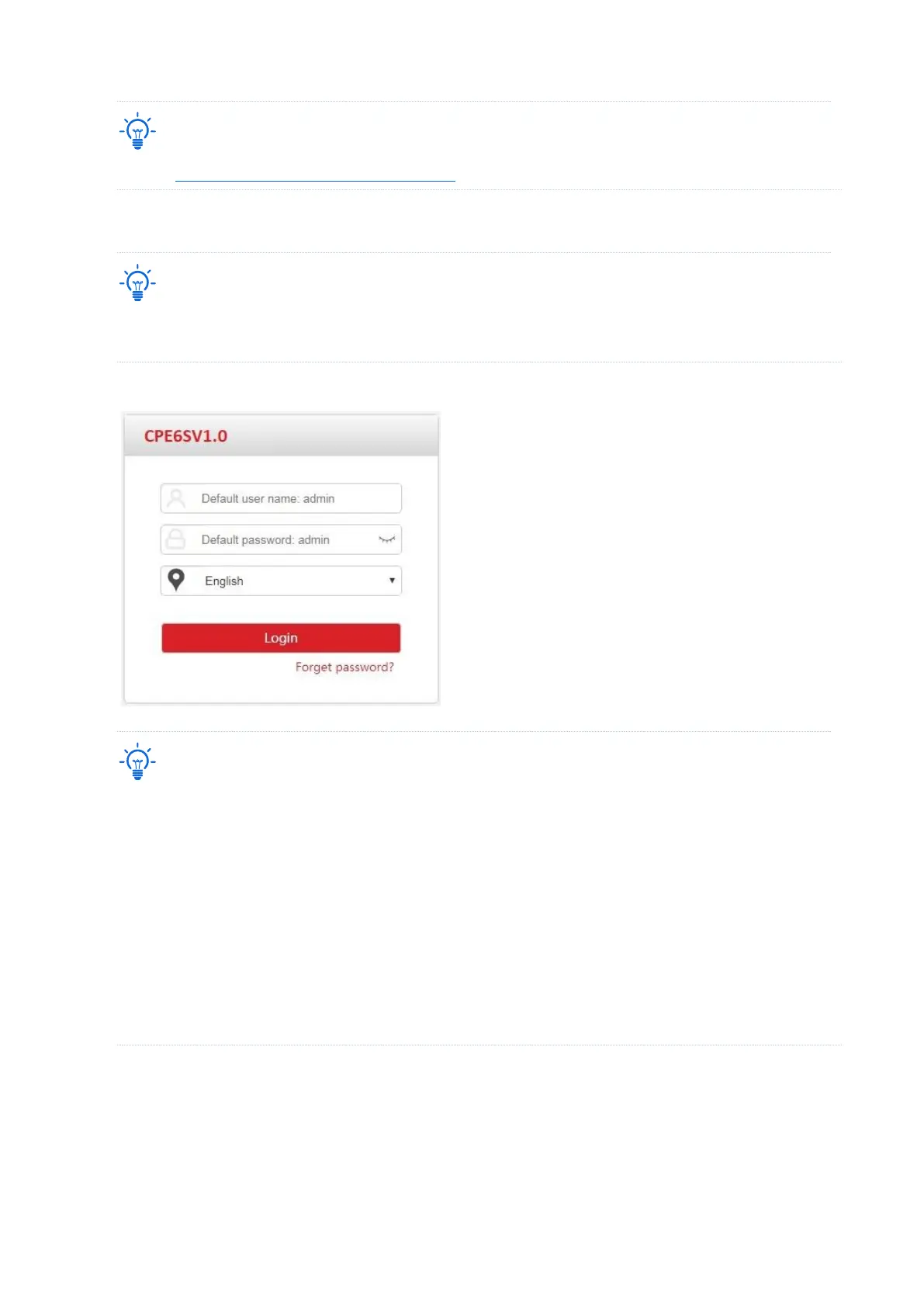
Enter the login user name and password you set (default: admin/admin), and click Login.
If the preceding page does not appear, please try the following methods:
− Ensure that the CPE is powered on properly.
− Ensure that the computer is connected to the LAN port of the CPE properly.
− Ensure that the IP address of the computer is in the same network segment of the CPE’s IP address. For
example, if the default IP address of the CPE is 192.168.2.1, you can set the IP address of the computer
to 192.168.2.X (X ranges from 2 to 254 and is not occupied).
− If more than one CPE is connected, please modify the IP address of each one to avoid the failure to log
in the web UI of the CPE due to IP address conflict.
− Reset the CPE to factory settings. Reset method: With the CPE powered on, hold down the reset button
for about 8 seconds, and then release it when all indicators light up and then turn off. The CPE is
restored to factory settings successfully.
----End


 To Next Page