Need help?
Do you have a question about the JVC GR-DV3 and is the answer not in the manual?
Cautions regarding handling and use of lithium cell batteries for the remote control unit.
Important warnings about electrical safety and operational notes for the camcorder and charger.
Guidelines for safe operation to prevent physical damage to the camcorder and user.
Cautions for handling lithium-ion batteries, including charging, disposal, and risks of fire or explosion.
Lists the AC charger station and DC power cord included with the camcorder.
Describes the grip/hand strap and the BN-V607U battery pack.
Details the VIDEO/AUDIO cable, S-VIDEO cable, and Editing cable.
Explains the digital video camera's signal processing and recording format for DV tapes.
Instructions on how to charge the camcorder's battery pack using the AC charger station.
Steps to install the charged battery pack into the camcorder.
How to power the camcorder indoors using the AC Charger Station instead of a battery.
Instructions for attaching and using the optional battery holder for extended use.
Guide to setting the date and time, which is recorded on tape.
Step-by-step guide on how to load and unload Mini DV cassettes.
How to select recording modes like SP (Standard Play) or LP (Long Play).
How to attach and adjust the camcorder's grip strap for secure handling.
Instructions for mounting the camcorder onto a tripod using the bottom socket.
How to adjust the viewfinder's diopter for clear viewing.
Overview of the remote control unit's buttons and functions.
Steps to install the CR2025 lithium battery in the remote control unit.
How to select the camcorder's operating modes like Auto, Manual, and Playback.
Guide to performing basic recording operations, including starting and stopping.
How to resume recording on a tape after it has been stopped or played.
Explanation of how time codes are recorded and used for editing.
How to use the camcorder's zoom function during recording.
How to set the camcorder to display date and time information during recording.
How to use the 5-second recording mode for short clips.
How to use the self-timer function to record yourself in the scene.
How to take still pictures (snapshots) using the camcorder.
How to access and use the camcorder's various menus for settings.
How to change tape recording speed (SP/LP) for extended recording time.
How to use wide-screen recording modes like Squeeze and Cinema.
How to select optical and digital zoom levels for closer shots.
How to use DIS to reduce image shake from hand-held shooting.
How to adjust gain for brighter images in low light conditions.
How to access and set system-level functions like Photo Mode and Sound Mode.
Options for taking snapshots, including frame and multi-view modes.
Describes 5S, 5SD, and Animation scene recording modes.
How to control the camcorder's beep sounds and tally lamp during operation.
How to activate wind cut to reduce noise from wind during recording.
How to select audio sampling rates (32 kHz or 48 kHz) for recording.
How to activate demo mode to showcase camcorder features.
How to apply fade and wipe transitions between scenes for creative editing.
Explains how fade-in/out and wipe-in/out effects work and how to activate them.
How to combine picture wipe and dissolve effects for professional transitions.
How the camcorder randomly selects fade/wipe effects for scene transitions.
Lists all available fade and wipe effects for scene transitions.
Continues the list of available fade and wipe effects for scene transitions.
How to apply P.AE/Effects for creative control over recording exposure and shutter.
How to select variable shutter speeds for different shooting conditions.
How to apply a classic film look to recorded scenes.
How to create a strobe effect for a snapshot-like appearance.
How to use slow shutter for shooting in dark areas or for specific effects.
How to use the twilight mode for natural-looking evening scenes.
How to apply a sepia tone for an old-fashioned look.
How to record footage in black and white for a classic film effect.
How to manually adjust the camcorder's focus for precise sharpness.
How to manually adjust exposure for brightness in challenging lighting conditions.
How to lock the iris to maintain consistent brightness during zooming or subject movement.
How to adjust white balance for accurate color reproduction under various lighting.
How to perform manual white balance adjustment using a white paper reference.
Guide to watching recorded footage using the camcorder's viewfinder or connected TV.
How to quickly search through recorded tapes using fast-forward or rewind.
How to pause playback to view a single frame or hold an image.
How to play back footage at a slower speed for detailed viewing.
How to magnify recorded images up to 10X during playback.
How to apply visual effects like Classic Film, Sepia, or Strobe during playback.
How to set playback options like sound mode, display, and time code.
How to select sound output modes (Stereo, L/R channels) during playback.
How to show or hide the time code overlay during playback for editing.
How to show or hide the date and time overlay during playback.
How to connect the camcorder directly to a TV or VCR using AV cables.
How to connect the camcorder to a TV or VCR using the AC Charger Station.
How to connect to video units with a DV connector for digital transfer or dubbing.
How to copy recorded scenes from the camcorder to a videotape using a VCR.
How to copy recorded scenes digitally to another unit with a DV connector.
How to set the VCR brand for remote control operation.
How to create edited tapes by selecting scenes and transitions.
How to mark the start point of a scene for editing.
How to mark the end point of a scene for editing.
How to apply Fade/Wipe effects to transitions between scenes.
How to apply P.AE/Effects to selected scenes during editing.
How to add multiple scenes to the editing sequence.
How to rewind the tape to the beginning of the desired scene.
How to set the VCR to record-pause mode.
How to begin the editing process using the camcorder's start button.
How to stop the editing process and engage stop modes.
How to ensure synchronization between camcorder and VCR for cleaner edits.
How to check and diagnose VCR timing against the camcorder.
How to adjust VCR speed to match camcorder timing for accurate edits.
How to add or replace audio commentary on recorded tapes.
Steps to troubleshoot if the camcorder does not turn on or receive power.
How to resolve the "SET DATE/TIME!" indicator message.
Troubleshooting steps if recording is not possible.
Steps to take if no image is displayed during playback.
How to fix issues where menu or select dial functions are not working.
Troubleshooting steps if automatic focus adjustment fails.
How to resolve issues with loading cassettes properly.
Steps to take if playback, rewind, or fast-forward functions are not working.
Troubleshooting steps if the tape moves but no picture is displayed.
How to resolve issues where 5-second recordings end prematurely.
Steps to take if the snapshot mode cannot be used.
How to troubleshoot problems with the digital zoom function.
How to fix problems with P.AE/Effects, Fade/Wipe, B&W Fader, or Dissolve.
Troubleshooting steps if scene transitions do not occur as expected.
How to resolve problems with Picture Wipe and Dissolve effects.
How to troubleshoot if the Picture Wipe function is not working.
How to address cases where the image resembles slow shutter without it being selected.
Troubleshooting steps if strobe or classic film effects are not activated.
How to resolve problems with activating the white balance function.
How to address vertical lines appearing in bright light or screen discoloration.
Troubleshooting steps for audio problems, potentially related to dubbing.
Steps to take if sound is not heard during recording.
How to fix the issue of date/time not displaying during recording.
Troubleshooting steps if on-screen indicators and messages are not visible.
How to make viewfinder indicators reappear if they are hidden.
How to resolve issues with blinking viewfinder indications due to function conflicts.
Explanation of colored bright spots on the viewfinder, which are normal.
Troubleshooting steps if viewfinder indications appear distorted.
How to address any unusual marks appearing in the viewfinder.
How to resolve specific error codes displayed by the camcorder.
Troubleshooting steps if the charging indicator on the AC charger doesn't light up.
What to do if the LP recording mode indicator blinks.
How to avoid a black bar appearing at the bottom of the screen when printing.
Instructions on how to clean the camcorder's exterior, lens, and viewfinder.
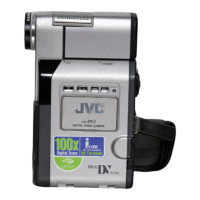
Identifies and explains the various buttons, connectors, and indicators on the camcorder.
Identifies and explains the buttons, connectors, and indicators on the AC Charger Station.
Explains the various icons and messages displayed on the viewfinder during recording.
Explains the icons and messages displayed on the viewfinder during playback.
Explains various warning icons and messages, such as low battery or tape errors.
Important safety precautions for handling and using battery packs.
Guidelines for proper use and storage of Mini DV cassettes.
Warnings and advice on avoiding damage and proper usage of the camcorder's main unit.
Explains the risks of moisture condensation and its effects on the camcorder.
Advice on what to do in case of serious malfunctions, including consulting a dealer.
Technical details of the camcorder, including power, format, lens, and dimensions.
Technical details of the AC charger station, including power and connectors.
Details on the types and specifications of various connectors used by the AC charger station.
Explanation of the iris function, similar to the human eye's pupil.
Explanation of the automatic focus adjustment feature for beginners.
Explanation of the strobe effect for a movie-like flicker.
Explanation of how digital zoom magnifies images using processing.
 General
| Camcorder Type | Digital |
|---|---|
| Optical Zoom | 10x |
| Media Format | Mini DV |
| Product Type | Camcorder |
| Still Image Resolution | 640 x 480 |
| Image Sensor | CCD |
| Screen Size | 2.5-inch |
| Recording Media | MiniDV |
| LCD Screen Size | 2.5-inch |
| Viewfinder | Color |
| Interface | IEEE 1394 (FireWire) |
| Battery Type | Lithium-ion |

 To Next Page