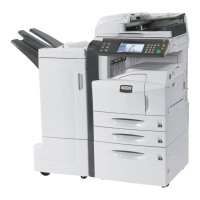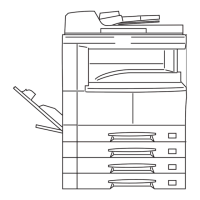
EasyManua.ls Logo

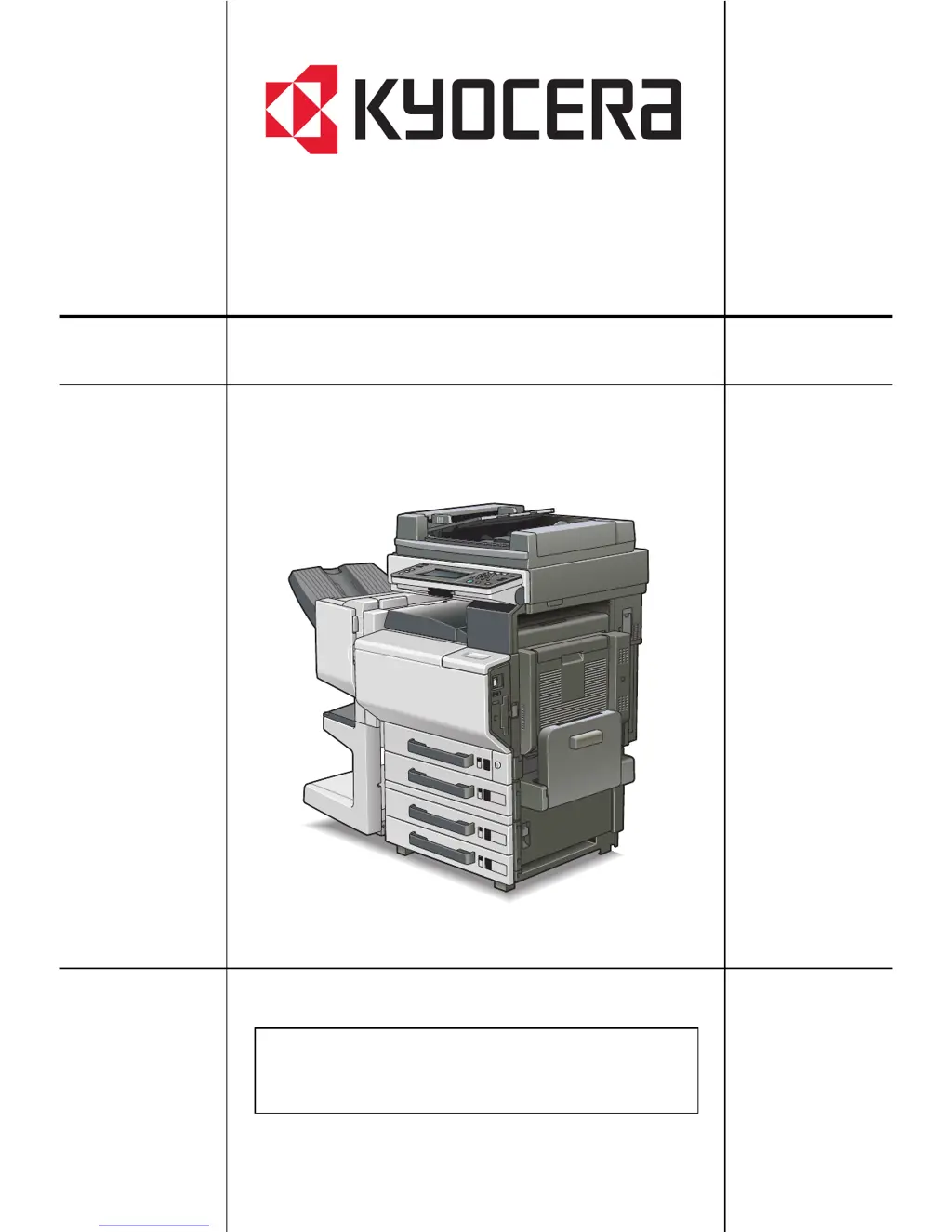
Kyocera KM-C2230 - User Manual

Kyocera KM-C2230
504 pages
Print Icon
To Next Page IconTo Next Page
Loading...
User’s Guide
Please read the Users Guide before using the
copier.
Keep it close to the copier for easy reference.
KM-C2230

Table of Contents

Questions and Answers

  • A
    amberstanleyJul 29, 2025
    Why is the printed output too light on my Kyocera KM-C2230 All in One Printer?
    • M
      Mary MayerJul 29, 2025
      The printed output may be too light because the copy density is set too light. To resolve this, select a darker density setting. Alternatively, the paper might be damp. In this case, replace the paper.
  • C
    casey27Aug 2, 2025
    What to do if my Kyocera All in One Printer prints dark specks or streaks?
    • M
      melissa79Aug 2, 2025
      Dark specks or streaks in the printed output can occur for several reasons: * The original glass is dirty: Wipe the glass with a soft, dry cloth. * The document pad or transfer belt is dirty: Clean these parts with a soft cloth dampened with mild detergent. * The original document is highly translucent: Place a blank sheet of paper on top of the document. * A double-sided document is being copied: Touch [Density] and select a lighter background setting. * The electrostatic charger is dirty: Use the charger-cleaning tool to clean it.
  • J
    Jason DavisAug 7, 2025
    Why is the printed output too dark on my Kyocera KM-C2230 All in One Printer?
    • S
      Sarah StewartAug 7, 2025
      The printed output may be too dark because the copy density is set too dark. To fix this, select a lighter density setting. Another reason could be that the document was not pressed closely enough against the original glass. Ensure the document is positioned correctly against the glass.
  • C
    Christopher CookAug 11, 2025
    How to fix blurry printed output from Kyocera KM-C2230?
    • T
      Tracy GuerraAug 11, 2025
      Blurry printed output can be caused by a couple of issues. First, the paper might be damp, so replace it. Second, the document may not be pressed closely enough against the original glass. Make sure to position the document correctly.
  • J
    Jordan AndersonAug 15, 2025
    Why is the image not aligned properly on the paper with my Kyocera KM-C2230?
    • R
      Ralph JohnsonAug 15, 2025
      Misalignment can occur for several reasons: * The document is not positioned correctly: Position the document against the document width scales. If using the reverse automatic document feeder, adjust the document guides. * The document is not positioned correctly in the reverse automatic document feeder: Position the document on the original glass. * The original glass is dirty (when using the reverse automatic document feeder): Wipe the glass with a soft, dry cloth. * The document guides are not slid against the edges of the document: Slide the document guides against the edges. * Curled paper was loaded into the paper drawer: Flatten the paper before loading it.
  • G
    gdavisAug 25, 2025
    How to prevent the printed page from curling on my Kyocera KM-C2230?
    • S
      scott45Aug 25, 2025
      If the printed page is curling, it might be because the paper that was used (like recycled paper) curls easily. Try removing the paper from the paper drawer, turning it over, and then loading it again. If that doesn't work, replace the paper with paper that is not damp.
  • R
    rhondalewisNov 19, 2025
    What to do if the edge of the printed output is dirty on my Kyocera All in One Printer?
    • T
      twallsNov 19, 2025
      A dirty edge on the printed output can be due to a few reasons: * Either the document pad or the document transfer belt is dirty: Clean the document pad or the document transfer belt with a soft cloth dampened with a mild detergent. * The selected paper size is larger than the document (with a Zoom setting of “×1.000”): Select a paper size that is the same size as the document, or select the “Auto Zoom” setting to enlarge the copy to the selected paper size. * The orientation of the document is different from the orientation of the paper (with a Zoom setting of “×1.000”): Select a paper size that is the same size as the document. Otherwise, select a paper orientation that is the same as that of the document. * The copy was reduced to a size smaller than the paper (a reduced zoom r...

Kyocera KM-C2230 Specifications

General IconGeneral
FunctionsPrint, Copy, Scan, Fax
Print Speed (Black)22 ppm
Print Speed (Color)22 ppm
Print Resolution600 x 600 dpi
Copy Speed22 cpm
Copy Resolution600 x 600 dpi
Scan Resolution600 x 600 dpi
Fax Modem Speed33.6 Kbps
Paper Capacity250 sheets
Duplex PrintingYes
Operating System CompatibilityWindows, Mac
TypeMultifunction / All-In-One
Paper SizeA4
ConnectivityUSB, Ethernet

Related product manuals