EasyManua.ls Logo

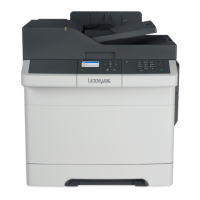
Lexmark CX310dn - User Manual

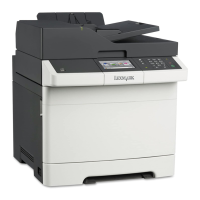
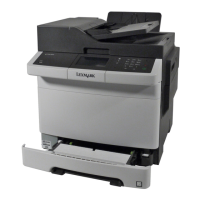
Lexmark CX310dn
394 pages
Print Icon
To Next Page IconTo Next Page
Loading...
Lexmark CXx10 MFP
Machine Type 7527-2xx, -4xx, -63x
Service Manual
Start diagnostics
Maintenance
Safety and notices
Trademarks
Index
January 17, 2013 www.lexmark.com
P/N 12G3313

Table of Contents

Other manuals for Lexmark CX310dn

Questions and Answers

  • J
    Joyce LeeAug 29, 2025
    What to do if my Lexmark Printer says '[Color] cartridge very low, [x] estimated pages remain'?
    • G
      Garrett MurphyAug 29, 2025
      If your Lexmark printer displays a message indicating a '[Color] cartridge very low', you may need to replace the toner cartridge very soon. If necessary, select Continue on the printer control panel to clear the message and continue printing. For non-touch-screen printer models, press to confirm.
  • T
    Theresa FrancisSep 5, 2025
    What to do if my Lexmark Printer shows 'Incompatible tray [x]'?
    • K
      kennethmannSep 5, 2025
      If your Lexmark printer displays 'Incompatible tray [x]', remove and then reinstall the indicated tray to clear the message.
  • E
    erochaAug 28, 2025
    What to do if my Lexmark Printer says 'Remove paper from standard output bin'?
    • S
      Stacy BrownAug 28, 2025
      If your Lexmark printer displays the message 'Remove paper from standard output bin', remove the paper stack from the standard bin.
  • A
    Ashley FloydSep 23, 2025
    What to do if Lexmark Printer says 'Scanner disabled. Contact system administrator if problem persists.'?
    • S
      Sarah JonesSep 23, 2025
      If your Lexmark printer displays 'Scanner disabled. Contact system administrator if problem persists.', from the printer control panel, try one or more of the following: Select Continue with scanner disabled to return to the home screen, and then contact your system support person. You can also select Reboot and automatically enable scanner to cancel the job.
  • R
    Robert BatesSep 6, 2025
    How to fix 'Reinstall missing or unresponsive [color] cartridge' on Lexmark Printer?
    • J
      Jeffrey BrownSep 6, 2025
      If your Lexmark printer displays 'Reinstall missing or unresponsive [color] cartridge', first check if the toner cartridge is missing and install it if it is. If the cartridge is already installed, remove and reinstall the unresponsive toner cartridge. If the message persists after reinstalling, replace the toner cartridge, as it may be defective or a non-genuine Lexmark supply.
  • R
    Richard HudsonSep 9, 2025
    What to do if Lexmark Printer says 'Replace all originals if restarting job'?
    • A
      Amanda WilliamsSep 9, 2025
      If your Lexmark printer displays 'Replace all originals if restarting job', from the printer control panel, try one or more of the following: Select Scan from automatic feeder, and then press to continue scanning from the ADF immediately after the last successful scan job. Select Scan from flatbed, and then press to continue scanning from the scanner glass immediately after the last successful scan job. Select Finish job without further scanning, and then press to end the last successful scan job. Select Restart Job, and then press to restart the scan job with the same settings from the previous scan job. Select Cancel Job, and then press to clear the message and cancel the scan job.
  • R
    rvasquezSep 13, 2025
    What to do if my Lexmark Printer says 'Standard USB port disabled'?
    • S
      Stephanie BeasleySep 13, 2025
      If your Lexmark printer displays 'Standard USB port disabled', from the printer control panel, select Continue to clear the message. For non-touch-screen printer models.
  • J
    jason87Sep 23, 2025
    What to do if my Lexmark Printer says 'Scanner disabled by admin'?
    • T
      thunterSep 23, 2025
      To address the 'Scanner disabled by admin' message on your Lexmark printer, print without the scanner, or contact your system support person.
  • K
    Katie FrazierAug 26, 2025
    How to fix 'Close door' error on Lexmark Printer?
    • K
      Katrina LynchAug 26, 2025
      To resolve the 'Close door' message on your Lexmark printer, ensure that the right side cover is installed, and then close the front and top doors.
  • C
    Catherine AndersonAug 25, 2025
    What to do if my Lexmark Printer says '[Type] imaging kit low'?
    • R
      Robert ClarkAug 26, 2025
      If your Lexmark printer displays a message indicating that the '[Type] imaging kit low', you may need to order an imaging kit. If necessary, select Continue on the printer control panel to clear the message and continue printing.

Lexmark CX310dn Specifications

General IconGeneral
Duplex printingYes
Print technologyLaser
Maximum resolution1200 x 1200 DPI
Time to first page (black, normal)11.5 s
Time to first page (color, normal)12.5 s
Print speed (black, normal quality, A4/US Letter)23 ppm
Duplex print speed (black, normal quality, A4/US Letter)12 ppm
All-in-one functionsCopy, Print, Scan
Color all-in-one functionscopy, print, scan
Digital senderNo
Printing colorsBlack, Cyan, Magenta, Yellow
Maximum duty cycle60000 pages per month
Recommended duty cycle500 - 5000 pages per month
Number of print cartridges5
Page description languagesMicrosoft XPS, PCL 5c, PCL 6, PDF 1.7, PostScript 3, PPDS
Copier resize25 - 400 %
Copy speed (black, normal quality, A4)23 cpm
Scanner typeFlatbed & ADF scanner
Maximum scan area216 x 356 mm
Scan speed (color)32 ppm
Optical scanning resolution600 x 1200 DPI
Total input capacity251 sheets
Total output capacity150 sheets
Maximum input capacity901 sheets
Total number of input trays1
Maximum number of input trays3
Auto document feeder (ADF) input capacity50 sheets
Paper tray media typesCard stock, Labels, Plain paper, Transparencies
Paper tray media weight60 - 176 g/m²
Non-ISO print media sizesExecutive (184 x 267mm), Folio (media size), Legal (media size), Letter (media size), Oficio (media size)
ISO A-series sizes (A0...A9)A4, A5
JIS B-series sizes (B0...B9)B5
Maximum ISO A-series paper sizeA4
DisplayLCD
Product colorBlack, Grey
Display diagonal2.4 \
Market positioningBusiness
Standard interfacesEthernet, USB 2.0
Optional connectivityWireless LAN
USB 2.0 ports quantityUSB 2.0 ports have a data transmission speed of 480 Mbps, and are backwards compatible with USB 1.1 ports. You can connect all kinds of peripheral devices to them.
Supported network protocols (IPv4)TCP/IP IPv4, AppleTalk
Supported network protocols (IPv6)TCP/IP IPv6, TCP, UDP
Internal memory512 MB
Processor frequency800 MHz
Maximum internal memory2560 MB
Sound power level (standby)16 dB
Sound pressure level (copying)48 dB
Sound pressure level (printing)47 dB
Sound pressure level (scanning)49 dB
Sound pressure level (duplex printing)50 dB
Power consumption (average operating)- W
Package depth594 mm
Package height567 mm
Package weight31430 g
Operating altitude0 - 2896 m
Operating temperature (T-T)16 - 32 °C
Operating relative humidity (H-H)8 - 80 %
Mac operating systems supportedMac OS X 10.5 Leopard, Mac OS X 10.6 Snow Leopard, Mac OS X 10.7 Lion, Mac OS X 10.8 Mountain Lion
Linux operating systems supportedFedora 14, Fedora 15, RedHat EL Linux 4.0 U5, RedHat EL Linux 4.0 U6, RedHat EL Linux 4.0 U7, RedHat EL Linux 5.0, RedHat EL Linux 5.1, RedHat EL Linux 5.2, RedHat EL Linux 5.3, SuSE Linux 10, SuSE Linux 10.2, SuSE Linux 10.3, SuSE Linux 11
Other operating systems supportedNovell NetWare 5.x, Novell NetWare 6.x, Novell Open Enterprise Server
Server operating systems supportedWindows Server 2003, Windows Server 2003 x64, Windows Server 2008, Windows Server 2008 R2, Windows Server 2008 x64
Weight and Dimensions IconWeight and Dimensions
Depth558 mm
Width444 mm
Height470 mm
Weight27390 g

Related product manuals