Quick Start LiveU LU600 User Guide
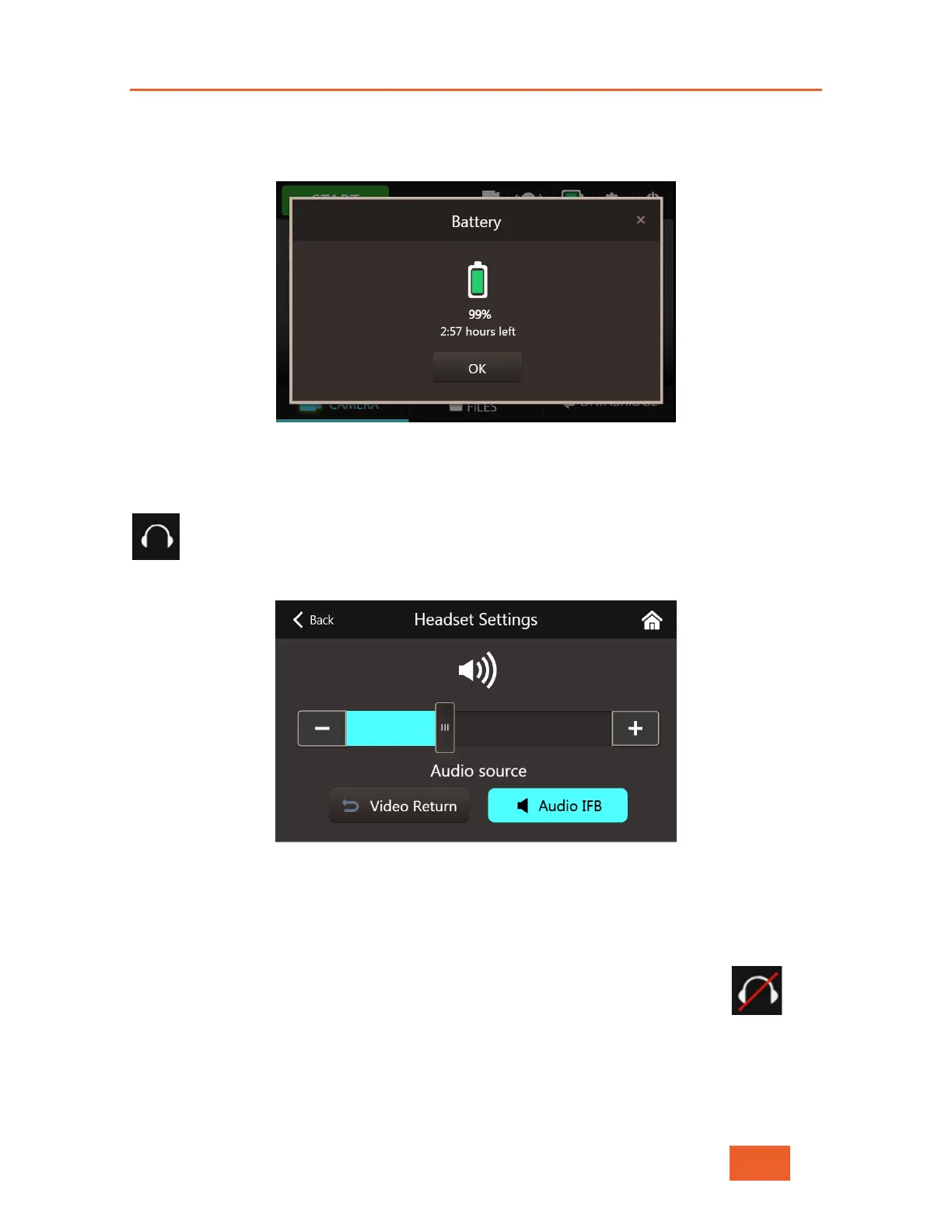
For a more precise battery status, tap on the battery icon. A screen will open that shows
percentage charge, and estimated operation time remaining, based on your usage pattern
of the LU600.
Figure 12: LiveU LU600 Battery Status Screen
IFB Headphone Detection & Control
A headphone icon will appear whenever a headphone is plugged into the audio jack
on the video card. Tapping this icon will open the IFB Volume screen, allowing you
to change the volume of any incoming audio signal, and to select the audio source,
either IFB or the Video Return feed.
Figure 13: IFB Volume Screen
• Select the audio source by pressing on either the Video Return or the Audio IFB
buttons.
• Move the slider right or left, to raise or lower the volume of any incoming audio.
• To mute incoming audio altogether, move the slider all the way to the
left. Once you have exited this screen (either by tapping on Back, or
on the Home icon), the headphones icon will show as muted.


 To Next Page