Using the LU600 LiveU LU600 User Guide
• Each active interface on the Connections screen will display 0 kbps while the LU600
is not streaming, actual bandwidth will be displayed once the unit starts streaming.
• Tap an interface in the list to configure it.
• Xtender interfaces appear in the Connections screen once an Xtender is connected.
You may refer to the LiveU Xtender User Guide for a description of the AP and
Client interfaces connected to the Xtender.
Cellular Interfaces
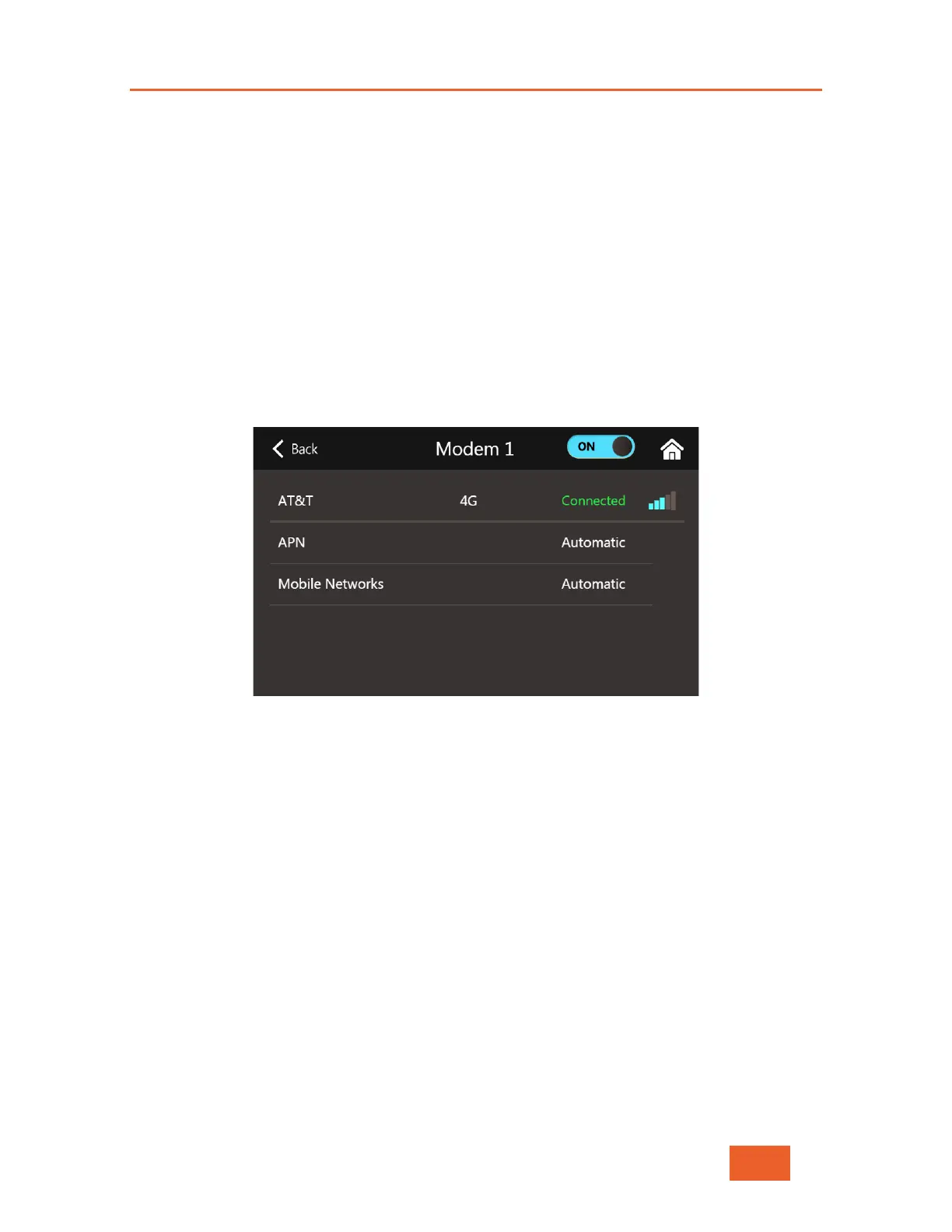
When tapping on a Cellular connection from the Connections screen, you will be taken to
the Cellular Interface screen for that connection / modem. This screen shows whether or
not the cellular interface is currently connected, the connection technology (3G, 4G etc.)
and the strength of the connection. It also allows you to change the APN parameters, and
to scan for different mobile networks to connect to when roaming.
Figure 31: Cellular Interface Screen
You can enable/disable the cellular interface from this screen using the ON/OFF toggle
switch.
Changing APN Parameters Manually
In certain situations, you might need to change the APN parameters manually in order to
successfully connect to the cellular network.
To change APN configuration:
1 In the Cellular Interface Screen, tap APN to display the following screen:


 To Next Page