Using the LU600 LiveU LU600 User Guide
Handling Network Connections
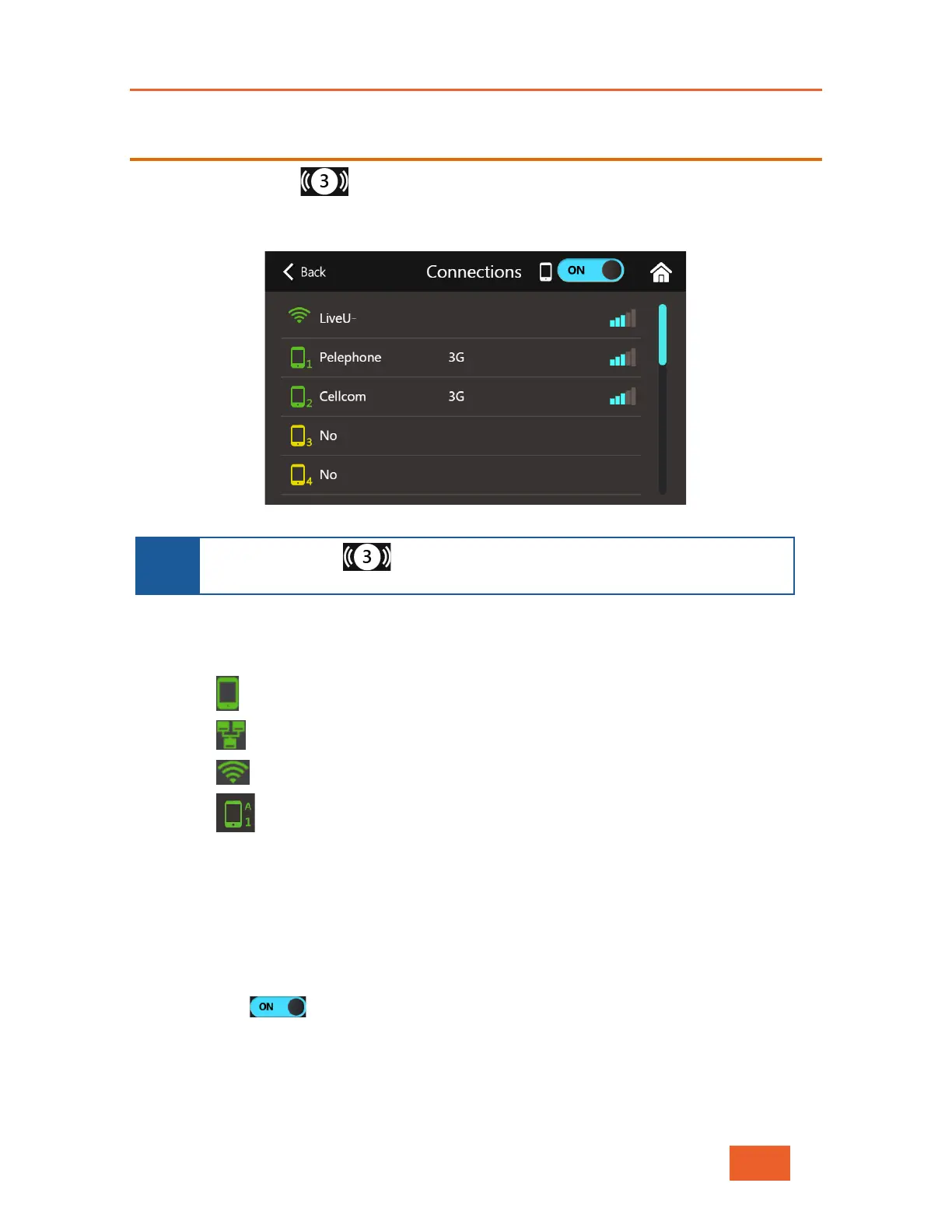
Tap the Connections button in the Home screen to display the Connections screen
which lists the interfaces that the LU600 can connect to. The LU600 will automatically
attempt to connect to all its interfaces whenever powered on.
Figure 30: Connections Screen
NOTE
The Connections button displays the number of connected interfaces
within the circle on the button in the Home screen (in this case, 3).
• Each row in the list is numbered and represents a different interface. The interface
type is indicated by an icon, as follows:
Cellular
Ethernet
WiFi
[Optional] Dual-SIM Cellular Module – this icon will also show the SIM slot
currently being used, either “A” or “B”
• The color of the icon indicates the status of the connection, as follows:
Green: Specifies that the interface is connected. It also displays its current
streaming bandwidth and signal strength, where appropriate.
Yellow: Specifies that the connection is in progress.
Gray: Specifies that the connection is disabled by the user.
• Use the button at the top of the screen to enable or disable ALL cellular
interfaces on the LU600. When set to ON, all interface types in the Connections
screen are turned on. When OFF, all the cellular connections are turned off and only
WiFi and Ethernet interfaces will be used and displayed.


 To Next Page