Using the LU600 LiveU LU600 User Guide
Channel Status Display
Once you have chosen your (non-preview) output channel, you will notice that the channel
icon will appear in GREEN if the channel is free, or in RED, if the channel is busy, i.e.
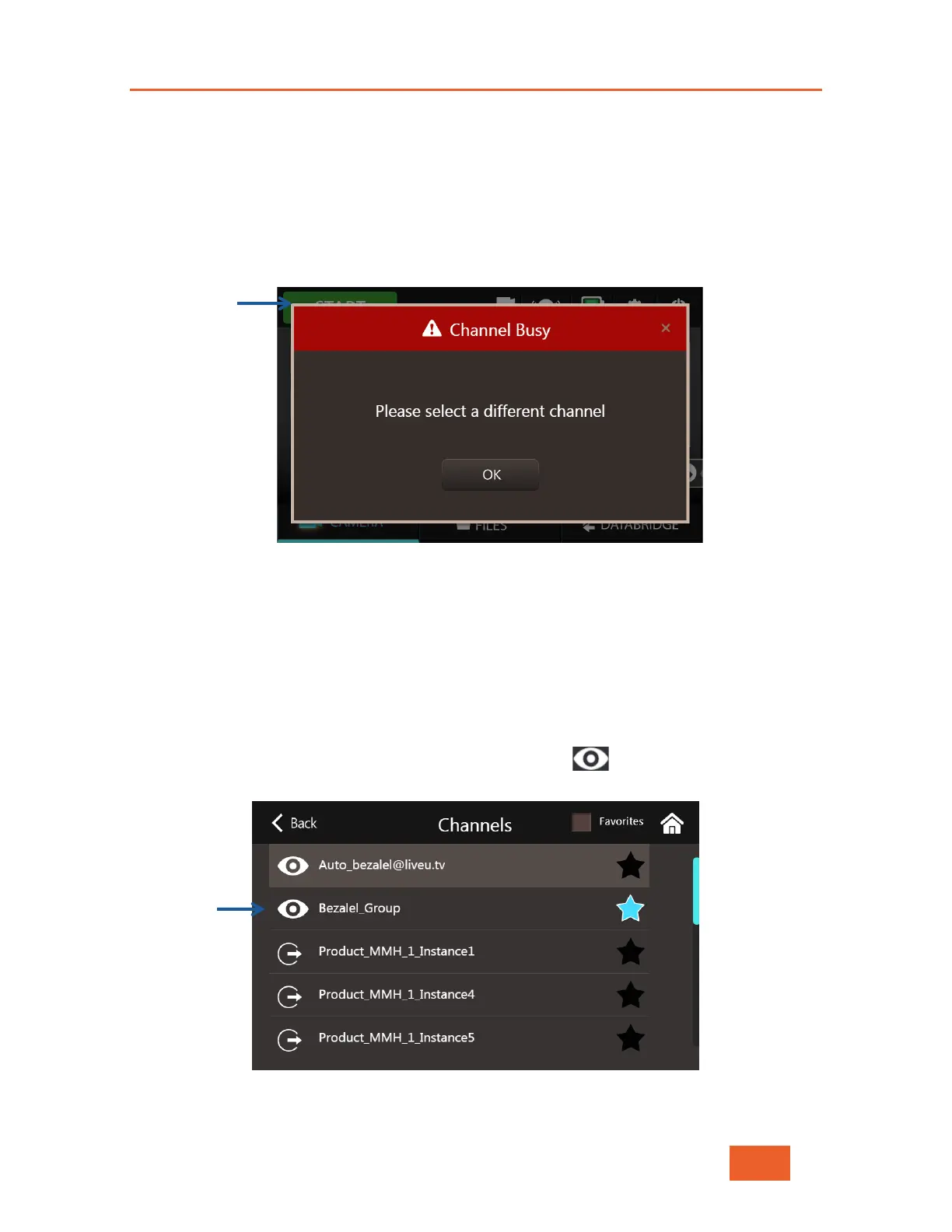
currently assigned to a different field unit. If the channel is indeed busy, you won’t be able
to start the Live broadcast, and will receive the following window when pressing the START
button:
Figure 26: Channel Busy message
Streaming to a Preview Channel (Virtual Group)
You might want to have your stream visible in LiveU Central without worrying about exactly
which output it’s being routed to. This can be done by streaming to a Virtual Group, which
allows LiveU Central operators to preview the channel and then control the destination to
which the stream is ultimately directed and sent live.
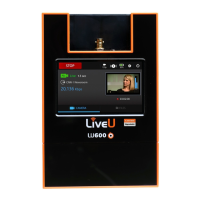
Virtual Groups are indicated in the Channels screen by the icon before the channel
name as shown below:
Figure 27: Virtual Channel


 To Next Page