Video Return LiveU LU600 User Guide
Video Output
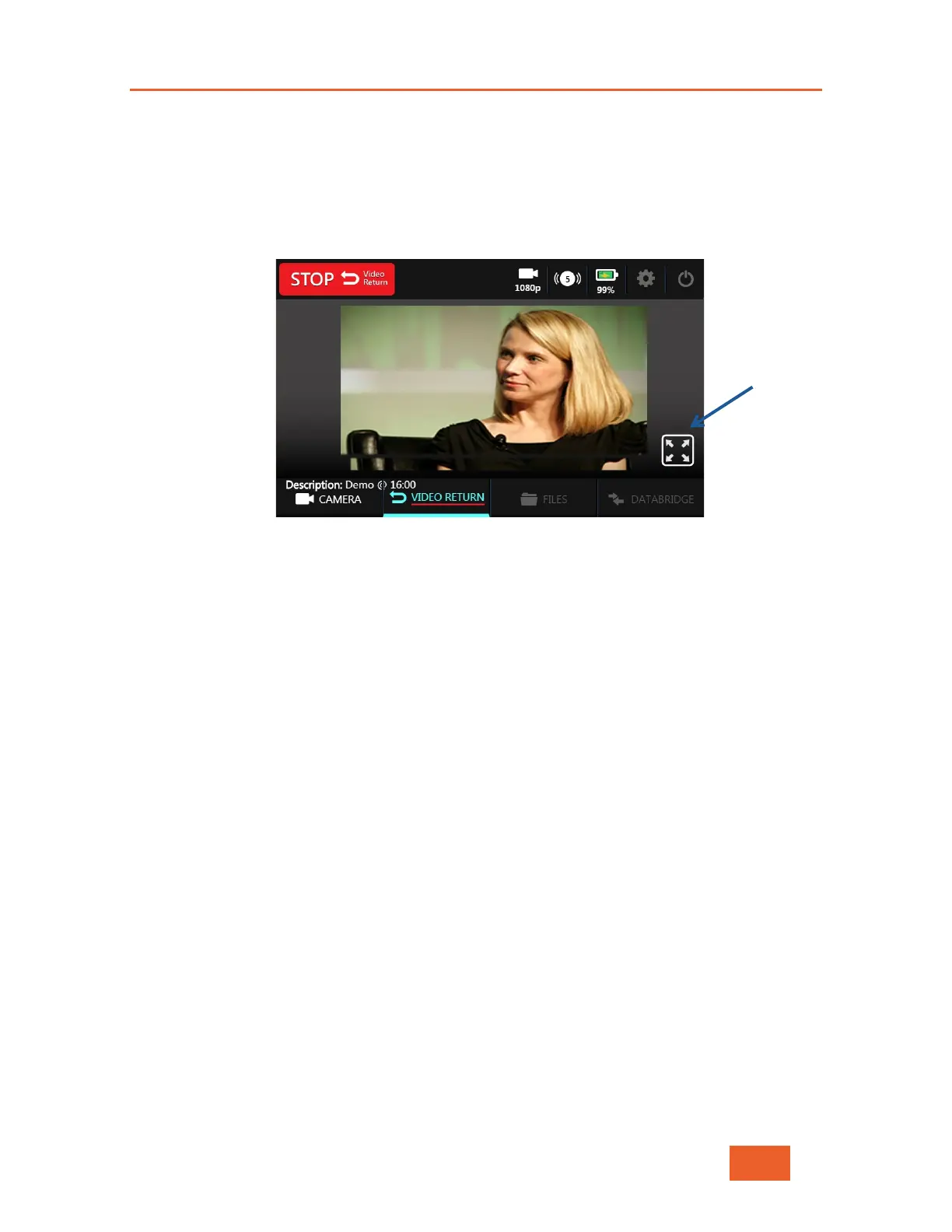
Once the Video Return channel is being shown on the local unit, you may view it on the
LU600’s built-in screen, listening to any accompanying audio by plugging headphones in
the audio jack, or output the video and audio signals to an external HDMI monitor, using
the supplied HDMI adapter cable plugged into the mini HDMI-out connector on the top of
the unit.
Figure 84: Video Return Display
You can also display the video full screen on the LU600, by tapping the crosshair icon. To
exit full-screen mode, simply double-tap the video.
Going live while streaming a Video Return channel
Once you have a live Video Return channel displayed on your unit, you can return to the
main LU600 screen by tapping the CAMERA button at the bottom left of the screen. You’ll
notice that even though you are on the Home screen, VIDEO RETURN is still active, shown
by a red line under the text. You may now start your local live stream normally by clicking
on the START button. Please note that you can start the local live stream before starting
the Video Return screen, and visa versa.


 To Next Page