MOOR INSTRUMENTS moorLDI2 RESEARCH USER MANUAL
66
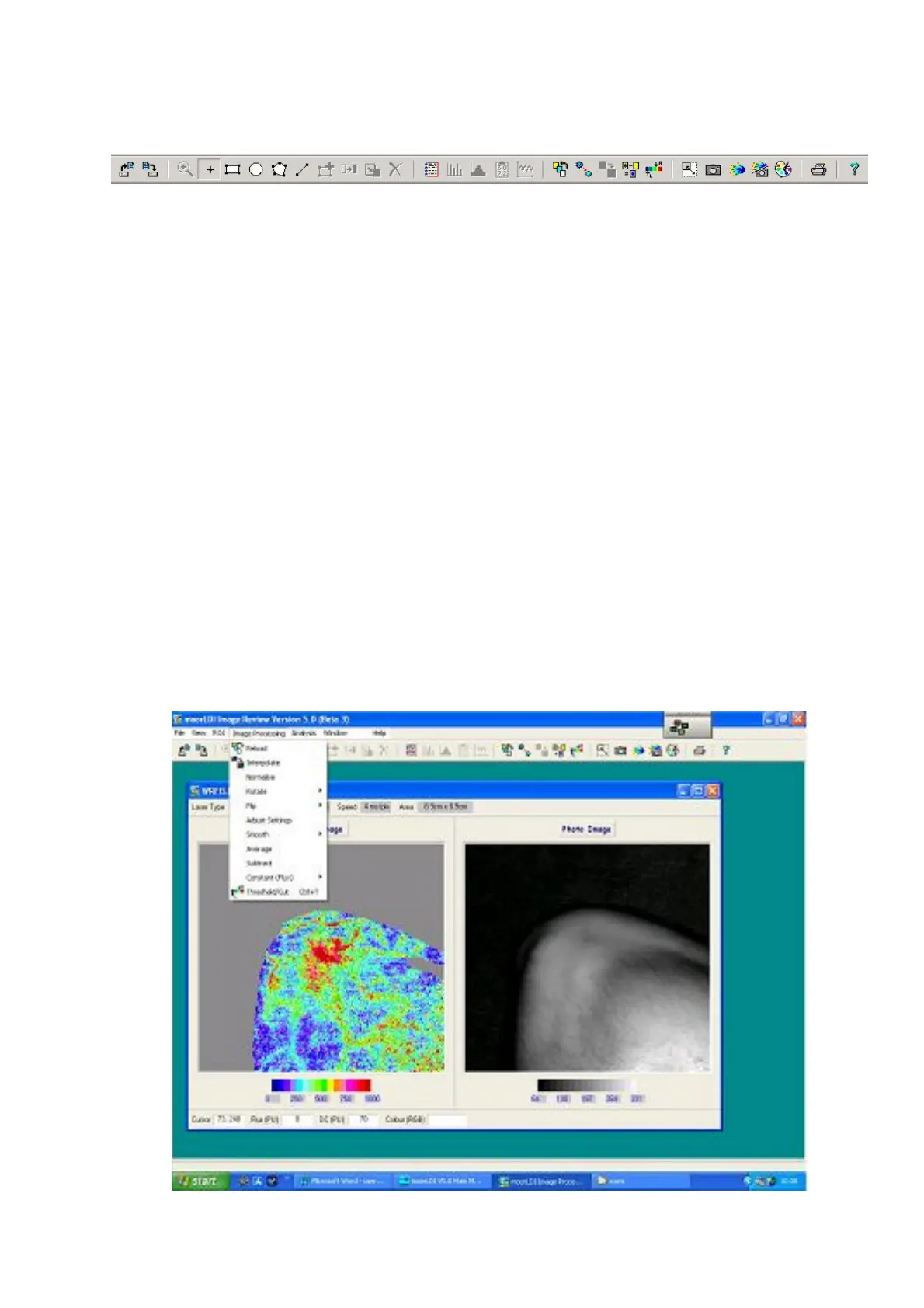
Other icons become active when an image file is opened. These are:-
1 2 3 4 5 6 7 8 9 10 11 12 13 14 15 16 17 18
1.
Save Current File with different name
2.
Select Cursor Mode
3.
Select Rectangular ROI mode
4.
Select Circle ROI mode
5.
Select Polygon ROI mode
6.
Select Line ROI mode
7.
Show Image Information
8.
Original image display - gets back to original after other processing operations.
9.
Smooth - applies a low pass filter to flux image.
10.
Interpolate - adds mean value pixel between existing pixels.
11.
Subtract image - to present difference following a change.
12.
Threshold Setup - to change min/ max threshold values.
13.
Aspect toggle - toggles between full screen and correct aspect display.
14.
Photo image - displays photo image only.
15.
Flux image - displays flux image only.
16.
Photo/Flux image - displays both photo/ flux images.
17.
Palette - opens palette box to change image colour scale.
18.
Print a Report
Further Image Processing utilities are available, other than those obtainable from shortcut icons, by
clicking on the
Image Processing
toolbar:


 To Next Page